
ファイルシステムエクスプローラ
ファイルシステムのテキストファイルを表示するためにカスタマイズされたQt Quick Controls を利用したデスクトップQMLアプリです。
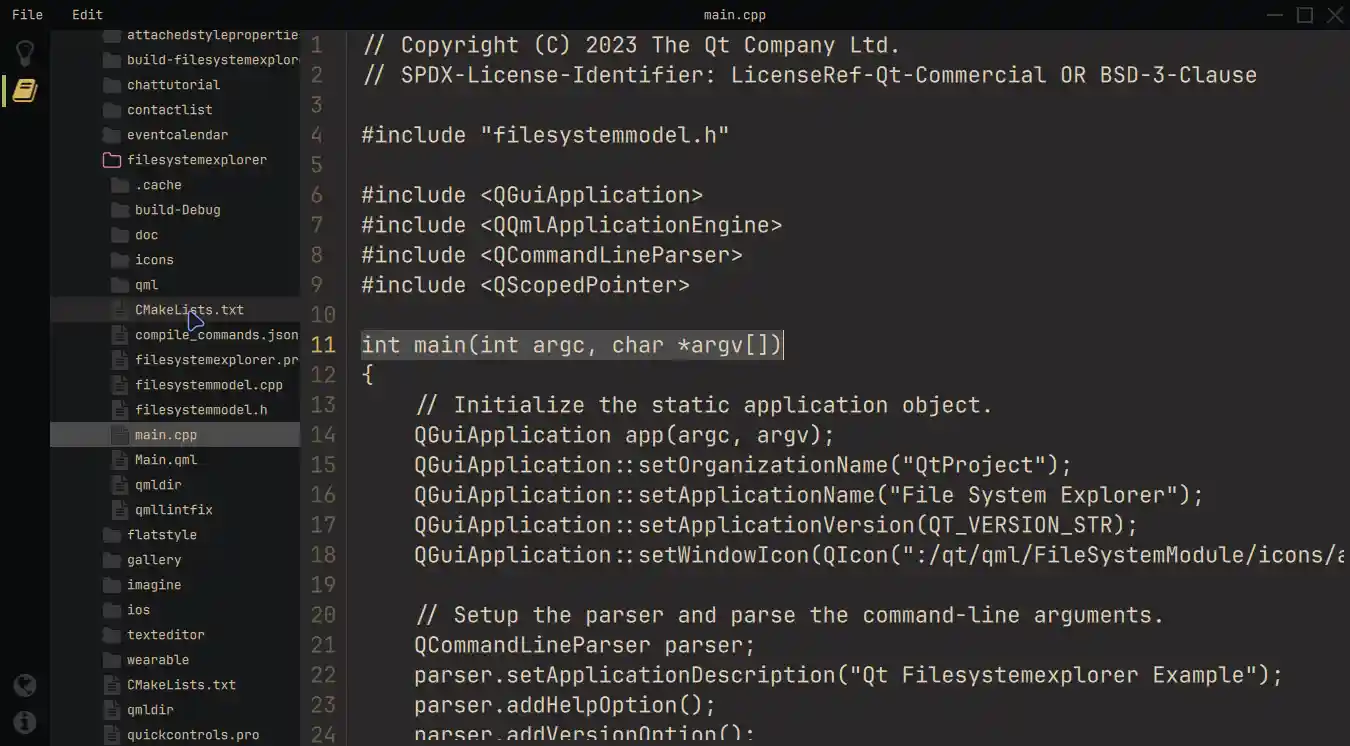
ファイルシステムエクスプローラの例では、3つの主要なコンポーネントで構成される現代的なレイアウトを使用しています:左側のアイコンベースのサイドバー、QFileSystemModel からファイルシステムを表示するサイズ変更可能なTreeView 、そして選択されたテキストファイルを表示するTextArea です。カスタマイズされたクイックコントロールとフレームレスウィンドウ、そして特殊なウィンドウ装飾により、すべてのオペレーティングシステムで共通のルック&フィールを保証します。コマンドラインからこのアプリケーションを起動する場合、パラメータとして初期ディレクトリを指定することができます。この初期ディレクトリは、TreeView 、ディレクトリ構造の表示開始点を設定するために使用されます。
例の実行
からサンプルを実行するには Qt Creatorから例を実行するには、Welcome モードを開き、Examples から例を選択します。詳細については、Qt Creator:Tutorialを参照してください:ビルドと実行を参照してください。
モダンなレイアウトと構造
まず始めに、このサンプルでは、シングルトンQMLオブジェクト全体で色を提供しています。これはアプリケーションの外観を構造的に制御するためです。
pragma Singleton

QtObject {
    readonly property color background: "#292828"
    readonly property color surface1: "#171819"
    readonly property color surface2: "#090A0C"
    readonly property color text: "#D4BE98"
    readonly property color textFile: "#E1D2B7"
    readonly property color disabledText: "#2C313A"
    readonly property color selection: "#4B4A4A"
    readonly property color active: "#292828"
    readonly property color inactive: "#383737"
    readonly property color folder: "#383737"
    readonly property color icon: "#383737"
    readonly property color iconIndicator: "#D5B35D"
    readonly property color color1: "#A7B464"
    readonly property color color2: "#D3869B"
}
この例では、オペレーティングシステムのウィンドウ装飾に依存するのではなく、ApplicationWindow 内部のFramelessWindowHint フラグを使用してカスタマイズされた装飾を作成しています。ウィンドウとの同等のインタラクションを実現するために、この例ではカスタマイズされたMenuBar のcontentItem プロパティをオーバーライドし、アプリケーションをドラッグしたり閉じたりするための情報テキストとインタラクションの可能性を表示しています。インラインコンポーネントは、このプロセスを簡素化します。
            component InteractionButton: Rectangle {
                id: interactionButton

                signal action()
                property alias hovered: hoverHandler.hovered

                Layout.fillHeight: true
                Layout.preferredWidth: height

                color: hovered ? Colors.background : "transparent"
                HoverHandler {
                    id: hoverHandler
                }
                TapHandler {
                    id: tapHandler
                    onTapped: interactionButton.action()
                }
            }

            InteractionButton {
                id: minimize

                onAction: root.dragWindow.showMinimized()
                Rectangle {
                    anchors.centerIn: parent
                    color: parent.hovered ? Colors.iconIndicator : Colors.icon
                    height: 2
                    width: parent.height - 14
                }
            }

            InteractionButton {
                id: maximize
    ...
左側のサイドバーには、上部にチェック可能なナビゲーションボタン、下部にワンショットボタンがあります。ButtonGroup 、コンテナを使用することで、常に1つのエントリのみがアクティブになります。そして、StackLayout とともに、現在の位置のプロパティ・エイリアスを使用して、異なるビューを提供することが可能です。
このテクニックにより、StackLayout の中に別のボタンと対応する要素を追加することで、機能を拡張することができます。
                StackLayout {
                    anchors.fill: parent
                    currentIndex: sidebar.currentTabIndex

                    // Shows the help text.
                    Text {
                        text: qsTr("This example shows how to use and visualize the file system.\n\n"
                                 + "Customized Qt Quick Components have been used to achieve this look.\n\n"
                                 + "You can edit the files but they won't be changed on the file system.\n\n"
                                 + "Click on the folder icon to the left to get started.")
                        wrapMode: TextArea.Wrap
                        color: Colors.text
                    }

                    // Shows the files on the file system.
                    FileSystemView {
                        id: fileSystemView
                        color: Colors.surface1
                        onFileClicked: path => root.currentFilePath = path
                    }
                }
StackLayout には、いくつかの情報テキストの他に、FileSystemView が含まれています。このカスタム・コンポーネントは、ファイルとフォルダを表示し、C++ モデルからのデータを入力します。そして、ファイルを選択し、それに応じて読み取ることができます。
QString FileSystemModel::readFile(const QString &filePath)
{
    // Don't issue errors for an empty path, as the initial binding
    // will result in an empty path, and that's OK.
    if (filePath.isEmpty())
        return {};

    QFile file(filePath);

    if (file.size() >= 2'000'000)
        return tr("File size is too big.\nYou can read files up to %1 MB.").arg(2);

    static const QMimeDatabase db;
    const QMimeType mime = db.mimeTypeForFile(QFileInfo(file));

    // Check if the mimetype is supported and return the content.
    const auto mimeTypesForFile = mime.parentMimeTypes();
    for (const auto &m : mimeTypesForFile) {
        if (m.contains("text", Qt::CaseInsensitive)
                || mime.comment().contains("text", Qt::CaseInsensitive)) {
            if (!file.open(QIODevice::ReadOnly | QIODevice::Text))
                return tr("Error opening the File!");

            QTextStream stream(&file);
            return stream.readAll();
        }
    }
    return tr("Filetype not supported!");
}
TreeView 内のフォルダを右クリックすると、ポップアップMenu が開き、TreeView のrootIndex プロパティを制御することができます。
            MyMenu {
                id: contextMenu
                Action {
                    text: qsTr("Set as root index")
                    onTriggered: {
                        fileSystemTreeView.rootIndex = fileSystemTreeView.index(treeDelegate.row, 0)
                    }
                }
                Action {
                    text: qsTr("Reset root index")
                    onTriggered: fileSystemTreeView.rootIndex = undefined
                }
            }
        }
SplitView これにより、StackLayout とエディターの間のスペースを動的に共有することができます。エディタにはTextArea があり、開いているファイルを表示し、テキスト・ファイルの編集に必要なすべての機能を提供します。さらに、エディタには行番号があり、Menu でオン/オフを切り替えることができます。
            Editor {
                id: editor
                showLineNumbers: root.showLineNumbers
                currentFilePath: root.currentFilePath
                SplitView.fillWidth: true
                SplitView.fillHeight: true
            }
カスタム・コンポーネント
カスタマイズプロセスをよりよく理解するために、まずコントロールのカスタマイズを参照してください。この例では、再利用可能でカスタマイズされたコンポーネントを使用しています。
例えば、MyMenu コンポーネントは、Menu のbackground プロパティ、デリゲートのcontentItem プロパティ、background プロパティをカスタマイズします。
// Copyright (C) 2023 The Qt Company Ltd.
// SPDX-License-Identifier: LicenseRef-Qt-Commercial OR BSD-3-Clause

import QtQuick
import QtQuick.Controls.Basic
import FileSystemModule

Menu {
    id: root

    delegate: MenuItem {
        id: menuItem
        contentItem: Item {
            Text {
                anchors.verticalCenter: parent.verticalCenter
                anchors.left: parent.left
                anchors.leftMargin: 5

                text: menuItem.text
                color: enabled ? Colors.text : Colors.disabledText
            }
            Rectangle {
                id: indicator

                anchors.verticalCenter: parent.verticalCenter
                anchors.right: parent.right
                width: 6
                height: parent.height

                visible: menuItem.highlighted
                color: Colors.color2
            }
        }
        background: Rectangle {
            implicitWidth: 210
            implicitHeight: 35
            color: menuItem.highlighted ? Colors.active : "transparent"
        }
    }
    background: Rectangle {
        implicitWidth: 210
        implicitHeight: 35
        color: Colors.surface2
    }
}
もう一つの例は、カスタマイズされたアニメーションを使用するFileSystemView 内部のScrollIndicator のカスタマイズです。ここでは、contentItem をオーバーライドしています。
        ScrollIndicator.vertical: ScrollIndicator {
            active: true
            implicitWidth: 15

            contentItem: Rectangle {
                implicitWidth: 6
                implicitHeight: 6

                color: Colors.color1
                opacity: fileSystemTreeView.movingVertically ? 0.5 : 0.0

                Behavior on opacity {
                    OpacityAnimator {
                        duration: 500
                    }
                }
            }
        }
Pythonバージョン
この例のPythonバージョンに興味がある方は、こちらをご覧ください。これはQt for Python の使い方を紹介し、同じアプリケーションを作成するためにどのように使用できるかを示しています。
さらに、詳細なチュートリアルが用意されており、この例を拡張して機能を追加する方法をステップ・バイ・ステップで説明しています。このチュートリアルは、ファイルシステムエクスプローラーの既存の機能を拡張する方法について、より詳しく知りたい場合に役立ちます。
ソースファイル
All Qt ExamplesおよびQt Quick Controls Examplesも参照して ください。
© 2026 The Qt Company Ltd. Documentation contributions included herein are the copyrights of their respective owners. The documentation provided herein is licensed under the terms of the GNU Free Documentation License version 1.3 as published by the Free Software Foundation. Qt and respective logos are trademarks of The Qt Company Ltd. in Finland and/or other countries worldwide. All other trademarks are property of their respective owners.
