
Qt Quick 的 Android Studio 项目
Qt Quick for Android API 示例以 Android Studio 项目的形式提供。项目文件夹位于 Qt 安装位置。
例如,在默认的 Windows 安装路径下,可在此处找到:
C:\Qt\Examples\Qt-/1\platforms\android
概述
本示例包含一个 QML 项目,您可以使用Qt Tools forAndroid Studio 插件将其导入 Android Studio,还包含通过使用QtQuickViewAPI 将 QML 项目用作视图的 Java 和 Kotlin 项目。
有关 QML 工作原理的更多信息,请参阅 Qt Qml.本文档将重点介绍如何将 QML 组件嵌入基于 Java 和 Kotlin 的 Android 应用程序。
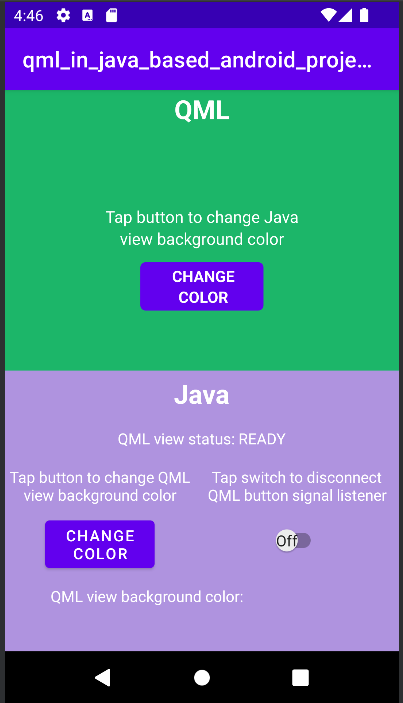
首先,我们查看 Java 和 Kotlin 项目的MainActivity'onCreate() 方法。
对于基于 Java 的项目
@Override
protected void onCreate(Bundle savedInstanceState) {
    super.onCreate(savedInstanceState);
    setContentView(R.layout.activity_main);

    m_getPropertyValueText = findViewById(R.id.getPropertyValueText);
    m_qmlStatus = findViewById(R.id.qmlStatusText);
    m_androidControlsLayout = findViewById(R.id.javaLinear);
    m_box = findViewById(R.id.qmlColorBox);
    m_switch = findViewById(R.id.disconnectQmlListenerSwitch);
    m_switch.setOnClickListener(view -> switchListener());
    m_qtQuickView = new QtQuickView(this);

    // Set status change listener for m_qmlView
    // listener implemented below in OnStatusChanged
    m_mainQmlContent.setStatusChangeListener(this);
    m_secondQmlContent.setStatusChangeListener(this);
    ViewGroup.LayoutParams params = new FrameLayout.LayoutParams(
            ViewGroup.LayoutParams.MATCH_PARENT, ViewGroup.LayoutParams.MATCH_PARENT);
    FrameLayout m_qmlFrameLayout = findViewById(R.id.qmlFrame);
    m_qmlFrameLayout.addView(m_qtQuickView, params);
    m_qtQuickView.loadContent(m_mainQmlContent);

    Button m_changeColorButton = findViewById(R.id.changeQmlColorButton);
    m_changeColorButton.setOnClickListener(view -> onClickListener());
    Button m_loadMainQmlButton = findViewById(R.id.loadMainQml);
    m_loadMainQmlButton.setOnClickListener(view -> loadMainQml());
    Button m_loadSecondQmlButton = findViewById(R.id.loadSecondQml);
    m_loadSecondQmlButton.setOnClickListener(view -> loadSecondQml());
    Button m_rotateQmlGridButton = findViewById(R.id.rotateQmlGridButton);
    m_rotateQmlGridButton.setOnClickListener(view -> rotateQmlGrid());
}
对于基于 Kotlin 的项目:
override fun onCreate(savedInstanceState: Bundle?) {
    super.onCreate(savedInstanceState)
    m_binding = ActivityMainBinding.inflate(layoutInflater)
    val view = m_binding.root
    setContentView(view)

    m_binding.disconnectQmlListenerSwitch.setOnClickListener { switchListener() }

    m_qtQuickView = QtQuickView(this)

    // Set status change listener for m_qmlView
    // listener implemented below in OnStatusChanged
    m_mainQmlContent.setStatusChangeListener(this)
    m_secondQmlContent.setStatusChangeListener(this)

    val params: ViewGroup.LayoutParams = FrameLayout.LayoutParams(
        ViewGroup.LayoutParams.MATCH_PARENT, ViewGroup.LayoutParams.MATCH_PARENT
    )
    m_binding.qmlFrame.addView(m_qtQuickView, params)
    m_qtQuickView!!.loadContent(m_mainQmlContent)

    m_binding.changeQmlColorButton.setOnClickListener { onClickListener() }
    m_binding.loadMainQml.setOnClickListener { loadMainQml() }
    m_binding.loadSecondQml.setOnClickListener { loadSecondQml() }
    m_binding.rotateQmlGridButton.setOnClickListener { rotateQmlGrid() }
}
注: 在 Kotlin 项目中,我们使用View binding访问应用程序的 UI 组件:
m_binding = ActivityMainBinding.inflate(layoutInflater)
val view = m_binding.root
setContentView(view)
在onCreate() 方法中,先前声明的变量m_qtQuickView 将被初始化为一个新的QtQuickView。这个新的QtQuickView实例是通过将 Java/Kotlin Activity 的 Context 作为参数创建的。
对于基于 Java 的项目
m_qtQuickView = new QtQuickView(this);
对于基于 Kotlin 的项目:
m_qtQuickView = QtQuickView(this)
Main 和Second Java 类继承自QtQuickViewContent 类。这些类是从我们导入的 QML 项目中生成的。在本示例中,这些 QML 组件用于解释如何将 QML 组件嵌入 Android 项目。
对于基于 Java 的项目:
private final Main m_mainQmlContent = new Main();
private final Second m_secondQmlContent = new Second();
对于基于 Kotlin 的项目(声明时初始化):
private var m_mainQmlContent: Main = Main()
private val m_secondQmlContent: Second = Second()
m_mainQmlContent 通过QtQuickView.loadContent() 方法加载到m_qtQuickView 中,该方法将QtQuickViewContent 作为参数。
对于基于 Java 的项目
m_qtQuickView.loadContent(m_mainQmlContent);
对于基于 Kotlin 的项目:
m_qtQuickView!!.loadContent(m_mainQmlContent)
将m_qtQuickView 添加到带有适当布局参数的 Android FrameLayout ViewGroup 中。
对于基于 Java 的项目:
ViewGroup.LayoutParams params = new FrameLayout.LayoutParams(
        ViewGroup.LayoutParams.MATCH_PARENT, ViewGroup.LayoutParams.MATCH_PARENT);
FrameLayout m_qmlFrameLayout = findViewById(R.id.qmlFrame);
m_qmlFrameLayout.addView(m_qtQuickView, params);
对于基于 Kotlin 的项目:
val params: ViewGroup.LayoutParams = FrameLayout.LayoutParams(
    ViewGroup.LayoutParams.MATCH_PARENT, ViewGroup.LayoutParams.MATCH_PARENT
)
m_binding.qmlFrame.addView(m_qtQuickView, params)
与 QML 组件交互
为了与嵌入式 QML 组件交互,我们实现了QtQmlStatusChangeListener 接口,并覆盖了 onStatusChanged 方法,以获取当前加载到m_qtQuickView 的 QtQuickViewContent 的加载状态。
对于基于 Java 的项目
public class MainActivity extends AppCompatActivity implements
QtQmlStatusChangeListener{
    ...
}
对于基于 Kotlin 的项目:
class MainActivity : AppCompatActivity(), QtQmlStatusChangeListener{
    ...
}
onStatusChanged 实现。
对于基于 Java 的项目
@Override
public void onStatusChanged(QtQmlStatus qtQmlStatus) {
    Log.i(TAG, "Status of QtQuickView: " + qtQmlStatus);

    // Show current QML View status in a textview
    m_qmlStatus.setText(getResources().getString(R.string.qml_view_status, m_statusNames.get(qtQmlStatus)));

    // Connect signal listener to "onClicked" signal from main.qml
    // addSignalListener returns int which can be used later to identify the listener
    if (qtQmlStatus == QtQmlStatus.READY && !m_switch.isChecked()) {
        m_qmlButtonSignalListenerId = m_mainQmlContent.connectOnClickedListener(
                (String name, Void v) -> {
                    Log.i(TAG, "QML button clicked");
                    m_androidControlsLayout.setBackgroundColor(Color.parseColor(
                            m_colors.getColor()
                    ));
                });

    }
}
对于基于 Kotlin 的项目:
override fun onStatusChanged(status: QtQmlStatus?) {
    Log.v(TAG, "Status of QtQuickView: $status")

    // Show current QML View status in a textview
    m_binding.qmlStatusText.text = resources.getString(R.string.qml_view_status, m_statusNames[status])

    // Connect signal listener to "onClicked" signal from main.qml
    // addSignalListener returns int which can be used later to identify the listener
    if (status == QtQmlStatus.READY && !m_binding.disconnectQmlListenerSwitch.isChecked) {
        m_qmlButtonSignalListenerId =
            m_mainQmlContent.connectOnClickedListener { _: String, _: Void? ->
                Log.i(TAG, "QML button clicked")
                m_binding.kotlinLinear.setBackgroundColor(
                    Color.parseColor(
                        m_colors.getColor()
                    )
                )
            }
    }
}通过QtQuickViewContent.setStatusChangeListener(QtQmlStatusChangeListener onStatusChanged()) 方法将onStatusChanged 监听器设置为m_mainQmlContent 和m_secondQmlContent 的statusChangeListener 。
基于 Java 的项目
m_mainQmlContent.setStatusChangeListener(this);
m_secondQmlContent.setStatusChangeListener(this);
对于基于 Kotlin 的项目:
m_mainQmlContent.setStatusChangeListener(this)
m_secondQmlContent.setStatusChangeListener(this)
重载的回调函数onStatusChanged() 接收StatusChanged() 信号,包含当前 QtQuickViewContent 加载到m_qtQuickView 的当前状态(public Enum QtQmlStatus)。如果QtQmlStatus 被确认为QtQmlStatus.READY ,我们就可以开始与 QML 视图交互了。
将QtQuickViewContents加载到QtQuickView中
你可以在导入的QML项目中拥有多个QtQuickViewContents,并使用QtQuickView.loadContent()方法在它们之间切换当前加载的QtQuickView内容,该方法需要一个QtQuickViewContent作为参数。该方法将加载给定的 QtQuickViewContent,并卸载前一个 QtQuickViewContent(如果有的话)。
对于基于 Java 的项目
private void loadSecondQml() {
    m_qtQuickView.loadContent(m_secondQmlContent);

    // Reset box color and color text after component reload
    m_box.setBackgroundColor(Color.parseColor("#00ffffff"));
    m_getPropertyValueText.setText("");
}

private void loadMainQml() {
    m_qtQuickView.loadContent(m_mainQmlContent);

    // Reset box color and color text after component reload
    m_box.setBackgroundColor(Color.parseColor("#00ffffff"));
    m_getPropertyValueText.setText("");
}
对于基于 Kotlin 的项目
private fun loadSecondQml() {
    m_qtQuickView!!.loadContent(m_secondQmlContent)

    // Reset box color and color text after component reload
    m_binding.qmlColorBox.setBackgroundColor(Color.parseColor("#00ffffff"))
    m_binding.getPropertyValueText.text = ""
}

private fun loadMainQml() {
    m_qtQuickView!!.loadContent(m_mainQmlContent)

    // Reset box color and color text after component reload
    m_binding.qmlColorBox.setBackgroundColor(Color.parseColor("#00ffffff"))
    m_binding.getPropertyValueText.text = ""
}
获取和设置 QML 组件属性值
获取和设置 QML 组件属性值通过Main.java 类中描述的方法实现。在这种情况下,我们使用m_mainQmlContent.setColorStringProperty() 和m_mainQmlContent.getColorStringProperty() 方法。这些方法是根据 QML 组件包含的属性生成的。
对于基于 Java 的项目
public void onClickListener() {
    // Set the QML view root object property "colorStringFormat" value to
    // color from Colors.getColor()
    m_mainQmlContent.setColorStringFormat(m_colors.getColor());

    String qmlBackgroundColor = m_mainQmlContent.getColorStringFormat();
    // Display the QML View background color code
    m_getPropertyValueText.setText(qmlBackgroundColor);

    // Display the QML View background color in a view
    // if qmlBackGroundColor is not null
    if (qmlBackgroundColor != null) {
        m_box.setBackgroundColor(Color.parseColor(qmlBackgroundColor));
    }
}
对于基于 Kotlin 的项目:
private fun onClickListener() {
    // Set the QML view root object property "colorStringFormat" value to
    // color from Colors.getColor()
    m_mainQmlContent.colorStringFormat = m_colors.getColor()

    val qmlBackgroundColor = m_mainQmlContent.colorStringFormat

    // Display the QML View background color code
    m_binding.getPropertyValueText.text = qmlBackgroundColor

    // Display the QML View background color in a view
    // if qmlBackgroundColor is not null
    if (qmlBackgroundColor != null) {
        m_binding.qmlColorBox.setBackgroundColor(Color.parseColor(qmlBackgroundColor))
    }
}通过m_mainQmlContent.setColorStringProperty() 方法,我们将m_mainQmlContent 的colorStringFormat 属性值设置为从Colors.java (或Colors.kt )类获取的随机颜色值。
m_mainQmlContent.getColorStringProperty() 方法用于获取 m_mainQmlContent 根对象的当前背景颜色,然后在应用程序的 Java/Kotlin Android 端向用户显示。
m_secondQmlContent m_mainQmlContent 有一个Grid QML 组件,我们可以使用生成的m_secondQmlContent.setGridRotation() 方法从 Java 端旋转该组件。
对于基于 Java 的项目
private void rotateQmlGrid() {
    Integer previousGridRotation = m_secondQmlContent.getGridRotation();
    if (previousGridRotation != null) {
        m_secondQmlContent.setGridRotation(previousGridRotation + 45);
    }
}
对于基于 Kotlin 的项目
private fun rotateQmlGrid() {
    val previousGridRotation = m_secondQmlContent.gridRotation
    if (previousGridRotation != null) {
        m_secondQmlContent.gridRotation = previousGridRotation + 45
    }
}
信号侦听器
QtQuickViewContent 类提供connectSignalListener() 和disconnectSignalListener() 方法,用于连接和断开 QML 组件根对象中声明的信号之间的信号监听器。QtQuickViewContent.connectSignalListener() 返回一个唯一的信号监听器 id,我们将其存储起来,以后用来识别和断开监听器。
在这里,我们将信号监听器连接到 QML 组件的onClicked() 信号。
对于基于 Java 的项目
if (qtQmlStatus == QtQmlStatus.READY && !m_switch.isChecked()) {
    m_qmlButtonSignalListenerId = m_mainQmlContent.connectOnClickedListener(
            (String name, Void v) -> {
                Log.i(TAG, "QML button clicked");
                m_androidControlsLayout.setBackgroundColor(Color.parseColor(
                        m_colors.getColor()
                ));
            });

}
对于基于 Kotlin 的项目:
if (status == QtQmlStatus.READY && !m_binding.disconnectQmlListenerSwitch.isChecked) {
    m_qmlButtonSignalListenerId =
        m_mainQmlContent.connectOnClickedListener { _: String, _: Void? ->
            Log.i(TAG, "QML button clicked")
            m_binding.kotlinLinear.setBackgroundColor(
                Color.parseColor(
                    m_colors.getColor()
                )
            )
        }
}
每次点击 QML 组件上的按钮时,都会发出onClicked() 信号。该监听器接收到该信号后,应用程序 Android 端布局的背景颜色就会设置为从Colors.java 类中获取的随机颜色值。
接下来,使用QtQuickViewContent.disconnectSignalListener() 方法断开信号监听器的连接,给它唯一的信号监听器 id。
对于基于 Java 的项目
m_mainQmlContent.disconnectSignalListener(m_qmlButtonSignalListenerId);
对于基于 Kotlin 的项目:
m_mainQmlContent.disconnectSignalListener(m_qmlButtonSignalListenerId)
© 2026 The Qt Company Ltd. Documentation contributions included herein are the copyrights of their respective owners. The documentation provided herein is licensed under the terms of the GNU Free Documentation License version 1.3 as published by the Free Software Foundation. Qt and respective logos are trademarks of The Qt Company Ltd. in Finland and/or other countries worldwide. All other trademarks are property of their respective owners.
