
Termostato
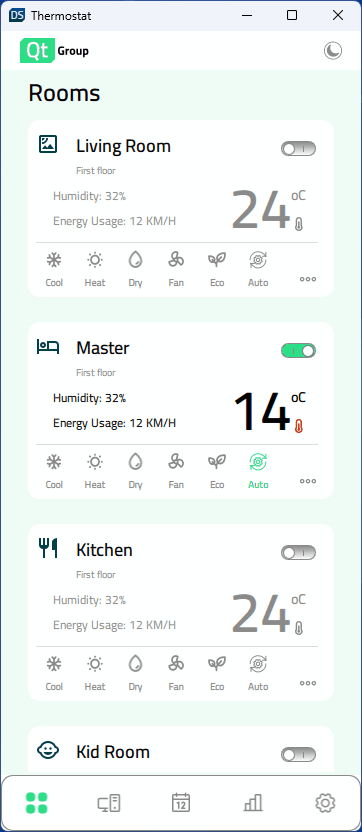
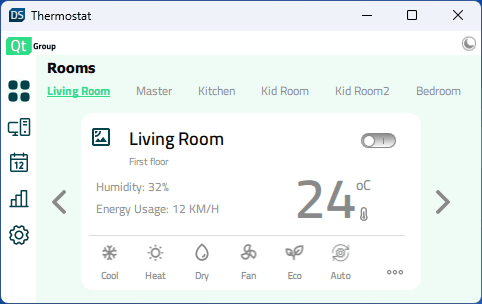
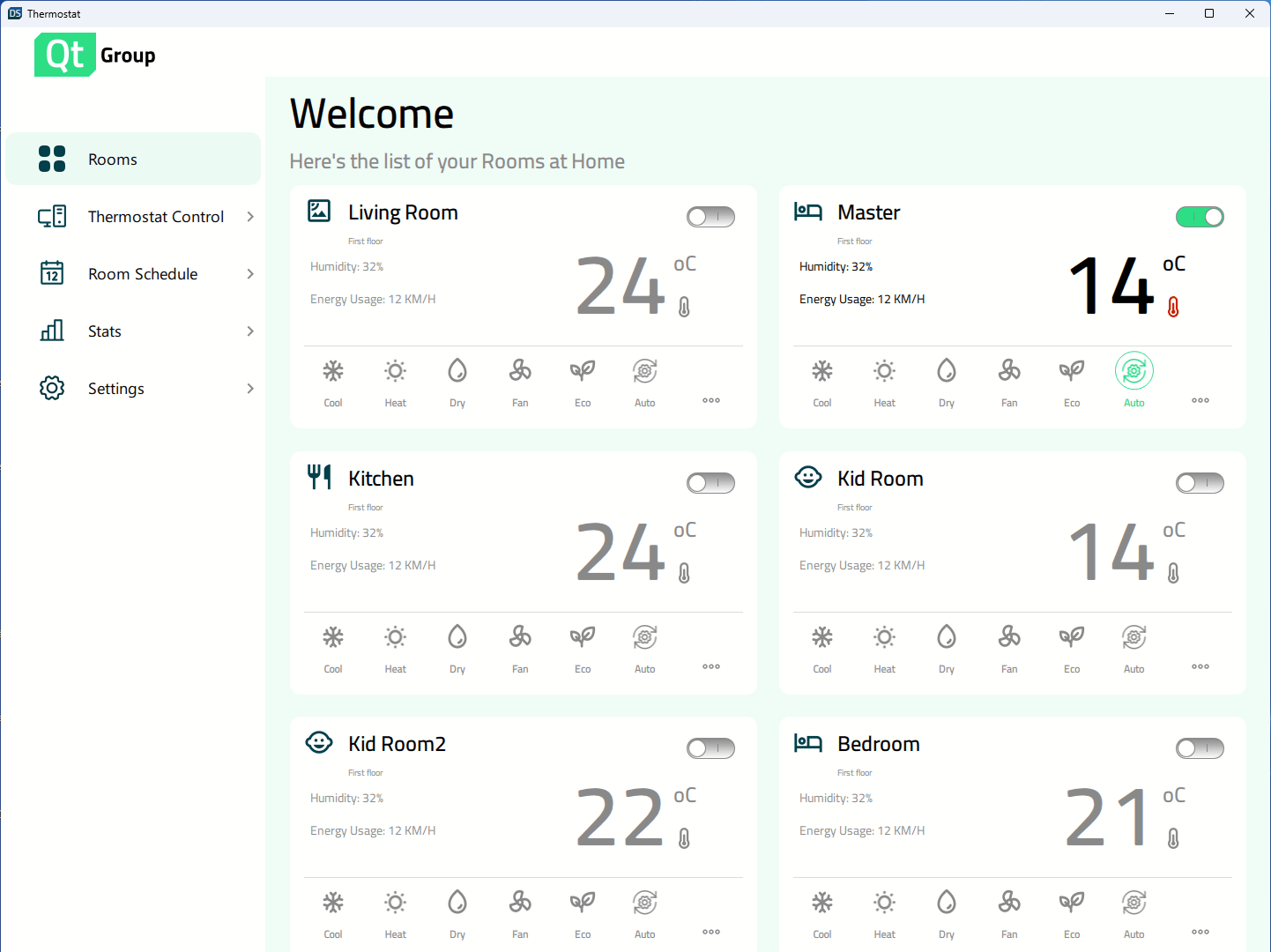
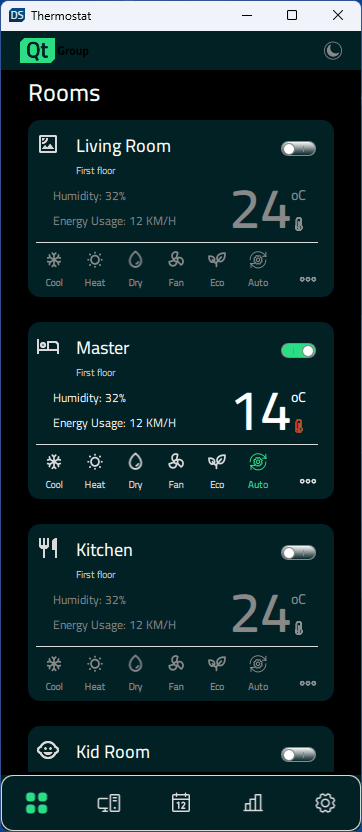
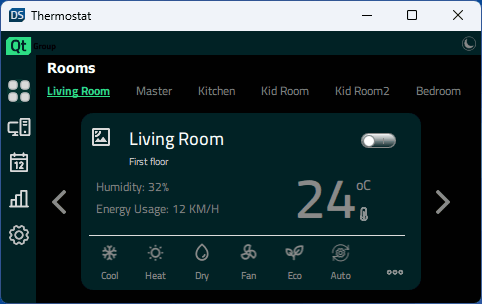
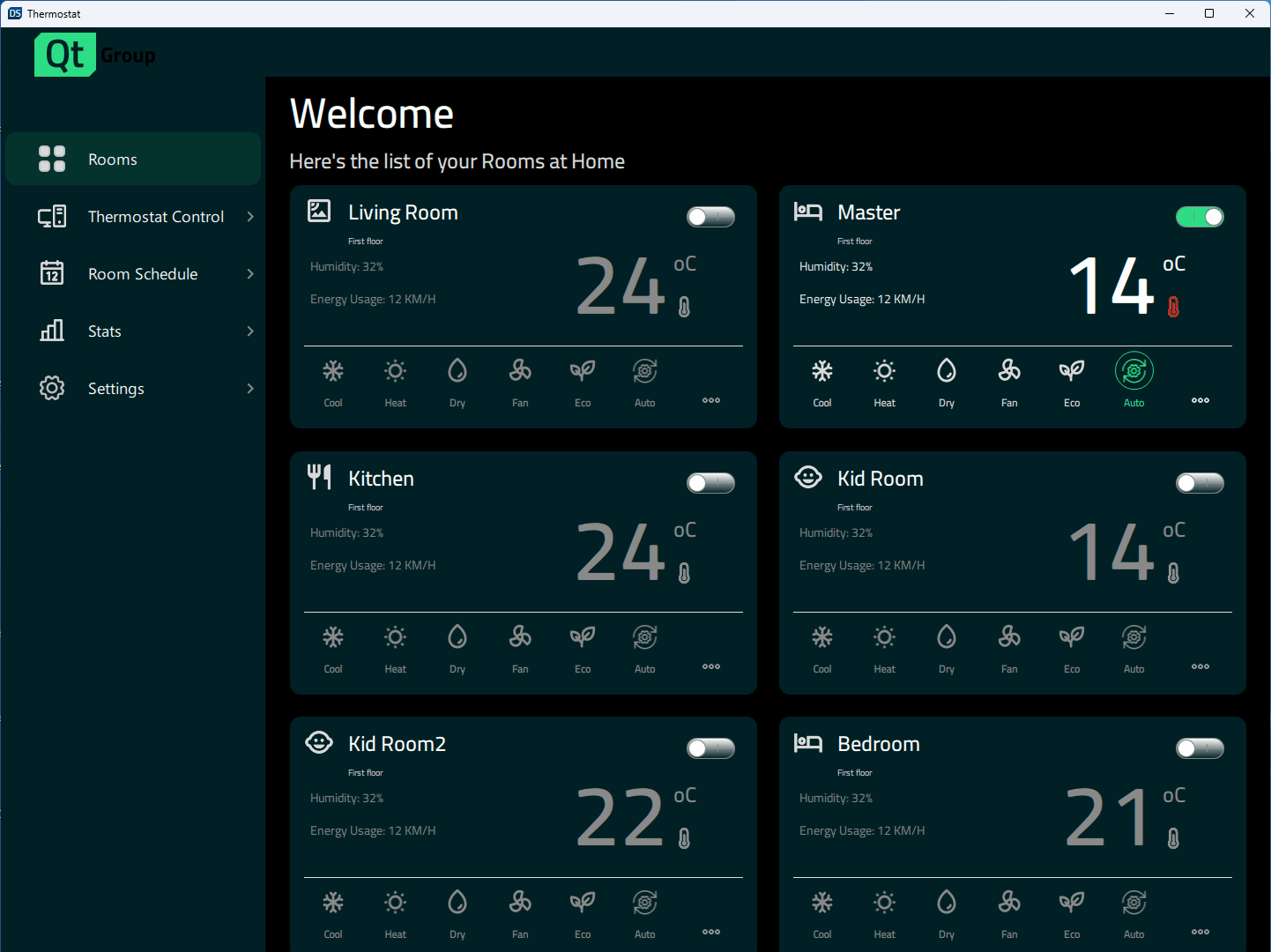
El ejemplo del termostato muestra cómo implementar distintos diseños en función del tamaño de la ventana.
Se trata de una interfaz de usuario para un termostato doméstico que muestra cómo crear aplicaciones adaptativas en Qt Quick que se adaptan tanto a grandes pantallas de escritorio como a móviles y pequeñas pantallas integradas.
Ejecutar el ejemplo
Para ejecutar el ejemplo desde Qt Creatorabra el modo Welcome y seleccione el ejemplo de Examples. Para más información, consulte Qt Creator: Tutorial: Construir y ejecutar.
Diseño adaptable
La aplicación es compatible con distintos tamaños de pantalla. Puede escalarse dinámicamente cuando el usuario cambia el tamaño de la ventana, o la aplicación seleccionará los tamaños correctos basándose en la pantalla disponible en los objetivos móviles. Constants.qml contiene propiedades que especifican el tamaño de la pantalla y controlan qué diseño está actualmente en uso:
    property bool isBigDesktopLayout: layout === Constants.Layout.Desktop
    property bool isSmallDesktopLayout: layout === Constants.Layout.SmallDesktop
    property bool isMobileLayout: layout === Constants.Layout.Mobile
    property bool isSmallLayout: layout === Constants.Layout.Small
En App.qml, las propiedades se vinculan a la altura y anchura de la ventana al iniciar la aplicación:
    Component.onCompleted: {
        Constants.layout = Qt.binding(() => {
            let tall = window.height >= window.width
            if (window.width >= 1440 && window.height >= 520)
                return Constants.Layout.Desktop
            if (window.width >= 1024 && window.height >= 768)
                return Constants.Layout.SmallDesktop
            if (tall || (window.width >= 600 && window.height >= 380))
                return Constants.Layout.Mobile
            return Constants.Layout.Small
        })
    }
Los estados se utilizan entonces para controlar las propiedades de los componentes, como anchura, altura, fontSize, posición y diseño (columna o fila).
    states: [
        State {
            name: "bigDesktopLayout"
            when: Constants.isBigDesktopLayout
            PropertyChanges {
                target: statistics
                leftPadding: 53
                rightPadding: 53
                topPadding: 23
                bottomPadding: 43
            }
            PropertyChanges {
                target: scrollView
                isBackgroundVisible: false
                delegateWidth: 350
                delegateHeight: 182
                statisticsChartWidth: grid.width
                statisticsChartHeight: 647
            }
            PropertyChanges {
                target: grid
                width: 1100
            }
        },
        State {
            name: "smallDesktopLayout"
            when:  Constants.isSmallDesktopLayout
            PropertyChanges {
                target: statistics
                leftPadding: 53
                rightPadding: 53
                topPadding: 23
                bottomPadding: 43
            }
            PropertyChanges {
                target: scrollView
                isBackgroundVisible: false
                delegateWidth: 290
                delegateHeight: 182
                statisticsChartWidth: grid.width
                statisticsChartHeight: 541
            }
            PropertyChanges {
                target: grid
                width: 918
            }
        },
        State {
            name: "mobileLayout"
            when: Constants.isMobileLayout
            PropertyChanges {
                target: statistics
                leftPadding: 0
                rightPadding: 0
                topPadding: 0
                bottomPadding: 0
            }
            PropertyChanges {
                target: scrollView
                isBackgroundVisible: false
                delegateWidth: 327
                delegateHeight: 110
                statisticsChartWidth: 346
                statisticsChartHeight: 383
            }
        },
        State {
            name: "smallLayout"
            when: Constants.isSmallLayout
            PropertyChanges {
                target: statistics
                leftPadding: 0
                rightPadding: 0
                topPadding: 0
                bottomPadding: 0
            }
            PropertyChanges {
                target: scrollView
                isBackgroundVisible: true
                delegateWidth: 332
                delegateHeight: 90
                statisticsChartWidth: 420
                statisticsChartHeight: 240
            }
        }
    ]
Archivos fuente
Ver también Todos los ejemplos de Qt y Qt Quick Ejemplos y tutoriales.
© 2026 The Qt Company Ltd. Documentation contributions included herein are the copyrights of their respective owners. The documentation provided herein is licensed under the terms of the GNU Free Documentation License version 1.3 as published by the Free Software Foundation. Qt and respective logos are trademarks of The Qt Company Ltd. in Finland and/or other countries worldwide. All other trademarks are property of their respective owners.
