
Qt Quick Ejemplos - Animación
Esta es una colección de ejemplos de Animación QML.
Animación es una colección de pequeños ejemplos QML relacionados con la animación. Cada ejemplo es un pequeño archivo QML que enfatiza un tipo o característica particular.
Para más información sobre animaciones, visite Conceptos Importantes en Qt Quick - Estados, Transiciones y Animaciones.
Ejecutar el ejemplo
Para ejecutar el ejemplo desde Qt Creatorabra el modo Welcome y seleccione el ejemplo de Examples. Para más información, consulte Qt Creator: Tutorial: Construir y Ejecutar.
ColorAnimation
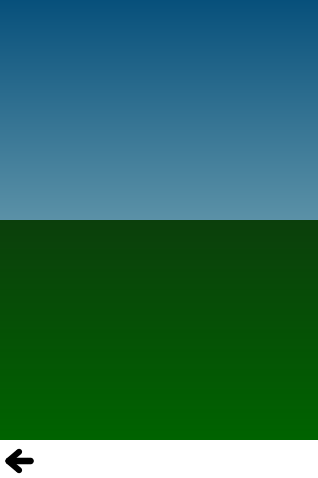
ColorAnimation utiliza animaciones de color para desvanecer un cielo del día a la noche.
gradient: Gradient {
    GradientStop {
        position: 0.0
        SequentialAnimation on color {
            loops: Animation.Infinite
            ColorAnimation { from: "#14148c"; to: "#0E1533"; duration: 5000 }
            ColorAnimation { from: "#0E1533"; to: "#14148c"; duration: 5000 }
        }
    }
    GradientStop {
        position: 1.0
        SequentialAnimation on color {
            loops: Animation.Infinite
            ColorAnimation { from: "#14aaff"; to: "#437284"; duration: 5000 }
            ColorAnimation { from: "#437284"; to: "#14aaff"; duration: 5000 }
        }
    }
}
PropertyAnimation
PropertyAnimation utiliza animaciones numéricas para hacer rebotar un círculo arriba y abajo.
// Animate the y property. Setting loops to Animation.Infinite makes the
// animation repeat indefinitely, otherwise it would only run once.
SequentialAnimation on y {
    loops: Animation.Infinite

    // Move from minHeight to maxHeight in 300ms, using the OutExpo easing function
    NumberAnimation {
        from: smiley.minHeight; to: smiley.maxHeight
        easing.type: Easing.OutExpo; duration: 300
    }

    // Then move back to minHeight in 1 second, using the OutBounce easing function
    NumberAnimation {
        from: smiley.maxHeight; to: smiley.minHeight
        easing.type: Easing.OutBounce; duration: 1000
    }

    // Then pause for 500ms
    PauseAnimation { duration: 500 }
}
Animators
Animators utiliza animadores para hacer rebotar un icono hacia arriba y hacia abajo.
SequentialAnimation {
    SequentialAnimation {
        ParallelAnimation {
            YAnimator {
                target: smiley;
                from: smiley.minHeight;
                to: smiley.maxHeight
                easing.type: Easing.OutExpo;
                duration: 300
            }
            ScaleAnimator {
                target: shadow
                from: 1
                to: 0.5
                easing.type: Easing.OutExpo;
                duration: 300
            }
        }
        ParallelAnimation {
            YAnimator {
                target: smiley;
                from: smiley.maxHeight;
                to: smiley.minHeight
                easing.type: Easing.OutBounce;
                duration: 1000
            }
            ScaleAnimator {
                target: shadow
                from: 0.5
                to: 1
                easing.type: Easing.OutBounce;
                duration: 1000
            }
        }
    }
    PauseAnimation { duration: 500 }
    running: true
    loops: Animation.Infinite
}
Comportamientos
Behaviors usa comportamientos para mover un rectángulo hacia donde haces click.
// Set an 'elastic' behavior on the focusRect's y property.
Behavior on y {
    NumberAnimation {
        easing.type: Easing.OutElastic
        easing.amplitude: 3.0
        easing.period: 2.0
        duration: 300
    }
}
Texto ondulado
Wiggly Text demuestra el uso de comportamientos más complejos para animar y mover texto a medida que lo arrastras. Para ello, asigna un enlace complejo a cada letra:
            x: follow ? follow.x + follow.width : container.width / 6
            y: follow ? follow.y : container.height / 2
Luego, utiliza comportamientos para animar el movimiento de cada letra:
            Behavior on x { enabled: container.animated; SpringAnimation { spring: 3; damping: 0.3; mass: 1.0 } }
            Behavior on y { enabled: container.animated; SpringAnimation { spring: 3; damping: 0.3; mass: 1.0 } }
Tv Tenis
Tv Tennis utiliza comportamientos complejos para hacer que las paletas sigan una pelota para simular un partido de tenis infinito. De nuevo, un binding que depende de otros valores se aplica a la posición y un comportamiento proporciona la animación.
Curvas de flexión
Easing Cur ves muestra todas las curvas de relajación disponibles en las animaciones de Qt Quick.
Estados
Estados demuestra cómo las propiedades de un elemento pueden variar entre estados.
Define varios estados:
// In state 'middleRight', move the image to middleRightRect
State {
    name: "middleRight"
    PropertyChanges {
        userIcon {
            x: middleRightRect.x
            y: middleRightRect.y
        }
    }
},

// In state 'bottomLeft', move the image to bottomLeftRect
State {
    name: "bottomLeft"
    PropertyChanges {
        userIcon {
            x: bottomLeftRect.x
            y: bottomLeftRect.y
        }
    }
}
Transiciones
Transitions toma el ejemplo de States y anima los cambios de propiedades estableciendo transiciones:
// Transitions define how the properties change when the item moves between each state
transitions: [

    // When transitioning to 'middleRight' move x,y over a duration of 1 second,
    // with OutBounce easing function.
    Transition {
        from: "*"; to: "middleRight"
        NumberAnimation { properties: "x,y"; easing.type: Easing.OutBounce; duration: 1000 }
    },

    // When transitioning to 'bottomLeft' move x,y over a duration of 2 seconds,
    // with InOutQuad easing function.
    Transition {
        from: "*"; to: "bottomLeft"
        NumberAnimation { properties: "x,y"; easing.type: Easing.InOutQuad; duration: 2000 }
    },

    // For any other state changes move x,y linearly over duration of 200ms.
    Transition {
        NumberAnimation { properties: "x,y"; duration: 200 }
    }
PathAnimation
PathAnimation anima una imagen a lo largo de una curva bezier utilizando un PathAnimation.
PathAnimation {
    id: pathAnim

    duration: 2000
    easing.type: Easing.InQuad

    target: box
    orientation: PathAnimation.RightFirst
    anchorPoint: Qt.point(box.width/2, box.height/2)
    path: Path {
        startX: 50; startY: 50

        PathCubic {
            x: window.width - 50
            y: window.height - 50

            control1X: x; control1Y: 50
            control2X: 50; control2Y: y
        }

        onChanged: canvas.requestPaint()
    }
}
Interpolador de Trayectoria
PathInterpolator anima una imagen a lo largo de la misma curva bezier, utilizando un PathInterpolator en su lugar.
PathInterpolator {
    id: motionPath

    path: Path {
        startX: 50; startY: 50

        PathCubic {
            x: window.width - 50
            y: window.height - 50

            control1X: x; control1Y: 50
            control2X: 50; control2Y: y
        }

        onChanged: canvas.requestPaint()
    }

    SequentialAnimation on progress {
        running: true
        loops: -1
        PauseAnimation { duration: 1000 }
        NumberAnimation {
            id: progressAnim
            running: false
            from: 0; to: 1
            duration: 2000
            easing.type: Easing.InQuad
        }
    }
}
© 2026 The Qt Company Ltd. Documentation contributions included herein are the copyrights of their respective owners. The documentation provided herein is licensed under the terms of the GNU Free Documentation License version 1.3 as published by the Free Software Foundation. Qt and respective logos are trademarks of The Qt Company Ltd. in Finland and/or other countries worldwide. All other trademarks are property of their respective owners.
