
WebEngine Widgets Reproductor de vídeo Ejemplo
Muestra vídeo a pantalla completa utilizando QWebEngineView.
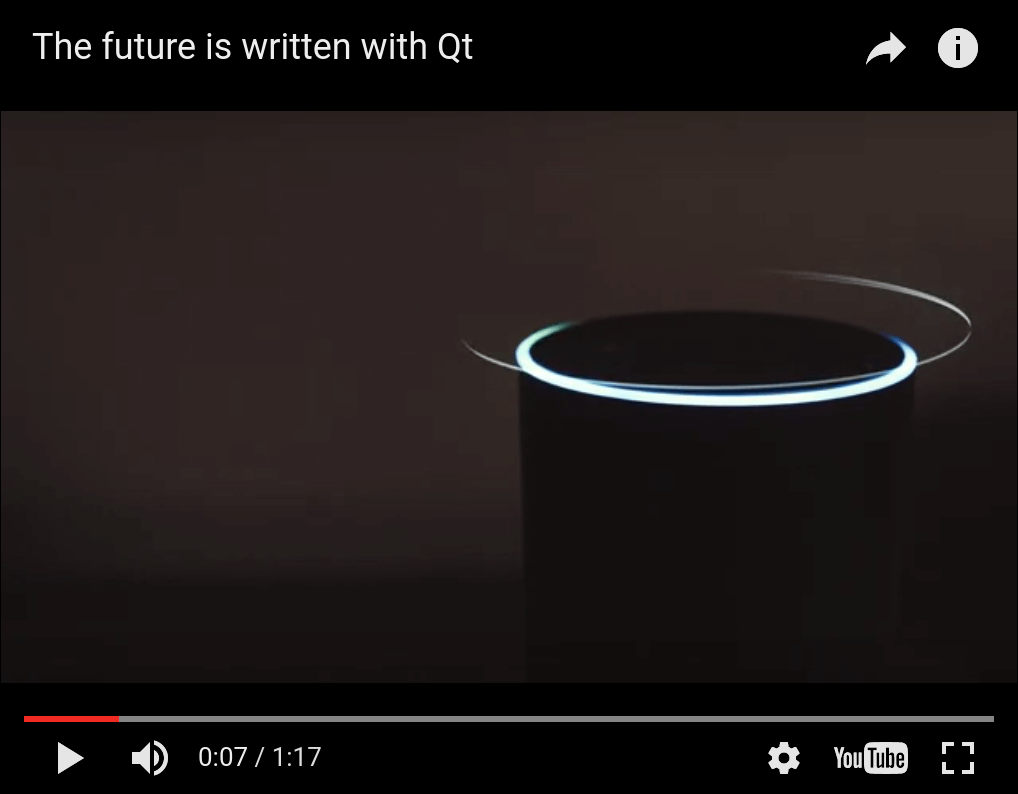
Video Player demuestra cómo admitir la reproducción a pantalla completa de vídeo HTML5 utilizando QWebEngineView.
La Fullscreen API es una API Javascript que permite que una página web solicite que uno de sus elementos HTML ocupe toda la pantalla del usuario. Se utiliza habitualmente para la reproducción de vídeo a pantalla completa a través del elemento <video>, pero en principio puede utilizarse para mostrar cualquier contenido HTML a pantalla completa. Qt WebEngine admite esta API, aunque está desactivada por defecto. Este ejemplo muestra los pasos necesarios para activarla:
- Habilitarla en QWebEngineSettings.
- Manejo de la señal QWebEnginePage::fullScreenRequested creando una nueva ventana a pantalla completa.
- Mostrar una ventana emergente de notificación para asegurarse de que el usuario es consciente de que se está mostrando algo a pantalla completa.
Ejecución del ejemplo
Para ejecutar el ejemplo desde Qt Creatorabra el modo Welcome y seleccione el ejemplo de Examples. Para más información, consulte Qt Creator: Tutorial: Construir y ejecutar.
Visión general
Una vez iniciado, el programa de ejemplo creará una ventana normal (no a pantalla completa) con un QWebEngineView mostrando un reproductor de vídeo YouTube incrustado. A continuación, puedes hacer clic en el botón de alternancia de pantalla completa (esquina inferior derecha) para entrar en el modo de pantalla completa. Esto también debería mostrar una notificación superpuesta centrada informándote de que puedes salir del modo de pantalla completa pulsando la tecla escape.
Desde el punto de vista de la implementación, entrar en el modo de pantalla completa implica crear una nueva ventana de pantalla completa con una instancia separada de QWebEngineView y migrar QWebEnginePage de la ventana normal QWebEngineView a esta nueva QWebEngineView. Al salir del modo de pantalla completa, esta migración se invierte.
El código del ejemplo se divide en tres clases, MainWindow, FullScreenWindow y FullScreenNotification. Las clases MainWindow y FullScreenWindow son responsables cada una de la gestión de una ventana de nivel superior, mientras que FullScreenNotification es responsable del estilo y la animación del cuadro de notificación. Un MainWindow se crea al inicio y vive durante todo el tiempo de ejecución del programa, mientras que un nuevo FullScreenWindow se crea cada vez que se entra en el modo de pantalla completa.
Declaración de la clase MainWindow
Un MainWindow es un QMainWindow con un QWebEngineView como widget central:
#include "fullscreenwindow.h"

#include <QMainWindow>
#include <QWebEngineView>
#include <QWebEngineFullScreenRequest>

class MainWindow : public QMainWindow
{
    Q_OBJECT

public:
    explicit MainWindow(QWidget *parent = nullptr);

private slots:
    void fullScreenRequested(QWebEngineFullScreenRequest request);

private:
    QWebEngineView *m_view;
    QScopedPointer<FullScreenWindow> m_fullScreenWindow;
};
Definición de la Clase MainWindow
En el constructor comenzamos configurando el QWebEngineView como widget central:
MainWindow::MainWindow(QWidget *parent)
    : QMainWindow(parent)
    , m_view(new QWebEngineView(this))
{
    setCentralWidget(m_view);
A continuación configuramos Qt WebEngine para anunciar el soporte de la API de pantalla completa:
m_view->settings()->setAttribute(QWebEngineSettings::FullScreenSupportEnabled, true);
Sin esta línea el botón de pantalla completa estaría desactivado (en gris) ya que el Javascript que se ejecuta en la página puede detectar que nuestro navegador no soporta el modo de pantalla completa.
A continuación conectamos la señal fullScreenRequested a nuestra ranura:
    connect(m_view->page(),
            &QWebEnginePage::fullScreenRequested,
            this,
            &MainWindow::fullScreenRequested);
Esta señal se emite cada vez que el Javascript de la página quiere entrar o salir del modo de pantalla completa. Sin manejar esta señal (pero manteniendo el atributo FullScreenSupportEnabled como true) el botón de alternar estará habilitado pero hacer clic en él no tendrá ningún efecto ya que la petición de pantalla completa de Javascript será denegada.
Finalmente, cargamos algo de HTML en nuestro QWebEngineView:
    const QUrl baseUrl = QUrl(u"https://www.qt.io"_s);
    const QString videoUrl = u"https://www.youtube.com/embed/CjyjEUFn_FI"_s;
    const QString html = u"<!doctype html>"
                         "<html lang='en'>"
                         "     <head>"
                         "         <meta charset='utf-8'>"
                         "         <style type='text/css'>"
                         "             #ytplayer {"
                         "                 position: absolute;"
                         "                 top: 0;"
                         "                 left: 0;"
                         "                 width: 100%;"
                         "                 height: 100%;"
                         "             }"
                         "         </style>"
                         "     </head>"
                         "     <body>"
                         "         <iframe"
                         "             id='ytplayer'"
                         "             src='%1'"
                         "             frameborder='0'"
                         "             allowfullscreen>"
                         "         </iframe>"
                         "     </body>"
                         "</html>"_s.arg(videoUrl);
    m_view->setHtml(html, baseUrl);
Nota: El ejemplo no carga el contenido desde una URL de archivo local. La política de seguridad de Youtube requiere que los reproductores incrustados verifiquen el origen de la petición. Este ejemplo elude esa restricción utilizando la API QWebEngineView::setHtml y estableciendo el parámetro baseUrl para que la solicitud parezca originarse en https://www.qt.io, satisfaciendo así el requisito de verificación del origen.
La segunda parte de MainWindow es la gestión de las solicitudes a pantalla completa:
void MainWindow::fullScreenRequested(QWebEngineFullScreenRequest request)
{
    if (request.toggleOn()) {
        if (m_fullScreenWindow)
            return;
        request.accept();
        m_fullScreenWindow.reset(new FullScreenWindow(m_view));
    } else {
        if (!m_fullScreenWindow)
            return;
        request.accept();
        m_fullScreenWindow.reset();
    }
}
Creamos un nuevo FullScreenWindow cuando entramos en modo de pantalla completa, y lo borramos cuando salimos.
Declaración de la clase FullScreenWindow
Un FullScreenWindow es un QWidget que contiene un QWebEngineView y un FullScreenNotification.
#include <QWidget>

QT_BEGIN_NAMESPACE
class QWebEngineView;
QT_END_NAMESPACE

class FullScreenNotification;

class FullScreenWindow : public QWidget
{
    Q_OBJECT
public:
    explicit FullScreenWindow(QWebEngineView *oldView, QWidget *parent = nullptr);
    ~FullScreenWindow();

protected:
    void resizeEvent(QResizeEvent *event) override;

private:
    QWebEngineView *m_view;
    FullScreenNotification *m_notification;
    QWebEngineView *m_oldView;
    QRect m_oldGeometry;
};
Definición de la Clase FullScreenWindow
El constructor se encarga de ocultar la ventana normal (guardando su geometría) y mostrar en su lugar la nueva FullScreenWindow:
FullScreenWindow::FullScreenWindow(QWebEngineView *oldView, QWidget *parent)
    : QWidget(parent)
    , m_view(new QWebEngineView(this))
    , m_notification(new FullScreenNotification(this))
    , m_oldView(oldView)
    , m_oldGeometry(oldView->window()->geometry())
{
    m_view->stackUnder(m_notification);

    auto exitAction = new QAction(this);
    exitAction->setShortcut(Qt::Key_Escape);
    connect(exitAction, &QAction::triggered, [this]() {
        m_view->triggerPageAction(QWebEnginePage::ExitFullScreen);
    });
    addAction(exitAction);

    m_view->setPage(m_oldView->page());
    setGeometry(m_oldGeometry);
    showFullScreen();
    m_oldView->window()->hide();
}
La llamada a QWebEngineView::setPage moverá la página web de la vista de MainWindow a la vista de FullScreenWindow.
En el destructor utilizamos el mismo método para volver a mover la página, tras lo cual restauramos la geometría y visibilidad de la ventana principal:
FullScreenWindow::~FullScreenWindow()
{
    m_oldView->setPage(m_view->page());
    m_oldView->window()->setGeometry(m_oldGeometry);
    m_oldView->window()->show();
    hide();
}
Sobreescribimos QWidget::resizeEvent para hacer el diseño manual, manteniendo QWebEngineView maximizado, y FullScreenNotification centrado dentro de la ventana:
void FullScreenWindow::resizeEvent(QResizeEvent *event)
{
    QRect viewGeometry(QPoint(0, 0), size());
    m_view->setGeometry(viewGeometry);

    QRect notificationGeometry(QPoint(0, 0), m_notification->sizeHint());
    notificationGeometry.moveCenter(viewGeometry.center());
    m_notification->setGeometry(notificationGeometry);

    QWidget::resizeEvent(event);
}
Declaración de la clase FullScreenNotification
Un FullScreenNotification es sólo un QLabel con algo de estilo y animación:
#include <QLabel>

class FullScreenNotification : public QLabel
{
    Q_OBJECT
public:
    FullScreenNotification(QWidget *parent = nullptr);

protected:
    void showEvent(QShowEvent *event) override;

signals:
    void shown();

private:
    bool m_previouslyVisible;
};
Definición de la Clase FullScreenWindow
En el constructor configuramos el QLabel y establecemos una animación de desvanecimiento retardado utilizando The Animation Framework:
FullScreenNotification::FullScreenNotification(QWidget *parent)
    : QLabel(parent)
    , m_previouslyVisible(false)
{
    setText(tr("You are now in full screen mode. Press ESC to quit!"));
    setStyleSheet(
        "font-size: 24px;"
        "color: white;"
        "background-color: black;"
        "border-color: white;"
        "border-width: 2px;"
        "border-style: solid;"
        "padding: 100px");
    setAttribute(Qt::WA_TransparentForMouseEvents);

    auto effect = new QGraphicsOpacityEffect;
    effect->setOpacity(1);
    setGraphicsEffect(effect);

    auto animations = new QSequentialAnimationGroup(this);
    animations->addPause(3000);
    auto opacityAnimation = new QPropertyAnimation(effect, "opacity", animations);
    opacityAnimation->setDuration(2000);
    opacityAnimation->setStartValue(1.0);
    opacityAnimation->setEndValue(0.0);
    opacityAnimation->setEasingCurve(QEasingCurve::OutQuad);
    animations->addAnimation(opacityAnimation);

    connect(this, &FullScreenNotification::shown,
            [animations](){ animations->start(); });

    connect(animations, &QAbstractAnimation::finished,
            [this](){ this->hide(); });
}
La señal personalizada shown, que utilizamos para activar la animación, se emite desde el método showEvent:
void FullScreenNotification::showEvent(QShowEvent *event)
{
    QLabel::showEvent(event);
    if (!m_previouslyVisible && isVisible())
        emit shown();
    m_previouslyVisible = isVisible();
}
© 2026 The Qt Company Ltd. Documentation contributions included herein are the copyrights of their respective owners. The documentation provided herein is licensed under the terms of the GNU Free Documentation License version 1.3 as published by the Free Software Foundation. Qt and respective logos are trademarks of The Qt Company Ltd. in Finland and/or other countries worldwide. All other trademarks are property of their respective owners.
