
View images
Qt Creator opens image files in the image viewer.
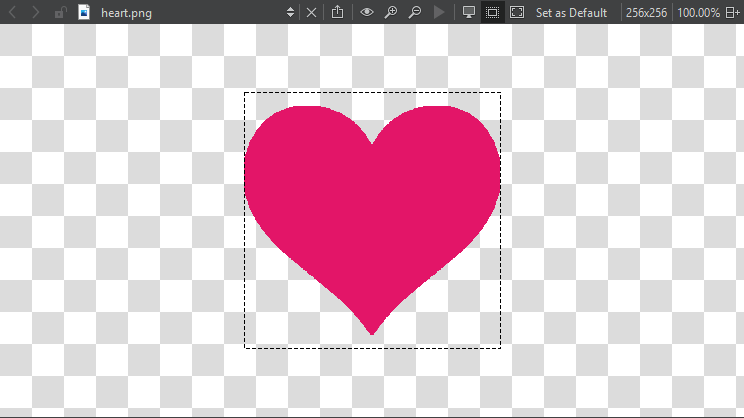
Use the toolbar buttons or keyboard shortcuts to:
 - Export SVG images to pixmaps or copy an image as a data URL, which enables you to include it in web pages as if it were an external resource
 (Original Size) - Return images to their original size
 (Zoom In) - Zoom in and out (
 (Zoom Out))
 (Play Animation) - Play and pause animated GIF and MNG images
 (Switch Background) - Show and hide the image background
 (Switch Outline) - Show and hide the image outline
 (Fit to Screen) - Fit images to screen
Select Set as Default to use the current settings for the background and outline modes and fitting images to screen as default values for the image viewer.
See also How to: Design UIs and Qt Quick UI design.
Copyright © The Qt Company Ltd. and other contributors. Documentation contributions included herein are the copyrights of their respective owners. The documentation provided herein is licensed under the terms of the GNU Free Documentation License version 1.3 as published by the Free Software Foundation. Qt and respective logos are trademarks of The Qt Company Ltd in Finland and/or other countries worldwide. All other trademarks are property of their respective owners.
