
git blame
默认情况下,当您在文件中移动光标时,编辑器会为每行添加注释。将鼠标悬停在注释上即可查看提交详情,并对该提交执行相关操作。
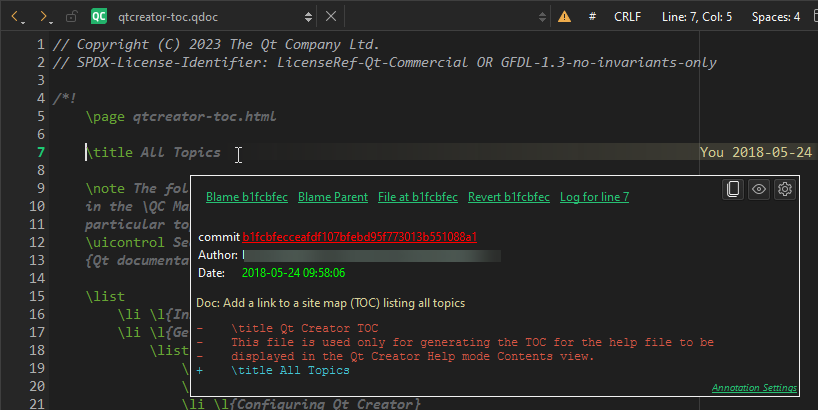
代码编辑器中的即时责任追踪
将鼠标悬停在注释上时,会显示包含附加信息的工具提示。通过该工具提示,可执行多项操作。有关更多信息,请参阅“显示即时责任追踪”。
在编辑器中隐藏责任追踪
要在编辑器中隐藏责任追踪,请前往Preferences >Version Control >Git ,并取消勾选“Instant Blame ”。有关更多信息,请参阅“即时责任追踪设置”。
当即时指责功能关闭时,您可以前往Tools >Git >Current File >Instant Blame 来查看当前行的指责信息。
查看整个文件的责任分析
要在Git Blame 视图中查看文件中所有行的归咎信息,请访问Tools >Git >Current File ,然后选择“Blame for <file> ”。每行开头都会显示该行所属提交的标识符。

Git Blame 视图
- 若要隐藏视图中的路径信息,请选择“Omit Path ”。
- 若要在视图中隐藏作者信息,请选择“Omit Author ”。
- 若要隐藏视图中的日期和时间信息,请选择“Omit Date ”。
- 要查找引入最后一次实际代码更改的提交,请选择Ignore Whitespace 。
- 要查找在行被移动之前引入该行的提交,请选择No Move Detection 。要查看文件内部或文件之间已移动或复制的行,请选择Detect Moves Within File 、Detect Moves Between Files 或Detect Moves and Copies Between Files 。
- 要重新扫描文件,请选择“
 ”(Reload )。
选择提交标识符,在“Git Show ”视图中显示更改的详细描述。
右键单击提交标识符,对该提交执行其他操作,例如选择性合并、检出或还原。
查看以前版本的归咎信息
要显示先前版本的注释,请右键单击提交标识符并选择“Blame Parent Revision ”。这使您能够浏览文件的历史记录并获取其先前版本。
另请参阅 《如何:使用 Git》、《显示即时 blame》和《使用 Git》。
Copyright © The Qt Company Ltd. and other contributors. Documentation contributions included herein are the copyrights of their respective owners. The documentation provided herein is licensed under the terms of the GNU Free Documentation License version 1.3 as published by the Free Software Foundation. Qt and respective logos are trademarks of The Qt Company Ltd in Finland and/or other countries worldwide. All other trademarks are property of their respective owners.
