
提交您的首次更改
在使用 Git 时,通常需要检查并暂存本地更改,将其提交到本地仓库,然后推送到远程仓库(origin)。
开始之前,请在Preferences >Version Control >General 中设置 Git。有关更多信息,请参阅“设置 Git”。
配置用户凭据
Git 需要知道您的用户名和电子邮件地址,因此请先进行配置:
git config --global user.name "Jon Doe"
git config --global user.email "Jon.Doe@company.com"
向新仓库提交
要将您的首次更改提交并推送到新仓库:
- 要开始跟踪更改,请访问Tools >Git ,然后选择Create Repository 。
- 要查看本地更改,请访问Tools >Git >Local Repository ,然后选择“Diff ”。
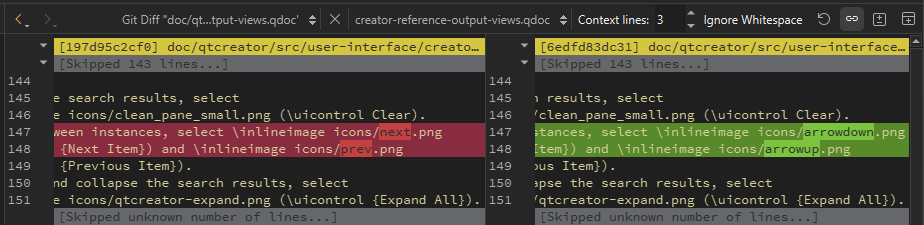
Git Diff 存储库视图
- 右键单击已更改的行,选择“Stage Chunk ”将该代码块添加到暂存区,或选择“Stage Selection ”将所选行添加到暂存区。
- 要将暂存的更改提交到本地仓库,请转到Tools >Git >Local Repository ,然后选择Commit 。
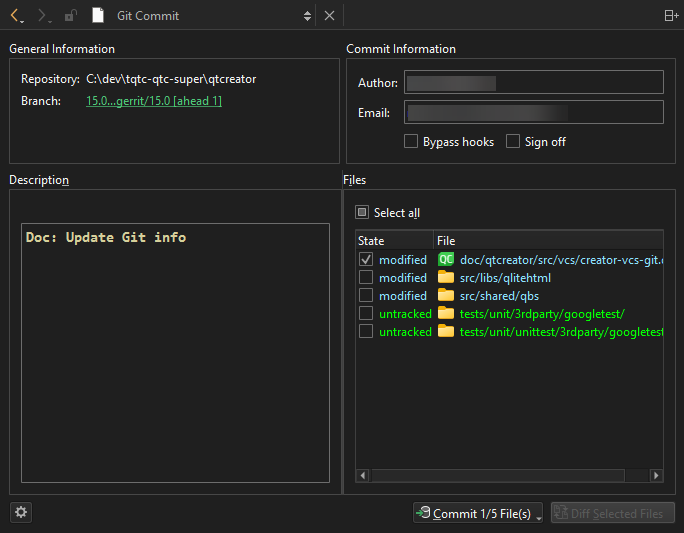
Git 提交视图
- 选择要提交的文件,然后点击“Commit <n/m> File(s) ”将更改提交到本地仓库。
- 要将已提交的更改推送到远程仓库,请转到Tools >Git >Remote Repository ,然后选择Push 。
如果本地分支在远程仓库中没有上游分支,Qt Creator 会提示您创建该分支并将其设置为origin。
向现有仓库提交
要将您的首次更改提交并推送到现有仓库:
- 要从远程仓库拉取更改,请访问Tools >Git >Remote Repository ,然后选择Pull 。
- 选择Stash & Pop ,以便在拉取前将所有本地更改暂存,并在拉取的工作树状态之上应用您的暂存内容。
- 要将更改提交到本地仓库,请转到Tools >Git >Local Repository ,然后选择Commit 。
- 要将已提交的更改推送到远程仓库,请访问Tools >Git >Remote Repository ,并选择“Push ”。
另请参阅 《如何:使用 Git》和《Git 使用指南》。
Copyright © The Qt Company Ltd. and other contributors. Documentation contributions included herein are the copyrights of their respective owners. The documentation provided herein is licensed under the terms of the GNU Free Documentation License version 1.3 as published by the Free Software Foundation. Qt and respective logos are trademarks of The Qt Company Ltd in Finland and/or other countries worldwide. All other trademarks are property of their respective owners.
