
Application Main Window
Creating the application window.
Overview of the Main Window Classes
These classes provide everything you need for a typical modern main application window, like the main window itself, menu and tool bars, a status bar, etc.
PySide2.QtWidgets.QActionThe QAction class provides an abstract user interface action that can be inserted into widgets.
PySide2.QtWidgets.QActionGroupThe QActionGroup class groups actions together.
PySide2.QtWidgets.QWidgetActionThe QWidgetAction class extends QAction by an interface for inserting custom widgets into action based containers, such as toolbars.
PySide2.QtWidgets.QDockWidgetThe QDockWidget class provides a widget that can be docked inside a QMainWindow or floated as a top-level window on the desktop.
PySide2.QtWidgets.QMainWindowThe QMainWindow class provides a main application window.
PySide2.QtWidgets.QMdiAreaThe QMdiArea widget provides an area in which MDI windows are displayed.
PySide2.QtWidgets.QMdiSubWindowThe QMdiSubWindow class provides a subwindow class for QMdiArea.
PySide2.QtWidgets.QMenuThe QMenu class provides a menu widget for use in menu bars, context menus, and other popup menus.
PySide2.QtWidgets.QMenuBarThe QMenuBar class provides a horizontal menu bar.
PySide2.QtWidgets.QSizeGripThe QSizeGrip class provides a resize handle for resizing top-level windows.
PySide2.QtWidgets.QStatusBarThe QStatusBar class provides a horizontal bar suitable for presenting status information.
PySide2.QtWidgets.QToolBarThe QToolBar class provides a movable panel that contains a set of controls.
The Main Window Classes
Qt provides the following classes for managing main windows and associated user interface components:
QMainWindowis the central class around which applications can be built. Along with the companionQDockWidgetandQToolBarclasses, it represents the top-level user interface of the application.
QDockWidgetprovides a widget that can be used to create detachable tool palettes or helper windows. Dock widgets keep track of their own properties, and they can be moved, closed, and floated as external windows.
QToolBarprovides a generic toolbar widget that can hold a number of different action-related widgets, such as buttons, drop-down menus, comboboxes, and spin boxes. The emphasis on a unified action model in Qt means that toolbars cooperate well with menus and keyboard shortcuts.
Example Code
Using
QMainWindowis straightforward. Generally, we subclassQMainWindowand set up menus, toolbars, and dock widgets inside theQMainWindowconstructor.To add a menu bar to the main window, we simply create the menus, and add them to the main window’s menu bar. Note that the
menuBar()function will automatically create the menu bar the first time it is called. You can also callsetMenuBar()to use a custom menu bar in the main window.MainWindow::MainWindow(QWidget *parent) : QMainWindow(parent) { ... Act = new QAction(tr("&New"), self) Act.setShortcuts(QKeySequence.New) Act.setStatusTip(tr("Create a new file")) Act.triggered.connect(newFile) openAct = QAction(tr("&Open..."), self) openAct.setShortcuts(QKeySequence.Open) openAct.setStatusTip(tr("Open an existing file")) openAct.triggered.connect(open) ...Once actions have been created, we can add them to the main window components. To begin with, we add them to the pop-up menus:
fileMenu = menuBar().addMenu(tr("&File"))
fileMenu.addAction(Act)

fileMenu.addAction(openAct)
...
fileMenu.addSeparator()
...
The
QToolBarandQMenuclasses use Qt’s action system to provide a consistent API. In the above code, some existing actions were added to the file menu with theaddAction()function.QToolBaralso provides this function, making it easy to reuse actions in different parts of the main window. This avoids unnecessary duplication of work.We create a toolbar as a child of the main window, and add the desired actions to it:
fileToolBar = addToolBar(tr("File"));
fileToolBar->addAction(newAct);
fileToolBar->addAction(openAct);
    ...
fileToolbar->setAllowedAreas(Qt::TopToolBarArea | Qt::BottomToolBarArea);
addToolBar(Qt::TopToolBarArea, fileToolbar);
... fileToolbar->setAllowedAreas(Qt::TopToolBarArea | Qt::BottomToolBarArea); addToolBar(Qt::TopToolBarArea, fileToolbar);In this example, the toolbar is restricted to the top and bottom toolbar areas of the main window, and is initially placed in the top tool bar area. We can see that the actions specified by
newActandopenActwill be displayed both on the toolbar and in the file menu.
QDockWidgetis used in a similar way toQToolBar. We create a dock widget as a child of the main window, and add widgets as children of the dock widget:contentsWindow = new QDockWidget(tr("Table of Contents"), this); contentsWindow->setAllowedAreas(Qt::LeftDockWidgetArea | Qt::RightDockWidgetArea); addDockWidget(Qt::LeftDockWidgetArea, contentsWindow); headingList = new QListWidget(contentsWindow); contentsWindow->setWidget(headingList);In this example, the dock widget can only be placed in the left and right dock areas, and it is initially placed in the left dock area.
The
QMainWindowAPI allows the programmer to customize which dock widget areas occupy the four corners of the dock widget area. If required, the default can be changed with thesetCorner()function:setCorner(Qt::TopLeftCorner, Qt::LeftDockWidgetArea); setCorner(Qt::BottomLeftCorner, Qt::LeftDockWidgetArea); setCorner(Qt::TopRightCorner, Qt::RightDockWidgetArea); setCorner(Qt::BottomRightCorner, Qt::RightDockWidgetArea);The following diagram shows the configuration produced by the above code. Note that the left and right dock widgets will occupy the top and bottom corners of the main window in this layout.
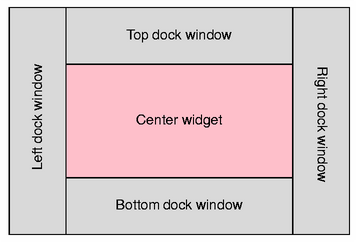
Once all of the main window components have been set up, the central widget is created and installed by using code similar to the following:
QWidget *centralWidget = new QWidget(this);
setCentralWidget(centralWidget);
The central widget can be any subclass of
QWidget.
© 2022 The Qt Company Ltd. Documentation contributions included herein are the copyrights of their respective owners. The documentation provided herein is licensed under the terms of the GNU Free Documentation License version 1.3 as published by the Free Software Foundation. Qt and respective logos are trademarks of The Qt Company Ltd. in Finland and/or other countries worldwide. All other trademarks are property of their respective owners.