
Audio Recorder Example
Discovering the available devices and supported codecs.
Audio Recorder demonstrates how to identify the available devices and supported codecs, and the use of
QAudioRecorderclass.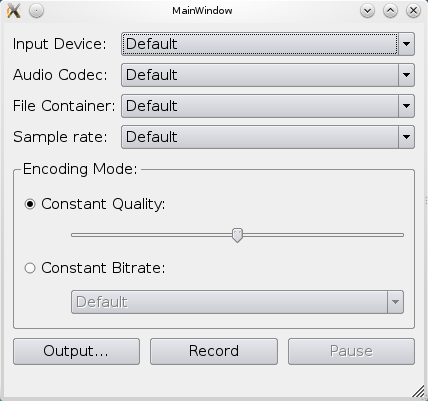
Running the Example
To run the example from Qt Creator , open the Welcome mode and select the example from Examples . For more information, visit Building and Running an Example.
Displaying the Window and Audio Settings
We display a window for the user to select the appropriate audio input, codec, container, and sample rate. Allow a setting of either quality or bitrate. Finally, the output file can be selected and recording can be started.
The lists are setup using the
audioInputs(),supportedAudioCodecs(),supportedContainers(),supportedContainers(), andsupportedAudioSampleRates()methods. The quality slider is setup from 0 (zero) toVeryHighQualitywith a default value ofNormalQuality, while the bitrates are hardcoded into the list.
Recording Audio
To record audio we simply create a
QAudioRecorderobject.audioRecorder = new QAudioRecorder(this);And setup the lists as described above. The text on the record and pause buttons are toggled depending on the
stateof theaudioRecorderobject. This means that if the state isStoppedStatethen the button text will be “Record” and “Pause”. InRecordingStatethe record button will have the text “Stop”, and inPausedStatethe pause button will have the text “Resume”.Pressing the buttons will also result in a toggle based on the state. If recording is stopped, then pressing the record button will setup the
QAudioEncoderSettingsbased on the values of the selection lists, will set the encoding settings and container on theaudioRecorderobject, and start recording using therecord()method.QAudioEncoderSettings settings; settings.setCodec(boxValue(ui->audioCodecBox).toString()); settings.setSampleRate(boxValue(ui->sampleRateBox).toInt()); settings.setBitRate(boxValue(ui->bitrateBox).toInt()); settings.setQuality(QMultimedia::EncodingQuality(ui->qualitySlider->value())); settings.setEncodingMode(ui->constantQualityRadioButton->isChecked() ? QMultimedia::ConstantQualityEncoding : QMultimedia::ConstantBitRateEncoding); QString container = boxValue(ui->containerBox).toString(); audioRecorder->setEncodingSettings(settings, QVideoEncoderSettings(), container); audioRecorder->record();While recording, the status bar of the application is updated with duration information from the
durationChangedsignal from theaudioRecorderobject.ui->statusbar->showMessage(tr("Recorded %1 sec").arg(duration / 1000));
© 2022 The Qt Company Ltd. Documentation contributions included herein are the copyrights of their respective owners. The documentation provided herein is licensed under the terms of the GNU Free Documentation License version 1.3 as published by the Free Software Foundation. Qt and respective logos are trademarks of The Qt Company Ltd. in Finland and/or other countries worldwide. All other trademarks are property of their respective owners.