
Part 6 - Loading and Saving
Describes how to add save and load functionality.
This part covers the Qt file handling features we use to write loading and saving routines for the address book.
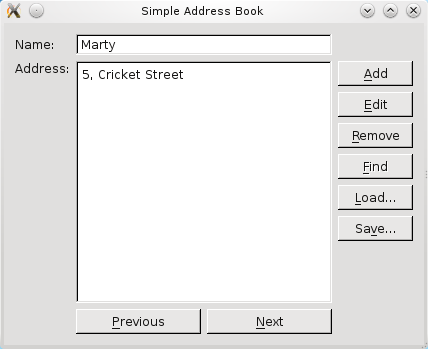
Although browsing and searching the contact list are useful features, our address book is not complete until we can save existing contacts and load them again at a later time.
Qt provides a number of classes for input and output , but we have chosen to use two which are simple to use in combination:
QFileandQDataStream.A
QFileobject represents a file on disk that can be read from and written to.QFileis a subclass of the more generalQIODeviceclass which represents many different kinds of devices.A
QDataStreamobject is used to serialize binary data so that it can be stored in aQIODeviceand retrieved again later. Reading from aQIODeviceand writing to it is as simple as opening the stream - with the respective device as a parameter - and reading from or writing to it.
Defining the AddressBook Class
We declare two public slots,
saveToFile()andloadFromFile(), as well as twoQPushButtonobjects,loadButtonandsaveButton.void saveToFile(); void loadFromFile(); ... QPushButton *loadButton; QPushButton *saveButton;
Implementing the AddressBook Class
In our constructor, we instantiate
loadButtonandsaveButton. Ideally, it would be more user-friendly to set the push buttons’ labels to “Load contacts from a file” and “Save contacts to a file”. However, due to the size of our other push buttons, we set the labels to Load… and Save…. Fortunately, Qt provides a simple way to set tooltips withsetToolTip()and we use it in the following way for our push buttons:loadButton->setToolTip(tr("Load contacts from a file")); ... saveButton->setToolTip(tr("Save contacts to a file"));Although it is not shown here, just like the other features we implemented, we add the push buttons to the layout panel on the right,
buttonLayout1, and we connect the push buttons’clicked()signals to their respective slots.For the saving feature, we first obtain
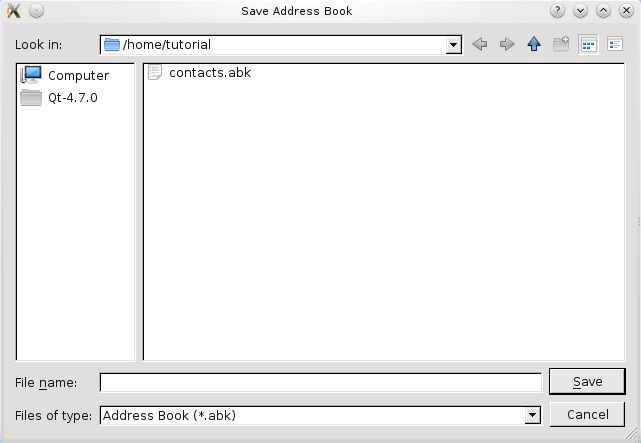
fileNameusinggetSaveFileName(). This is a convenience function provided byQFileDialog, which pops up a modal file dialog and allows the user to enter a file name or select any existing.abkfile. The.abkfile is our Address Book extension that we create when we save contacts.<Code snippet "tutorials/addressbook/part6/addressbook.cpp:saveToFile() function part1" not found>The file dialog that pops up is displayed in the screenshot below:
If
fileNameis not empty, we create aQFileobject,file, withfileName.QFileworks withQDataStreamasQFileis aQIODevice.Next, we attempt to open the file in
WriteOnlymode. If this is unsuccessful, we display aQMessageBoxto inform the user.<Code snippet "tutorials/addressbook/part6/addressbook.cpp:saveToFile() function part2" not found>Otherwise, we instantiate a
QDataStreamobject,out, to write the open file.QDataStreamrequires that the same version of the stream is used for reading and writing. We ensure that this is the case by setting the version used to the5before serializing the data tofile.<Code snippet "tutorials/addressbook/part6/addressbook.cpp:saveToFile() function part3" not found>For the loading feature, we also obtain
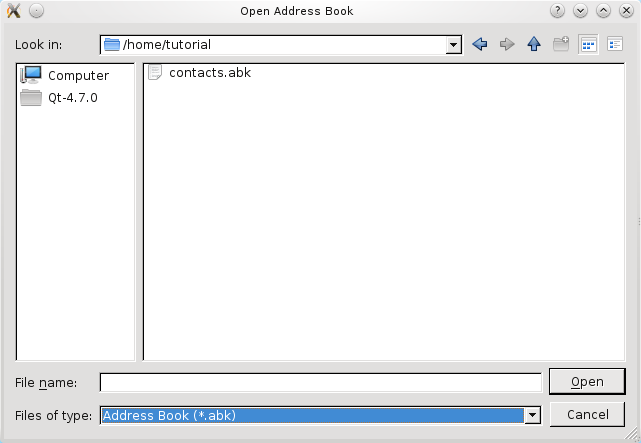
fileNameusinggetOpenFileName(). This function, the counterpart togetSaveFileName(), also pops up the modal file dialog and allows the user to enter a file name or select any existing.abkfile to load it into the address book.<Code snippet "tutorials/addressbook/part6/addressbook.cpp:loadFromFile() function part1" not found>On Windows, for example, this function pops up a native file dialog, as shown in the following screenshot.
If
fileNameis not empty, again, we use aQFileobject,file, and attempt to open it inReadOnlymode. Similar to our implementation ofsaveToFile(), if this attempt is unsuccessful, we display aQMessageBoxto inform the user.<Code snippet "tutorials/addressbook/part6/addressbook.cpp:loadFromFile() function part2" not found>Otherwise, we instantiate a
QDataStreamobject,in, set its version as above and read the serialized data into thecontactsdata structure. Thecontactsobject is emptied before data is read into it to simplify the file reading process. A more advanced method would be to read the contacts into a temporaryQMapobject, and copy over non-duplicate contacts intocontacts.<Code snippet "tutorials/addressbook/part6/addressbook.cpp:loadFromFile() function part3" not found>To display the contacts that have been read from the file, we must first validate the data obtained to ensure that the file we read from actually contains address book contacts. If it does, we display the first contact; otherwise, we display a
QMessageBoxto inform the user about the problem. Lastly, we update the interface to enable and disable the push buttons accordingly.
© 2022 The Qt Company Ltd. Documentation contributions included herein are the copyrights of their respective owners. The documentation provided herein is licensed under the terms of the GNU Free Documentation License version 1.3 as published by the Free Software Foundation. Qt and respective logos are trademarks of The Qt Company Ltd. in Finland and/or other countries worldwide. All other trademarks are property of their respective owners.