
Scribble Example
The Scribble example shows how to reimplement some of
QWidget‘s event handlers to receive the events generated for the application’s widgets.We reimplement the mouse event handlers to implement drawing, the paint event handler to update the application and the resize event handler to optimize the application’s appearance. In addition we reimplement the close event handler to intercept the close events before terminating the application.
The example also demonstrates how to use
QPainterto draw an image in real time, as well as to repaint widgets.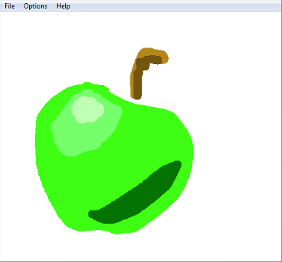
With the Scribble application the users can draw an image. The File menu gives the users the possibility to open and edit an existing image file, save an image and exit the application. While drawing, the Options menu allows the users to choose the pen color and pen width, as well as clear the screen. In addition the Help menu provides the users with information about the Scribble example in particular, and about Qt in general.
The example consists of two classes:
ScribbleAreais a custom widget that displays aQImageand allows to the user to draw on it.
MainWindowprovides a menu above theScribbleArea.We will start by reviewing the
ScribbleAreaclass. Then we will review theMainWindowclass, which usesScribbleArea.
ScribbleArea Class Definition
class ScribbleArea : public QWidget
{
    Q_OBJECT

public:
    ScribbleArea(QWidget *parent = nullptr);

    bool openImage(const QString &fileName);
    bool saveImage(const QString &fileName, const char *fileFormat);
    void setPenColor(const QColor &newColor);
    void setPenWidth(int newWidth);

    bool isModified() const { return modified; }
    QColor penColor() const { return myPenColor; }
    int penWidth() const { return myPenWidth; }

public slots:
    void clearImage();
    void print();

protected:
    void mousePressEvent(QMouseEvent *event) override;
    void mouseMoveEvent(QMouseEvent *event) override;
    void mouseReleaseEvent(QMouseEvent *event) override;
    void paintEvent(QPaintEvent *event) override;
    void resizeEvent(QResizeEvent *event) override;

private:
    void drawLineTo(const QPoint &endPoint);
    void resizeImage(QImage *image, const QSize &newSize);

    bool modified = false;
    bool scribbling = false;
    int myPenWidth = 1;
    QColor myPenColor = Qt::blue;
    QImage image;
    QPoint lastPoint;
};
The
ScribbleAreaclass inherits fromQWidget. We reimplement themousePressEvent(),mouseMoveEvent()andmouseReleaseEvent()functions to implement the drawing. We reimplement thepaintEvent()function to update the scribble area, and theresizeEvent()function to ensure that theQImageon which we draw is at least as large as the widget at any time.We need several public functions:
openImage()loads an image from a file into the scribble area, allowing the user to edit the image;save()writes the currently displayed image to file;clearImage()slot clears the image displayed in the scribble area. We need the privatedrawLineTo()function to actually do the drawing, andresizeImage()to change the size of aQImage. Theprint()slot handles printing.We also need the following private variables:
modifiedistrueif there are unsaved changes to the image displayed in the scribble area.
scribblingistruewhile the user is pressing the left mouse button within the scribble area.
penWidthandpenColorhold the currently set width and color for the pen used in the application.
imagestores the image drawn by the user.
lastPointholds the position of the cursor at the last mouse press or mouse move event.
ScribbleArea Class Implementation
ScribbleArea::ScribbleArea(QWidget *parent)
    : QWidget(parent)
{
    setAttribute(Qt::WA_StaticContents);
}
In the constructor, we set the
WA_StaticContentsattribute for the widget, indicating that the widget contents are rooted to the top-left corner and don’t change when the widget is resized. Qt uses this attribute to optimize paint events on resizes. This is purely an optimization and should only be used for widgets whose contents are static and rooted to the top-left corner.bool ScribbleArea::openImage(const QString &fileName) { QImage loadedImage; if (!loadedImage.load(fileName)) return false; QSize newSize = loadedImage.size().expandedTo(size()); resizeImage(&loadedImage, newSize); image = loadedImage; modified = false; update(); return true; }In the
openImage()function, we load the given image. Then we resize the loadedQImageto be at least as large as the widget in both directions using the privateresizeImage()function and we set theimagemember variable to be the loaded image. At the end, we callupdate()to schedule a repaint.bool ScribbleArea::saveImage(const QString &fileName, const char *fileFormat) { QImage visibleImage = image; resizeImage(&visibleImage, size()); if (visibleImage.save(fileName, fileFormat)) { modified = false; return true; } return false; }The
saveImage()function creates aQImageobject that covers only the visible section of the actualimageand saves it usingsave(). If the image is successfully saved, we set the scribble area’smodifiedvariable tofalse, because there is no unsaved data.void ScribbleArea::setPenColor(const QColor &newColor) { myPenColor = newColor; } void ScribbleArea::setPenWidth(int newWidth) { myPenWidth = newWidth; }The
setPenColor()andsetPenWidth()functions set the current pen color and width. These values will be used for future drawing operations.void ScribbleArea::clearImage() { image.fill(qRgb(255, 255, 255)); modified = true; update(); }The public
clearImage()slot clears the image displayed in the scribble area. We simply fill the entire image with white, which corresponds to RGB value (255, 255, 255). As usual when we modify the image, we setmodifiedtotrueand schedule a repaint.void ScribbleArea::mousePressEvent(QMouseEvent *event) { if (event->button() == Qt::LeftButton) { lastPoint = event->pos(); scribbling = true; } } void ScribbleArea::mouseMoveEvent(QMouseEvent *event) { if ((event->buttons() & Qt::LeftButton) && scribbling) drawLineTo(event->pos()); } void ScribbleArea::mouseReleaseEvent(QMouseEvent *event) { if (event->button() == Qt::LeftButton && scribbling) { drawLineTo(event->pos()); scribbling = false; } }For mouse press and mouse release events, we use the
button()function to find out which button caused the event. For mouse move events, we usebuttons()to find which buttons are currently held down (as an OR-combination).If the users press the left mouse button, we store the position of the mouse cursor in
lastPoint. We also make a note that the user is currently scribbling. (Thescribblingvariable is necessary because we can’t assume that a mouse move and mouse release event is always preceded by a mouse press event on the same widget.)If the user moves the mouse with the left button pressed down or releases the button, we call the private
drawLineTo()function to draw.void ScribbleArea::paintEvent(QPaintEvent *event) { QPainter painter(this); QRect dirtyRect = event->rect(); painter.drawImage(dirtyRect, image, dirtyRect); }In the reimplementation of the
paintEvent()function, we simply create aQPainterfor the scribble area, and draw the image.At this point, you might wonder why we don’t just draw directly onto the widget instead of drawing in a
QImageand copying theQImageonto screen inpaintEvent(). There are at least three good reasons for this:
The window system requires us to be able to redraw the widget at any time. For example, if the window is minimized and restored, the window system might have forgotten the contents of the widget and send us a paint event. In other words, we can’t rely on the window system to remember our image.
Qt normally doesn’t allow us to paint outside of
paintEvent(). In particular, we can’t paint from the mouse event handlers. (This behavior can be changed using theWA_PaintOnScreenwidget attribute, though.)If initialized properly, a
QImageis guaranteed to use 8-bit for each color channel (red, green, blue, and alpha), whereas aQWidgetmight have a lower color depth, depending on the monitor configuration. This means that if we load a 24-bit or 32-bit image and paint it onto aQWidget, then copy theQWidgetinto aQImageagain, we might lose some information.void ScribbleArea::resizeEvent(QResizeEvent *event) { if (width() > image.width() || height() > image.height()) { int newWidth = qMax(width() + 128, image.width()); int newHeight = qMax(height() + 128, image.height()); resizeImage(&image, QSize(newWidth, newHeight)); update(); } QWidget::resizeEvent(event); }When the user starts the Scribble application, a resize event is generated and an image is created and displayed in the scribble area. We make this initial image slightly larger than the application’s main window and scribble area, to avoid always resizing the image when the user resizes the main window (which would be very inefficient). But when the main window becomes larger than this initial size, the image needs to be resized.
void ScribbleArea::drawLineTo(const QPoint &endPoint)
{
    QPainter painter(&image);
    painter.setPen(QPen(myPenColor, myPenWidth, Qt::SolidLine, Qt::RoundCap,
                        Qt::RoundJoin));
    painter.drawLine(lastPoint, endPoint);
    modified = true;

    int rad = (myPenWidth / 2) + 2;
    update(QRect(lastPoint, endPoint).normalized()
                                     .adjusted(-rad, -rad, +rad, +rad));
    lastPoint = endPoint;
}
In
drawLineTo(), we draw a line from the point where the mouse was located when the last mouse press or mouse move occurred, we setmodifiedto true, we generate a repaint event, and we updatelastPointso that next timedrawLineTo()is called, we continue drawing from where we left.We could call the
update()function with no parameter, but as an easy optimization we pass aQRectthat specifies the rectangle inside the scribble are needs updating, to avoid a complete repaint of the widget.void ScribbleArea::resizeImage(QImage *image, const QSize &newSize) { if (image->size() == newSize) return; QImage newImage(newSize, QImage::Format_RGB32); newImage.fill(qRgb(255, 255, 255)); QPainter painter(&newImage); painter.drawImage(QPoint(0, 0), *image); *image = newImage; }
QImagehas no nice API for resizing an image. There’s acopy()function that could do the trick, but when used to expand an image, it fills the new areas with black, whereas we want white.So the trick is to create a brand new
QImagewith the right size, to fill it with white, and to draw the old image onto it usingQPainter. The new image is given theFormat_RGB32format, which means that each pixel is stored as 0xffRRGGBB (where RR, GG, and BB are the red, green and blue color channels, ff is the hexadecimal value 255).Printing is handled by the
print()slot:void ScribbleArea::print() { #if defined(QT_PRINTSUPPORT_LIB) && QT_CONFIG(printdialog) QPrinter printer(QPrinter::HighResolution); QPrintDialog printDialog(&printer, this);We construct a high resolution
QPrinterobject for the required output format, using aQPrintDialogto ask the user to specify a page size and indicate how the output should be formatted on the page.If the dialog is accepted, we perform the task of printing to the paint device:
    if (printDialog.exec() == QDialog::Accepted) {
        QPainter painter(&printer);
        QRect rect = painter.viewport();
        QSize size = image.size();
        size.scale(rect.size(), Qt::KeepAspectRatio);
        painter.setViewport(rect.x(), rect.y(), size.width(), size.height());
        painter.setWindow(image.rect());
        painter.drawImage(0, 0, image);
    }
#endif // QT_CONFIG(printdialog)
}
Printing an image to a file in this way is simply a matter of painting onto the
QPrinter. We scale the image to fit within the available space on the page before painting it onto the paint device.
MainWindow Class Definition
class MainWindow : public QMainWindow
{
    Q_OBJECT

public:
    MainWindow(QWidget *parent = nullptr);

protected:
    void closeEvent(QCloseEvent *event) override;

private slots:
    void open();
    void save();
    void penColor();
    void penWidth();
    void about();

private:
    void createActions();
    void createMenus();
    bool maybeSave();
    bool saveFile(const QByteArray &fileFormat);

    ScribbleArea *scribbleArea;

    QMenu *saveAsMenu;
    QMenu *fileMenu;
    QMenu *optionMenu;
    QMenu *helpMenu;

    QAction *openAct;
    QList<QAction *> saveAsActs;
    QAction *exitAct;
    QAction *penColorAct;
    QAction *penWidthAct;
    QAction *printAct;
    QAction *clearScreenAct;
    QAction *aboutAct;
    QAction *aboutQtAct;
};
The
MainWindowclass inherits fromQMainWindow. We reimplement thecloseEvent()handler fromQWidget. Theopen(),save(),penColor()andpenWidth()slots correspond to menu entries. In addition we create four private functions.We use the boolean
maybeSave()function to check if there are any unsaved changes. If there are unsaved changes, we give the user the opportunity to save these changes. The function returnsfalseif the user clicks Cancel. We use thesaveFile()function to let the user save the image currently displayed in the scribble area.
MainWindow Class Implementation
MainWindow::MainWindow(QWidget *parent)
    : QMainWindow(parent), scribbleArea(new ScribbleArea(this))
{
    setCentralWidget(scribbleArea);

    createActions();
    createMenus();

    setWindowTitle(tr("Scribble"));
    resize(500, 500);
}
In the constructor, we create a scribble area which we make the central widget of the
MainWindowwidget. Then we create the associated actions and menus.void MainWindow::closeEvent(QCloseEvent *event) { if (maybeSave()) event->accept(); else event->ignore(); }Close events are sent to widgets that the users want to close, usually by clicking File|Exit or by clicking the X title bar button. By reimplementing the event handler, we can intercept attempts to close the application.
In this example, we use the close event to ask the user to save any unsaved changes. The logic for that is located in the
maybeSave()function. IfmaybeSave()returns true, there are no modifications or the users successfully saved them, and we accept the event. The application can then terminate normally. IfmaybeSave()returns false, the user clicked Cancel, so we “ignore” the event, leaving the application unaffected by it.void MainWindow::open() { if (maybeSave()) { QString fileName = QFileDialog::getOpenFileName(this, tr("Open File"), QDir::currentPath()); if (!fileName.isEmpty()) scribbleArea->openImage(fileName); } }In the
open()slot we first give the user the opportunity to save any modifications to the currently displayed image, before a new image is loaded into the scribble area. Then we ask the user to choose a file and we load the file in theScribbleArea.void MainWindow::save() { QAction *action = qobject_cast<QAction *>(sender()); QByteArray fileFormat = action->data().toByteArray(); saveFile(fileFormat); }The
save()slot is called when the users choose the Save As menu entry, and then choose an entry from the format menu. The first thing we need to do is to find out which action sent the signal usingsender(). This function returns the sender as aQObjectpointer. Since we know that the sender is an action object, we can safely cast theQObject. We could have used a C-style cast or a C++static_cast<>(), but as a defensive programming technique we use aqobject_cast(). The advantage is that if the object has the wrong type, a null pointer is returned. Crashes due to null pointers are much easier to diagnose than crashes due to unsafe casts.Once we have the action, we extract the chosen format using
data(). (When the actions are created, we usesetData()to set our own custom data attached to the action, as aQVariant. More on this when we reviewcreateActions().)Now that we know the format, we call the private
saveFile()function to save the currently displayed image.void MainWindow::penColor() { QColor newColor = QColorDialog::getColor(scribbleArea->penColor()); if (newColor.isValid()) scribbleArea->setPenColor(newColor); }We use the
penColor()slot to retrieve a new color from the user with aQColorDialog. If the user chooses a new color, we make it the scribble area’s color.void MainWindow::penWidth() { bool ok; int newWidth = QInputDialog::getInt(this, tr("Scribble"), tr("Select pen width:"), scribbleArea->penWidth(), 1, 50, 1, &ok); if (ok) scribbleArea->setPenWidth(newWidth); }To retrieve a new pen width in the
penWidth()slot, we useQInputDialog. TheQInputDialogclass provides a simple convenience dialog to get a single value from the user. We use the staticgetInt()function, which combines aQLabeland aQSpinBox. TheQSpinBoxis initialized with the scribble area’s pen width, allows a range from 1 to 50, a step of 1 (meaning that the up and down arrow increment or decrement the value by 1).The boolean
okvariable will be set totrueif the user clicked OK and tofalseif the user pressed Cancel.void MainWindow::about() { QMessageBox::about(this, tr("About Scribble"), tr("<p>The <b>Scribble</b> example shows how to use QMainWindow as the " "base widget for an application, and how to reimplement some of " "QWidget's event handlers to receive the events generated for " "the application's widgets:</p><p> We reimplement the mouse event " "handlers to facilitate drawing, the paint event handler to " "update the application and the resize event handler to optimize " "the application's appearance. In addition we reimplement the " "close event handler to intercept the close events before " "terminating the application.</p><p> The example also demonstrates " "how to use QPainter to draw an image in real time, as well as " "to repaint widgets.</p>")); }We implement the
about()slot to create a message box describing what the example is designed to show.void MainWindow::createActions() { openAct = new QAction(tr("&Open..."), this); openAct->setShortcuts(QKeySequence::Open); connect(openAct, &QAction::triggered, this, &MainWindow::open); const QList<QByteArray> imageFormats = QImageWriter::supportedImageFormats(); for (const QByteArray &format : imageFormats) { QString text = tr("%1...").arg(QString::fromLatin1(format).toUpper()); QAction *action = new QAction(text, this); action->setData(format); connect(action, &QAction::triggered, this, &MainWindow::save); saveAsActs.append(action); } printAct = new QAction(tr("&Print..."), this); connect(printAct, &QAction::triggered, scribbleArea, &ScribbleArea::print); exitAct = new QAction(tr("E&xit"), this); exitAct->setShortcuts(QKeySequence::Quit); connect(exitAct, &QAction::triggered, this, &MainWindow::close); penColorAct = new QAction(tr("&Pen Color..."), this); connect(penColorAct, &QAction::triggered, this, &MainWindow::penColor); penWidthAct = new QAction(tr("Pen &Width..."), this); connect(penWidthAct, &QAction::triggered, this, &MainWindow::penWidth); clearScreenAct = new QAction(tr("&Clear Screen"), this); clearScreenAct->setShortcut(tr("Ctrl+L")); connect(clearScreenAct, &QAction::triggered, scribbleArea, &ScribbleArea::clearImage); aboutAct = new QAction(tr("&About"), this); connect(aboutAct, &QAction::triggered, this, &MainWindow::about); aboutQtAct = new QAction(tr("About &Qt"), this); connect(aboutQtAct, &QAction::triggered, qApp, &QApplication::aboutQt); }In the
createAction()function we create the actions representing the menu entries and connect them to the appropriate slots. In particular we create the actions found in the Save As sub-menu. We usesupportedImageFormats()to get a list of the supported formats (as aQList<QByteArray>).Then we iterate through the list, creating an action for each format. We call
setData()with the file format, so we can retrieve it later asdata(). We could also have deduced the file format from the action’s text, by truncating the “…”, but that would have been inelegant.void MainWindow::createMenus() { saveAsMenu = new QMenu(tr("&Save As"), this); for (QAction *action : qAsConst(saveAsActs)) saveAsMenu->addAction(action); fileMenu = new QMenu(tr("&File"), this); fileMenu->addAction(openAct); fileMenu->addMenu(saveAsMenu); fileMenu->addAction(printAct); fileMenu->addSeparator(); fileMenu->addAction(exitAct); optionMenu = new QMenu(tr("&Options"), this); optionMenu->addAction(penColorAct); optionMenu->addAction(penWidthAct); optionMenu->addSeparator(); optionMenu->addAction(clearScreenAct); helpMenu = new QMenu(tr("&Help"), this); helpMenu->addAction(aboutAct); helpMenu->addAction(aboutQtAct); menuBar()->addMenu(fileMenu); menuBar()->addMenu(optionMenu); menuBar()->addMenu(helpMenu); }In the
createMenu()function, we add the previously created format actions to thesaveAsMenu. Then we add the rest of the actions as well as thesaveAsMenusub-menu to the File, Options and Help menus.The
QMenuclass provides a menu widget for use in menu bars, context menus, and other popup menus. TheQMenuBarclass provides a horizontal menu bar with a list of pull-downQMenus. At the end we put the File and Options menus in theMainWindow‘s menu bar, which we retrieve using themenuBar()function.bool MainWindow::maybeSave() { if (scribbleArea->isModified()) { QMessageBox::StandardButton ret; ret = QMessageBox::warning(this, tr("Scribble"), tr("The image has been modified.\n" "Do you want to save your changes?"), QMessageBox::Save | QMessageBox::Discard | QMessageBox::Cancel); if (ret == QMessageBox::Save) return saveFile("png"); else if (ret == QMessageBox::Cancel) return false; } return true; }In
mayBeSave(), we check if there are any unsaved changes. If there are any, we useQMessageBoxto give the user a warning that the image has been modified and the opportunity to save the modifications.As with
QColorDialogandQFileDialog, the easiest way to create aQMessageBoxis to use its static functions.QMessageBoxprovides a range of different messages arranged along two axes: severity (question, information, warning and critical) and complexity (the number of necessary response buttons). Here we use thewarning()function sice the message is rather important.If the user chooses to save, we call the private
saveFile()function. For simplicitly, we use PNG as the file format; the user can always press Cancel and save the file using another format.The
maybeSave()function returnsfalseif the user clicks Cancel; otherwise it returnstrue.bool MainWindow::saveFile(const QByteArray &fileFormat) { QString initialPath = QDir::currentPath() + "/untitled." + fileFormat; QString fileName = QFileDialog::getSaveFileName(this, tr("Save As"), initialPath, tr("%1 Files (*.%2);;All Files (*)") .arg(QString::fromLatin1(fileFormat.toUpper())) .arg(QString::fromLatin1(fileFormat))); if (fileName.isEmpty()) return false; return scribbleArea->saveImage(fileName, fileFormat.constData()); }In
saveFile(), we pop up a file dialog with a file name suggestion. The staticgetSaveFileName()function returns a file name selected by the user. The file does not have to exist.
© 2022 The Qt Company Ltd. Documentation contributions included herein are the copyrights of their respective owners. The documentation provided herein is licensed under the terms of the GNU Free Documentation License version 1.3 as published by the Free Software Foundation. Qt and respective logos are trademarks of The Qt Company Ltd. in Finland and/or other countries worldwide. All other trademarks are property of their respective owners.