
Mozilla Firefox
These instructions were written using Mozilla Firefox 149.0.2.
If your organization controls the related settings for your browser, contact the system administrator.
Check Firefox settings
To change advanced configuration preferences:
- Go to
about:config - Select Accept the Risk and Continue.
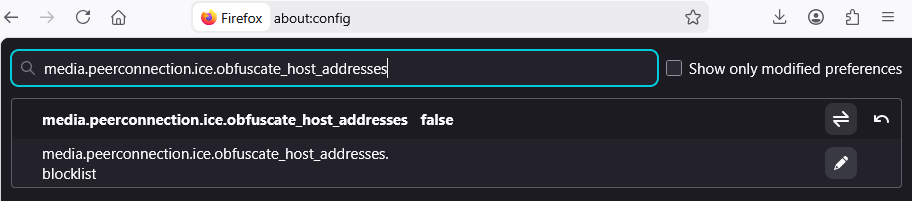
- Search for media.peerconnection.ice.obfuscate_host_addresses. The value you need depends on how your environment is set up, so toggle the value from true to false, or from false to true.
- Search for media.peerconnection.ice.default_address_only, and set it to false to turn off local network access checks for WebRTC.
- Search for network.lna.enabled, and set it to false to automatically allow local network access without having to confirm it every time.
Disable extensions
To disable extensions that might block WebRTC:
- Go to
about:addons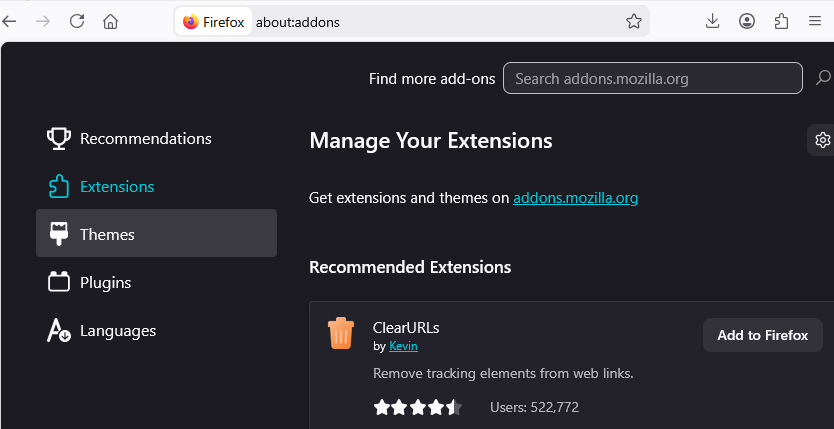
- Disable WebRTC extensions and VPN clients.
Examples of widely-used WebRTC control extensions:
- Disable WebRTC
- WebRTC Control
- WebRTC Leak Shield
- WebRTC Network Limiter
- WebRTC Protect - Protect IP Leak
Examples of widely-used VPN clients:
- CyberGhost
- ExpressVPN
- NordVPN
- Windscribe
See also Solve connection issues and macOS.
© 2026 The Qt Company Ltd. Documentation contributions included herein are the copyrights of their respective owners. The documentation provided herein is licensed under the terms of the GNU Free Documentation License version 1.3 as published by the Free Software Foundation. Qt and respective logos are trademarks of The Qt Company Ltd in Finland and/or other countries worldwide. All other trademarks are property of their respective owners.
