
Qt Quick para Proyectos Android Studio
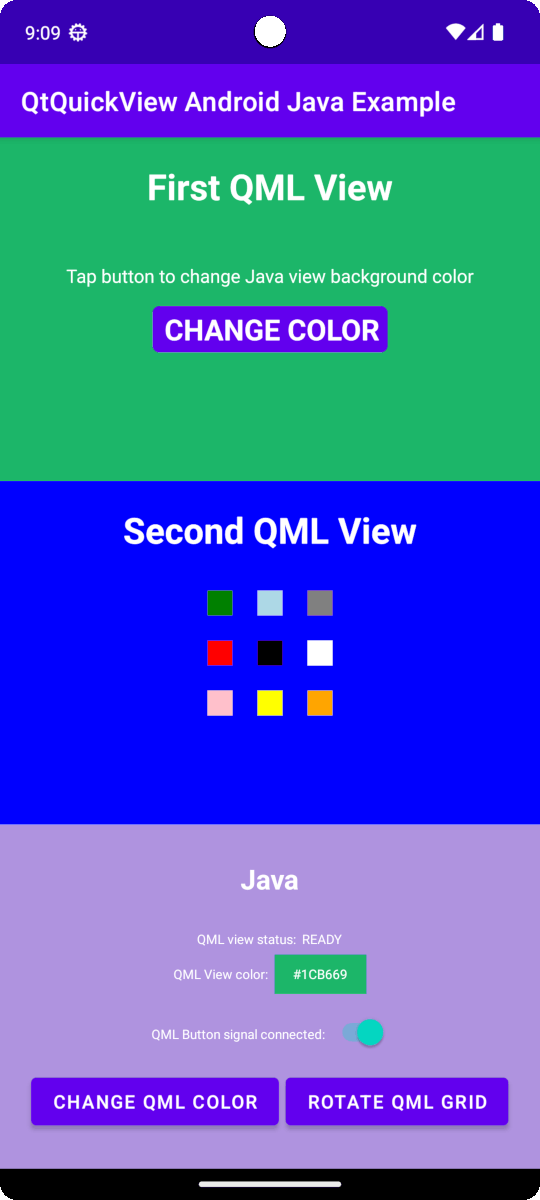
Qt Quick para Android API ejemplos son Proyectos Android Studio
Los ejemplos de la API Qt Quick para Android se proporcionan como proyectos de Android Studio. Las carpetas de los proyectos se encuentran en su ubicación de instalación de Qt.
Por ejemplo, en la ruta de instalación por defecto de Windows, se encuentran aquí:
C:\Qt\Examples\Qt-<patch-release-number>\platforms\android\<example-name>
Estos proyectos ya están configurados para utilizar una versión del plugin Qt Gradle compatible con esta versión de Qt.
Visión general
Este ejemplo contiene un proyecto QML que puedes importar a Android Studio con el plugin Qt Tools for Android Studio. Hay proyectos Java y Kotlin que utilizan el proyecto QML como una Vista utilizando la API QtQuickView.
Para obtener más información sobre cómo funciona QML, consulte Qt Qml. Esta documentación se centra en cómo se incrusta un componente QML en aplicaciones Android utilizando Java o Kotlin.
Los cambios en main() son requeridos por Qt Quick para las APIs de Android
El main.cpp de una aplicación típica de Qt Quick tiene este aspecto:
#include <QGuiApplication>
#include <QQmlApplicationEngine>

int main(int argc, char *argv[])
{
    QGuiApplication app(argc, argv);

    QQmlApplicationEngine engine;
    QObject::connect(
        &engine,
        &QQmlApplicationEngine::objectCreationFailed,
        &app,
        []() { QCoreApplication::exit(-1); },
        Qt::QueuedConnection);
    engine.loadFromModule("MyQtQuickProject", "Main");

    return app.exec();
}
En main() no necesitamos crear un motor QML ni cargar ningún QML que será manejado más tarde por las APIs de vistas de Qt Quick. Todo lo que necesitamos está en main():
#include <QGuiApplication>

int main(int argc, char *argv[])
{
    QGuiApplication app(argc, argv);

    return app.exec();
}
Configurar el layout
Tanto para proyectos Java como Kotlin, necesitamos configurar el layout para las QtQuickViewsen app/src/main/res/layout/activity_main.xml.
Dentro de LinearLayout, configuramos dos FrameLayouts para cada QtQuickView.
 <FrameLayout
    android:id="@+id/firstQmlFrame"
    android:layout_width="match_parent"
    android:layout_height="0dp"
    android:layout_weight="1">
</FrameLayout>

<FrameLayout
    android:id="@+id/secondQmlFrame"
    android:layout_width="match_parent"
    android:layout_height="0dp"
    android:layout_weight="1">
</FrameLayout>
El id es al que se hace referencia en la MainActivity codificada en Kotlin o Java.
Importando clases Java de tipos QML generados automáticamente
Las clases Java para nuestros tipos QML se generan cuando se construye el proyecto Qt Quick. Estas deben ser importadas antes de que podamos utilizarlas en nuestra MainActivity.
import org.qtproject.example.qtquickview.QmlModule.Main;
import org.qtproject.example.qtquickview.QmlModule.Second;
import org.qtproject.example.qtquickview.QmlModule.Main
import org.qtproject.example.qtquickview.QmlModule.Second
Nota: Ver la variable CMake QT_ANDROID_GENERATE_JAVA_QTQUICKVIEW_CONTENTS para más información sobre la generación de código Java de componentes QML.
Método onCreate() de MainActivity
En primer lugar, veremos el método MainActivity's onCreate() de los proyectos Java y Kotlin.
@Override
protected void onCreate(Bundle savedInstanceState) {
    super.onCreate(savedInstanceState);
    setContentView(R.layout.activity_main);

    m_qmlViewBackgroundText = findViewById(R.id.qmlViewBackgroundText);
    m_qmlStatus = findViewById(R.id.qmlStatusText);
    m_androidControlsLayout = findViewById(R.id.javaRelative);
    m_colorBox = findViewById(R.id.qmlColorBox);
    m_switch = findViewById(R.id.disconnectQmlListenerSwitch);
    m_switch.setOnClickListener(view -> switchListener());
    QtQuickView m_firstQuickView = new QtQuickView(this);
    QtQuickView m_secondQuickView = new QtQuickView(this);

    // Set status change listener for m_qmlView
    // listener implemented below in OnStatusChanged
    m_firstQmlContent.setStatusChangeListener(this);
    m_secondQmlContent.setStatusChangeListener(this);
    final ViewGroup.LayoutParams params = new FrameLayout.LayoutParams(
            ViewGroup.LayoutParams.MATCH_PARENT, ViewGroup.LayoutParams.MATCH_PARENT);
    FrameLayout m_firstQmlFrameLayout = findViewById(R.id.firstQmlFrame);
    m_firstQmlFrameLayout.addView(m_firstQuickView, params);
    FrameLayout m_secondQmlFrameLayout = findViewById(R.id.secondQmlFrame);
    m_secondQmlFrameLayout.addView(m_secondQuickView, params);
    m_firstQuickView.loadContent(m_firstQmlContent);
    m_secondQuickView.loadContent(m_secondQmlContent);

    Button m_changeColorButton = findViewById(R.id.changeQmlColorButton);
    m_changeColorButton.setOnClickListener(view -> onClickListener());
    Button m_rotateQmlGridButton = findViewById(R.id.rotateQmlGridButton);
    m_rotateQmlGridButton.setOnClickListener(view -> rotateQmlGrid());
}
override fun onCreate(savedInstanceState: Bundle?) {
super.onCreate(savedInstanceState)
m_binding = ActivityMainBinding.inflate(layoutInflater)
val view = m_binding.root
setContentView(view)
m_binding.disconnectQmlListenerSwitch.setOnCheckedChangeListener { button, checked ->
switchListener(
button,
checked
)
}
val firstQtQuickView = QtQuickView(this)
val secondQtQuickView = QtQuickView(this)
// Set status change listener for m_qmlView
// listener implemented below in OnStatusChanged
m_firstQmlContent.setStatusChangeListener(this)
m_secondQmlContent.setStatusChangeListener(this)
val params: ViewGroup.LayoutParams = FrameLayout.LayoutParams(
ViewGroup.LayoutParams.MATCH_PARENT, ViewGroup.LayoutParams.MATCH_PARENT
)
m_binding.firstQmlFrame.addView(firstQtQuickView, params)
m_binding.secondQmlFrame.addView(secondQtQuickView, params)
firstQtQuickView.loadContent(m_firstQmlContent)
secondQtQuickView.loadContent(m_secondQmlContent)
m_binding.changeQmlColorButton.setOnClickListener { onClickListener() }
m_binding.rotateQmlGridButton.setOnClickListener { rotateQmlGrid() }
}Nota: en el proyecto Kotlin utilizamos View binding para acceder a los componentes UI de la aplicación:
m_binding = ActivityMainBinding.inflate(layoutInflater) val view = m_binding.root setContentView(view)
Dentro del método onCreate(), las variables previamente declaradas se inicializan con nuevas instancias QtQuickView. Estas instancias toman el Context de la Actividad Java/Kotlin como argumentos.
QtQuickView m_firstQuickView = new QtQuickView(this);
QtQuickView m_secondQuickView = new QtQuickView(this);
val firstQtQuickView = QtQuickView(this)
val secondQtQuickView = QtQuickView(this)
Las instancias QtQuickView se añaden al diseño de Android con los parámetros de diseño apropiados.
final ViewGroup.LayoutParams params = new FrameLayout.LayoutParams(
        ViewGroup.LayoutParams.MATCH_PARENT, ViewGroup.LayoutParams.MATCH_PARENT);
FrameLayout m_firstQmlFrameLayout = findViewById(R.id.firstQmlFrame);
m_firstQmlFrameLayout.addView(m_firstQuickView, params);
FrameLayout m_secondQmlFrameLayout = findViewById(R.id.secondQmlFrame);
m_secondQmlFrameLayout.addView(m_secondQuickView, params);
val params: ViewGroup.LayoutParams = FrameLayout.LayoutParams(
ViewGroup.LayoutParams.MATCH_PARENT, ViewGroup.LayoutParams.MATCH_PARENT
)
m_binding.firstQmlFrame.addView(firstQtQuickView, params)
m_binding.secondQmlFrame.addView(secondQtQuickView, params)Las clases Java Main y Second heredan de la clase QtQuickViewContent. Estas clases se generan a partir del proyecto QML que hemos importado.
private final Main m_firstQmlContent = new Main();
private final Second m_secondQmlContent = new Second();
private val m_firstQmlContent: Main = Main()
private val m_secondQmlContent: Second = Second()
El contenido de Qt Quick se carga a través del método QtQuickView.loadContent(), que toma un QtQuickViewContent como argumento.
m_firstQuickView.loadContent(m_firstQmlContent);
m_secondQuickView.loadContent(m_secondQmlContent);
firstQtQuickView.loadContent(m_firstQmlContent)
secondQtQuickView.loadContent(m_secondQmlContent)
Interacción con componentes QML
Para interactuar con los componentes QML incrustados implementamos la interfaz QtQmlStatusChangeListener y anulamos el método onStatusChanged para obtener el estado de carga del QtQuickViewContent que se está cargando actualmente en el QtQuickView.
public class MainActivity extends AppCompatActivity implements
QtQmlStatusChangeListener {
    ...
}
class MainActivity : AppCompatActivity(), QtQmlStatusChangeListener {
    ...
}
La aplicación onStatusChanged:
@Override
public void onStatusChanged(QtQmlStatus qtQmlStatus, QtQuickViewContent content) {
    Log.i(TAG, "Status of QtQuickView: " + qtQmlStatus);

    // Show current QML View status in a textview
    m_qmlStatus.setText(getString(R.string.qml_view_status, m_statusNames.get(qtQmlStatus)));
    updateColorDisplay();

    if (content == m_firstQmlContent) {
        // Connect signal listener to "onClicked" signal from main.qml
        // addSignalListener returns int which can be used later to identify the listener
        if (qtQmlStatus == QtQmlStatus.READY && m_switch.isChecked()) {
            m_qmlButtonSignalListenerId = m_firstQmlContent.connectOnClickedListener(
                    (String name, Void v) -> {
                        Log.i(TAG, "QML button clicked");
                        m_androidControlsLayout.setBackgroundColor(Color.parseColor(
                                m_colors.getColor()
                        ));
                    });
        }
    }
}
override fun onStatusChanged(status: QtQmlStatus?, content: QtQuickViewContent?) {
Log.v(TAG, "Status of QtQuickView: $status")
// Show current QML View status in a textview
m_binding.qmlStatusText.text = getString(R.string.qml_view_status, m_statusNames[status])
updateColorDisplay()
if (content == m_firstQmlContent) {
// Connect signal listener to "onClicked" signal from main.qml
// addSignalListener returns int which can be used later to identify the listener
if (status == QtQmlStatus.READY && m_binding.disconnectQmlListenerSwitch.isChecked) {
m_qmlButtonSignalListenerId =
m_firstQmlContent.connectOnClickedListener { _: String, _: Void? ->
Log.i(TAG, "QML button clicked")
m_binding.kotlinRelative.setBackgroundColor(
Color.parseColor(
m_colors.getColor()
)
)
}
}
}
}El MainActivity se establece como el statusChangeListener de los m_mainQmlContent y m_secondQmlContent con el método QtQuickViewContent.setStatusChangeListener.
m_firstQmlContent.setStatusChangeListener(this);
m_secondQmlContent.setStatusChangeListener(this);
m_firstQmlContent.setStatusChangeListener(this)
m_secondQmlContent.setStatusChangeListener(this)
La función de callback anulada onStatusChanged() recibe la señal StatusChanged() que contiene el estado actual, un QtQmlStatus Enum, de la carga del QtQuickViewContent actual en el QtQuickView. Si se confirma que QtQmlStatus es QtQmlStatus.READY, podemos empezar a interactuar con la vista QML.
Obtener y establecer valores de propiedades de componentes QML
La obtención y configuración de los valores de las propiedades de los componentes QML se realiza a través de los métodos descritos en la clase Main.java. En este caso utilizamos los métodos m_mainQmlContent.setColorStringProperty() y m_mainQmlContent.getColorStringProperty(). Estos métodos se generan en función de las propiedades que incluya el componente QML.
public void onClickListener() {
    // Set the QML view root object property "colorStringFormat" value to
    // color from Colors.getColor()
    m_firstQmlContent.setColorStringFormat(m_colors.getColor());
    updateColorDisplay();
}
private void updateColorDisplay() {
    String qmlBackgroundColor = m_firstQmlContent.getColorStringFormat();
    // Display the QML View background color code
    m_qmlViewBackgroundText.setText(qmlBackgroundColor);

    // Display the QML View background color in a view
    // if qmlBackGroundColor is not null
    if (qmlBackgroundColor != null) {
        m_colorBox.setBackgroundColor(Color.parseColor(qmlBackgroundColor));
    }
}
private fun onClickListener() {
// Set the QML view root object property "colorStringFormat" value to
// color from Colors.getColor()
m_firstQmlContent.colorStringFormat = m_colors.getColor()
updateColorDisplay()
}
private fun updateColorDisplay() {
val qmlBackgroundColor = m_firstQmlContent.colorStringFormat
// Display the QML View background color code
m_binding.qmlViewBackgroundText.text = qmlBackgroundColor
// Display the QML View background color in a view
// if qmlBackgroundColor is not null
if (qmlBackgroundColor != null) {
m_binding.qmlColorBox.setBackgroundColor(Color.parseColor(qmlBackgroundColor))
}
}Con el método m_mainQmlContent.setColorStringProperty() establecemos el valor de la propiedad colorStringFormat del m_mainQmlContent un valor de color aleatorio que se obtiene de la clase Colors.java (o Colors.kt).
El método m_mainQmlContent.getColorStringProperty() se utiliza aquí para obtener el color de fondo actual del objeto raíz del m_mainQmlContent y luego mostrarlo al usuario en el lado Java/Kotlin Android de la aplicación.
m_secondQmlContent tiene un componente QML Grid que podemos rotar desde el lado Java con el método generado m_secondQmlContent.setGridRotation().
private void rotateQmlGrid() {
    Integer previousGridRotation = m_secondQmlContent.getGridRotation();
    if (previousGridRotation != null) {
        m_secondQmlContent.setGridRotation(previousGridRotation + 45);
    }
}
private fun rotateQmlGrid() {
val previousGridRotation = m_secondQmlContent.gridRotation
if (previousGridRotation != null) {
m_secondQmlContent.gridRotation = previousGridRotation + 45
}
}Escuchadores de señales
La clase QtQuickViewContent ofrece los métodos connectSignalListener() y disconnectSignalListener() que se utilizan para conectar y desconectar escuchadores de señales entre señales declaradas en el objeto raíz del componente QML. El método QtQuickViewContent.connectSignalListener() devuelve un ID de receptor de señal único, que almacenamos y utilizamos posteriormente para identificar y desconectar el receptor.
Aquí conectamos un receptor de señal a la señal onClicked() del componente QML:
if (qtQmlStatus == QtQmlStatus.READY && m_switch.isChecked()) {
    m_qmlButtonSignalListenerId = m_firstQmlContent.connectOnClickedListener(
            (String name, Void v) -> {
                Log.i(TAG, "QML button clicked");
                m_androidControlsLayout.setBackgroundColor(Color.parseColor(
                        m_colors.getColor()
                ));
            });
}
if (status == QtQmlStatus.READY && m_binding.disconnectQmlListenerSwitch.isChecked) {
m_qmlButtonSignalListenerId =
m_firstQmlContent.connectOnClickedListener { _: String, _: Void? ->
Log.i(TAG, "QML button clicked")
m_binding.kotlinRelative.setBackgroundColor(
Color.parseColor(
m_colors.getColor()
)
)
}
}La señal onClicked() se emite cada vez que se pulsa el botón del componente QML. Este receptor recibe la señal, y el color de fondo del diseño de la parte Android de la aplicación se establece en un valor de color aleatorio obtenido de la clase Colors.java.
A continuación, el receptor de la señal se desconecta utilizando el método QtQuickViewContent.disconnectSignalListener() dándole el ID único del receptor de la señal.
m_firstQmlContent.disconnectSignalListener(m_qmlButtonSignalListenerId);
m_firstQmlContent.disconnectSignalListener(m_qmlButtonSignalListenerId)
Si aún no lo has hecho, echa un vistazo al curso de Qt Academy: Embedding Qt Quick 3D Content in an Android App course que introduce las herramientas y APIs referenciadas en este ejemplo.
© 2026 The Qt Company Ltd. Documentation contributions included herein are the copyrights of their respective owners. The documentation provided herein is licensed under the terms of the GNU Free Documentation License version 1.3 as published by the Free Software Foundation. Qt and respective logos are trademarks of The Qt Company Ltd. in Finland and/or other countries worldwide. All other trademarks are property of their respective owners.
