
Animations
Qt Quick permet d’animer des propriétés. L’animation des propriétés permet aux valeurs de ces dernières de passer par des valeurs intermédiaires au lieu de passer immédiatement à la valeur cible. Pour animer la position d’un élément, vous pouvez animer les propriétés qui contrôlent sa position, x et y par exemple, de sorte que la position de l’élément change à chaque image jusqu’à atteindre la position cible.
Interfaces utilisateur fluides
QML a été conçu pour faciliter la création d’interfaces utilisateur fluides. Il s’agit d’interfaces utilisateur dans lesquelles les composants s’animent au lieu d’apparaître, de disparaître ou de se déplacer brusquement. Qt Quick propose deux méthodes simples pour faire se déplacer les composants d’interface utilisateur de manière animée au lieu de les faire apparaître instantanément à leur nouvel emplacement.
États et transitions
Qt Quick vous permet de déclarer divers états d’interface utilisateur dans les objets State. Ces états sont constitués de modifications de propriétés par rapport à un état de base et peuvent constituer un moyen utile d’organiser la logique de votre interface utilisateur. Les transitions sont des objets que vous pouvez associer à un élément pour définir comment ses propriétés s’animeront lorsqu’elles changent à la suite d’un changement d’état.
Les états et les transitions d’un élément peuvent être déclarés à l’aide des propriétés ` Item::states ` et ` Item::transitions `. Les états sont déclarés dans la propriété `states list` d’un élément, généralement l’élément racine du composant. Les transitions définies sur ce même élément sont utilisées pour animer les changements d’état. Voici un exemple.
Item {
    id: container
    width: 320
    height: 120

    Rectangle {
        id: rect
        color: "red"
        width: 120
        height: 120

        TapHandler {
            onTapped: container.state === '' ? container.state = 'other' : container.state = ''
        }
    }
    states: [
        // This adds a second state to the container where the rectangle is farther to the right

        State { name: "other"

            PropertyChanges {
                target: rect
                x: 200
            }
        }
    ]
    transitions: [
        // This adds a transition that defaults to applying to all state changes

        Transition {

            // This applies a default NumberAnimation to any changes a state change makes to x or y properties
            NumberAnimation { properties: "x,y" }
        }
    ]
}
Animation des changements de propriétés.
Les comportements peuvent être utilisés pour spécifier une animation à appliquer à une propriété lorsqu’elle change. Celle-ci s’applique alors à toutes les modifications, quelle qu’en soit la source. L’exemple suivant anime un bouton se déplaçant à l’écran à l’aide de comportements.
Item {
    width: 320
    height: 120

    Rectangle {
        color: "green"
        width: 120
        height: 120

        // This is the behavior, and it applies a NumberAnimation to any attempt to set the x property
        Behavior on x {

            NumberAnimation {
                //This specifies how long the animation takes
                duration: 600
                //This selects an easing curve to interpolate with, the default is Easing.Linear
                easing.type: Easing.OutBounce
            }
        }

        TapHandler {
            onTapped: parent.x == 0 ? parent.x = 200 : parent.x = 0
        }
    }
}
Autres animations
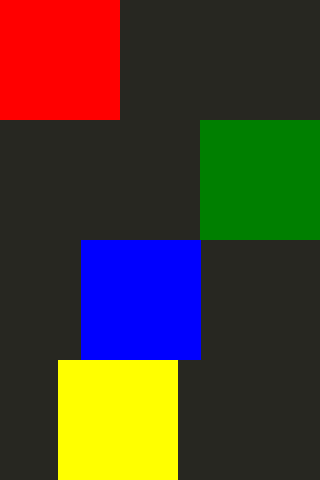
Toutes les animations ne doivent pas nécessairement être liées à une propriété ou à un état spécifique. Vous pouvez également créer des animations de manière plus générale et spécifier les éléments cibles et les propriétés au sein de l’animation. Voici quelques exemples illustrant différentes façons de procéder :
Item {
    width: 320
    height: 120

    Rectangle {
        color: "blue"
        width: 120
        height: 120

        // By setting this SequentialAnimation on x, it and animations within it will automatically animate
        // the x property of this element
        SequentialAnimation on x {
            id: xAnim
            // Animations on properties start running by default
            running: false
            loops: Animation.Infinite // The animation is set to loop indefinitely
            NumberAnimation { from: 0; to: 200; duration: 500; easing.type: Easing.InOutQuad }
            NumberAnimation { from: 200; to: 0; duration: 500; easing.type: Easing.InOutQuad }
            PauseAnimation { duration: 250 } // This puts a bit of time between the loop
        }

        TapHandler {
            // The animation starts running when you click within the rectangle
            onTapped: xAnim.running = true
        }
    }
}
Item {
    width: 320
    height: 120

    Rectangle {
        id: rectangle
        color: "yellow"
        width: 120
        height: 120

        TapHandler {
            // The animation starts running when you click within the rectangle
            onTapped: anim.running = true;
        }
    }

    // This animation specifically targets the Rectangle's properties to animate
    SequentialAnimation {
        id: anim
        // Animations on their own are not running by default
        // The default number of loops is one, restart the animation to see it again

        NumberAnimation { target: rectangle; property: "x"; from: 0; to: 200; duration: 500 }

        NumberAnimation { target: rectangle; property: "x"; from: 200; to: 0; duration: 500 }
    }
}
Vous trouverez plus d'informations sur les animations sur la page « Concepts importants dans l'Qt Quick: états, transitions et animations ».
© 2026 The Qt Company Ltd. Documentation contributions included herein are the copyrights of their respective owners. The documentation provided herein is licensed under the terms of the GNU Free Documentation License version 1.3 as published by the Free Software Foundation. Qt and respective logos are trademarks of The Qt Company Ltd. in Finland and/or other countries worldwide. All other trademarks are property of their respective owners.
