
Qt Quick 3D 物理 - 复合形状示例
演示如何使用复杂的碰撞形状。
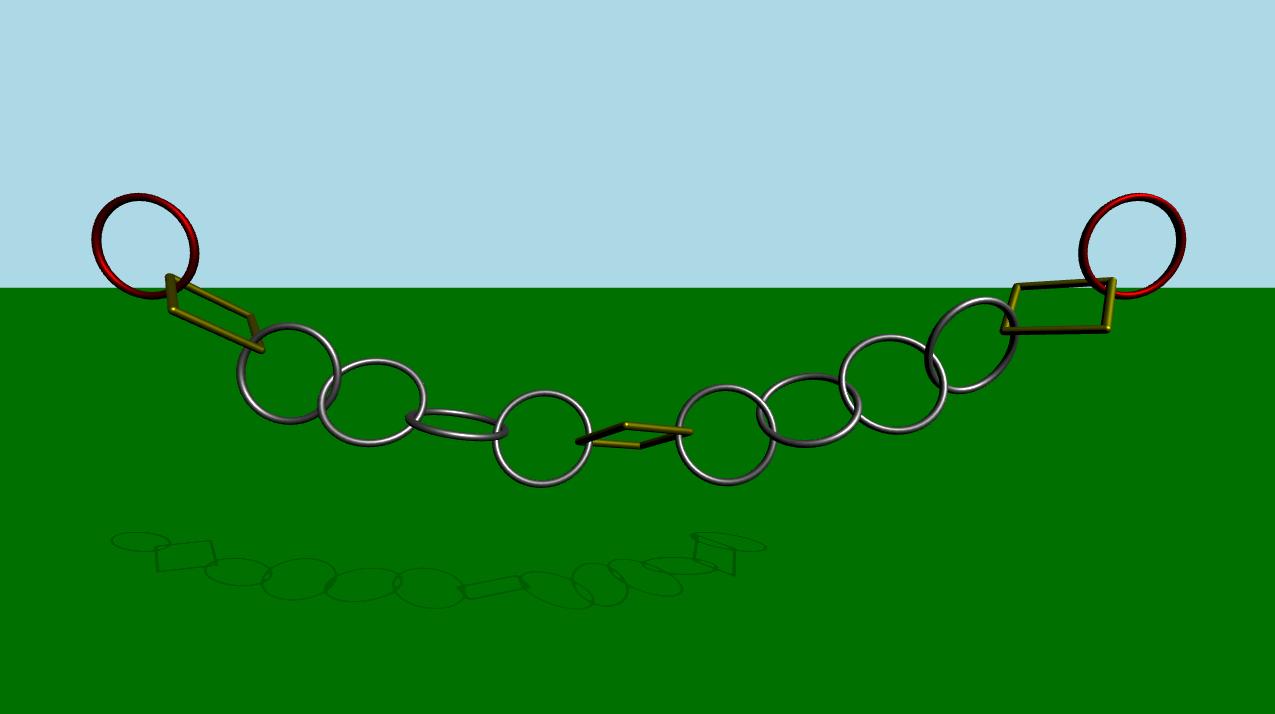
本示例演示了如何使用多个碰撞形状来创建用于碰撞检测的复杂物体。该场景由一个绿色的静态平面和一系列相互连接的连杆组成。初始时,模拟功能处于禁用状态。经过一段时间或当用户按下空格键时,模拟将开始。 此时将开始播放动画,使最左侧和最右侧的连杆水平来回移动。
设置
与往常一样,我们需要添加PhysicsWorld :
PhysicsWorld {
    id: physicsWorld
    enableCCD: true
    maximumTimestep: 20
    scene: viewport.scene
}
我们进行常规设置,包括环境、摄像机和灯光:
environment: SceneEnvironment {
    antialiasingMode: SceneEnvironment.MSAA
    backgroundMode: SceneEnvironment.Color
    clearColor: "lightblue"
}

focus: true

PerspectiveCamera {
    id: camera
    position: Qt.vector3d(0, 900, 1500)
    eulerRotation: Qt.vector3d(-10, 0, 0)
    clipFar: 15500
    clipNear: 1
}

DirectionalLight {
    eulerRotation.x: -45
    eulerRotation.y: 45
    castsShadow: true
    brightness: 1.5
    shadowMapQuality: Light.ShadowMapQualityHigh
}
物理对象
我们有一个常规的静态平面:
StaticRigidBody {
    position: Qt.vector3d(0, -100, 0)
    eulerRotation: Qt.vector3d(-90, 0, 0)
    collisionShapes: PlaneShape {}
    Model {
        source: "#Rectangle"
        scale: Qt.vector3d(500, 500, 1)
        materials: PrincipledMaterial {
            baseColor: "green"
        }
        castsShadows: false
        receivesShadows: true
    }
}
接着创建链接的实例。
MeshLink {
    id: leftLink
    isKinematic: true
    property vector3d startPos: Qt.vector3d(-6 * viewport.ringDistance,
                                            viewport.ringY,
                                            0)
    property vector3d startRot: Qt.vector3d(90, 0, 0)
    kinematicPosition: startPos
    position: startPos
    kinematicEulerRotation: startRot
    eulerRotation: startRot
    color: "red"
}

CapsuleLink {
    position: Qt.vector3d(-5 * viewport.ringDistance, viewport.ringY, 0)
    eulerRotation: Qt.vector3d(90, 0, 0)
}

MeshLink {
    position: Qt.vector3d(-4 * viewport.ringDistance, viewport.ringY, 0)
    eulerRotation: Qt.vector3d(90, 0, 0)
}

MeshLink {
    position: Qt.vector3d(-3 * viewport.ringDistance, viewport.ringY, 0)
    eulerRotation: Qt.vector3d(0, 90, 0)
}

MeshLink {
    position: Qt.vector3d(-2 * viewport.ringDistance, viewport.ringY, 0)
    eulerRotation: Qt.vector3d(90, 0, 0)
}

MeshLink {
    position: Qt.vector3d(-1 * viewport.ringDistance, viewport.ringY, 0)
    eulerRotation: Qt.vector3d(0, 90, 0)
}

CapsuleLink {
    position: Qt.vector3d(0, viewport.ringY, 0)
}

MeshLink {
    position: Qt.vector3d(1 * viewport.ringDistance, viewport.ringY, 0)
    eulerRotation: Qt.vector3d(0, 90, 0)
}

MeshLink {
    position: Qt.vector3d(2 * viewport.ringDistance, viewport.ringY, 0)
    eulerRotation: Qt.vector3d(90, 0, 0)
}

MeshLink {
    position: Qt.vector3d(3 * viewport.ringDistance, viewport.ringY, 0)
    eulerRotation: Qt.vector3d(0, 90, 0)
}

MeshLink {
    position: Qt.vector3d(4 * viewport.ringDistance, viewport.ringY, 0)
    eulerRotation: Qt.vector3d(90, 0, 0)
}

CapsuleLink {
    position: Qt.vector3d(5 * viewport.ringDistance, viewport.ringY, 0)
    eulerRotation: Qt.vector3d(90, 0, 0)
}

MeshLink {
    id: rightLink
    isKinematic: true
    property vector3d startPos: Qt.vector3d(6 * viewport.ringDistance,
                                            viewport.ringY,
                                            0)
    property vector3d startRot: Qt.vector3d(90, 0, 0)
    kinematicPosition: startPos
    position: startPos
    kinematicEulerRotation: startRot
    eulerRotation: startRot
    color: "red"
}位于左侧的第一个连杆将其“isKinematic ”属性设置为“true ”,以便我们可以通过动画对其进行控制。由于它是运动学对象,我们需要设置“kinematicPosition ”和“kinematicRotation ”属性。我们通过动画化“kinematicPosition ”属性来对其进行动画控制。其余连杆以实例形式创建,彼此之间留有一定间距。
为了获得完全遵循物理模拟的平滑动画,我们使用了一个AnimationController ,并将它连接到PhysicsWorld 上的onFrameDone 信号。这样,如果出现任何导致模拟变慢的帧丢失,动画也会相应地减慢。我们使用一个SequentialAnimation ,其中包含四个NumberAnimation ,来驱动最左侧和最右侧的环形部件来回移动。以下是该动画的QML代码:
Connections {
    target: physicsWorld
    property real totalAnimationTime: 12000
    function onFrameDone(timeStep) {
        let progressStep = timeStep / totalAnimationTime
        animationController.progress += progressStep
        if (animationController.progress >= 1) {
            animationController.completeToEnd()
            animationController.reload()
            animationController.progress = 0
        }
    }
}

AnimationController {
    id: animationController
    animation: SequentialAnimation {
        NumberAnimation {
            target: leftLink
            property: "kinematicPosition.x"
            to: 3 * viewport.ringDistance
            from: -6 * viewport.ringDistance
            easing.type: Easing.InOutCubic
            duration: 1000
        }
        NumberAnimation {
            target: leftLink
            property: "kinematicPosition.x"
            from: 3 * viewport.ringDistance
            to: -6 * viewport.ringDistance
            easing.type: Easing.InOutCubic
            duration: 1000
        }
        NumberAnimation {
            target: rightLink
            property: "kinematicPosition.x"
            to: -3 * viewport.ringDistance
            from: 6 * viewport.ringDistance
            easing.type: Easing.InOutCubic
            duration: 1000
        }
        NumberAnimation {
            target: rightLink
            property: "kinematicPosition.x"
            from: -3 * viewport.ringDistance
            to: 6 * viewport.ringDistance
            easing.type: Easing.InOutCubic
            duration: 1000
        }
    }
}
有趣的部分在于 Mesh 和 Capsule Links 文件内部的实现。让我们分别来看看它们。
Mesh Link
DynamicRigidBody {
    id: root
    scale: Qt.vector3d(100, 100, 100)
    property color color: "white"
    PrincipledMaterial {
        id: _material
        baseColor: root.color
        metalness: 1.0
        roughness: 0.5
    }

    Model {
        source: "meshes/ring.mesh"
        materials: [_material]
    }

    collisionShapes: [
        ConvexMeshShape {
            source: "meshes/segmentedRing_001.mesh"
        },
        ConvexMeshShape {
            source: "meshes/segmentedRing_002.mesh"
        },
        ConvexMeshShape {
            source: "meshes/segmentedRing_003.mesh"
        },
        ConvexMeshShape {
            source: "meshes/segmentedRing_004.mesh"
        },
        ConvexMeshShape {
            source: "meshes/segmentedRing_005.mesh"
        },
        ConvexMeshShape {
            source: "meshes/segmentedRing_006.mesh"
        },
        ConvexMeshShape {
            source: "meshes/segmentedRing_007.mesh"
        },
        ConvexMeshShape {
            source: "meshes/segmentedRing_008.mesh"
        },
        ConvexMeshShape {
            source: "meshes/segmentedRing_009.mesh"
        },
        ConvexMeshShape {
            source: "meshes/segmentedRing_010.mesh"
        },
        ConvexMeshShape {
            source: "meshes/segmentedRing_011.mesh"
        },
        ConvexMeshShape {
            source: "meshes/segmentedRing_012.mesh"
        }
    ]
}
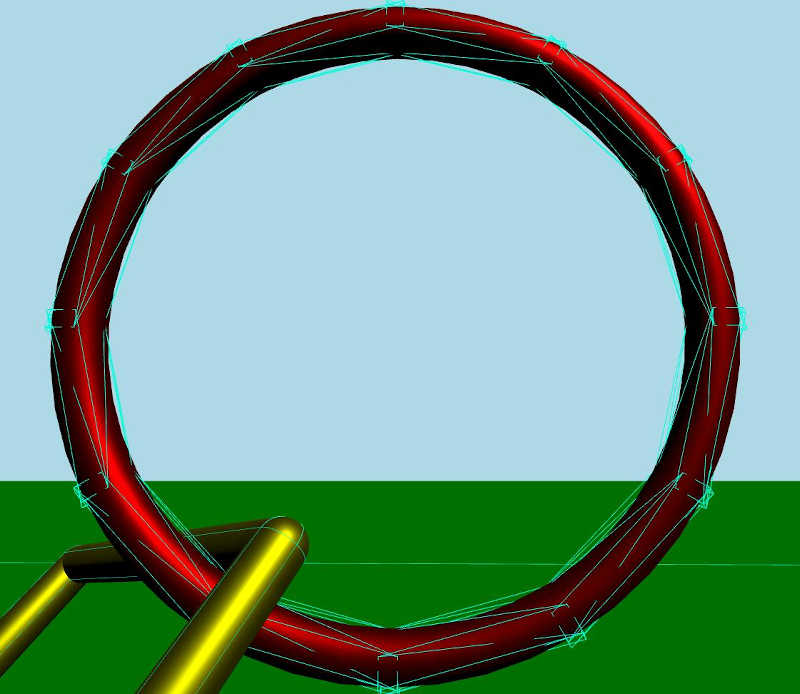
Mesh Link 是一个带有模型和材质的动态刚体。该模型从网格文件中加载网格。 我们还拥有一组碰撞形状,它们组合在一起形成一个用于碰撞检测的复合形状。每个形状都是一个 Convex Mesh 形状,该形状从源文件中加载网格。凸形状基本上是指形状内部任意两点之间的连线始终位于该形状内部的形状。
如果启用调试模式并仔细观察,碰撞形状就是这样组合成复合碰撞形状的:
胶囊链接
DynamicRigidBody {
    id: root
    property real len: 170
    property real w: 17
    PrincipledMaterial {
        id: material3
        baseColor: "yellow"
        metalness: 1.0
        roughness: 0.5
    }
    Node {
        opacity: 1
        Model {
            materials: material3
            source: "#Cylinder"
            scale: Qt.vector3d(root.w / 100, root.len / 100, root.w / 100)
            eulerRotation.z: 90
            y: -root.len / 2
        }
        Model {
            materials: material3
            source: "#Cylinder"
            scale: Qt.vector3d(root.w / 100, root.len / 100, root.w / 100)
            eulerRotation.z: 90
            y: root.len / 2
        }
        Model {
            materials: material3
            source: "#Cylinder"
            scale: Qt.vector3d(root.w / 100, root.len / 100, root.w / 100)
            x: root.len / 2
        }
        Model {
            materials: material3
            source: "#Cylinder"
            scale: Qt.vector3d(root.w / 100, root.len / 100, root.w / 100)
            x: -root.len / 2
        }
        Model {
            materials: material3
            source: "#Sphere"
            scale: Qt.vector3d(root.w / 100, root.w / 100, root.w / 100)
            x: -root.len / 2
            y: -root.len / 2
        }
        Model {
            materials: material3
            source: "#Sphere"
            scale: Qt.vector3d(root.w / 100, root.w / 100, root.w / 100)
            x: -root.len / 2
            y: root.len / 2
        }
        Model {
            materials: material3
            source: "#Sphere"
            scale: Qt.vector3d(root.w / 100, root.w / 100, root.w / 100)
            x: root.len / 2
            y: -root.len / 2
        }
        Model {
            materials: material3
            source: "#Sphere"
            scale: Qt.vector3d(root.w / 100, root.w / 100, root.w / 100)
            x: root.len / 2
            y: root.len / 2
        }
    }
    collisionShapes: [
        CapsuleShape {
            y: -root.len / 2
            height: root.len
            diameter: root.w
        },
        CapsuleShape {
            y: root.len / 2
            height: root.len
            diameter: root.w
        },
        CapsuleShape {
            x: -root.len / 2
            eulerRotation.z: 90
            height: root.len
            diameter: root.w
        },
        CapsuleShape {
            x: root.len / 2
            eulerRotation.z: 90
            height: root.len
            diameter: root.w
        }
    ]
}
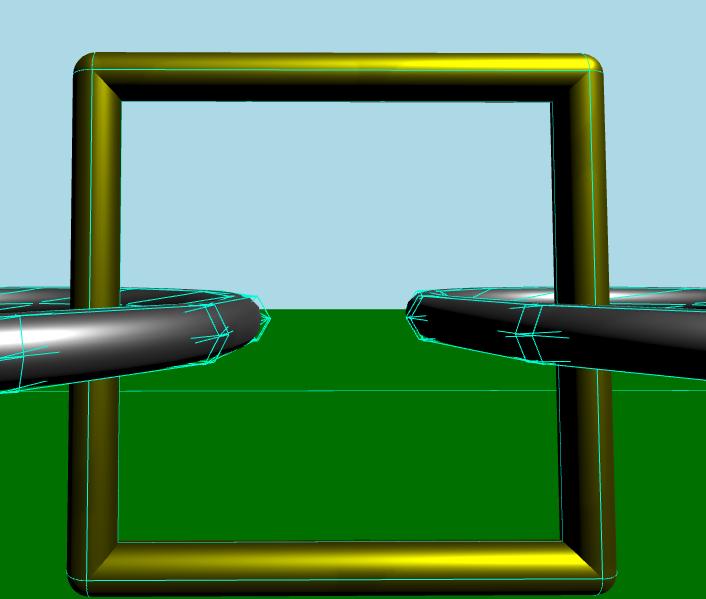
“胶囊连接体”是一个动态刚体,其中包含一些共享相同材质的模型。该连接体由多个圆柱体和球体组成。与“网格连接体”类似,我们这里也有一个碰撞形状列表。不过这次,每个形状都是一个“胶囊形状”。
如果启用调试模式并仔细观察,就会发现碰撞形状正是这样组合成复合碰撞形状的。
文件:
© 2026 The Qt Company Ltd. Documentation contributions included herein are the copyrights of their respective owners. The documentation provided herein is licensed under the terms of the GNU Free Documentation License version 1.3 as published by the Free Software Foundation. Qt and respective logos are trademarks of The Qt Company Ltd. in Finland and/or other countries worldwide. All other trademarks are property of their respective owners.
