
MCPサーバーの追加
MCPサーバーへの接続を設定して、以下の操作を行うことができます:
- タスクの実行
- クロスオリジンリソース共有(CORS)を使用して、Webアプリケーションからサーバーに接続する
以下の目的でツールを使用できます:
- コマンドラインツールやその他の実行ファイルを実行する
- バージョン管理リポジトリ
- 表示可能なファイルの一覧表示
- ブレークポイントの管理
- デバッガーのスタックトレースの取得
- アクションの検索と実行
以下のコマンドを実行できます:
- プロジェクトの依存関係の取得
- ファイルに関するイシューの一覧表示
- プロジェクト内のファイルの検索
- プロジェクトファイルやその他のファイル内のテキストの検索と置換
MCPサーバーへの接続
MCPサーバーへの接続を追加するには:
- 「Preferences 」 > 「AI 」 > 「MCP Servers 」の順に移動します。
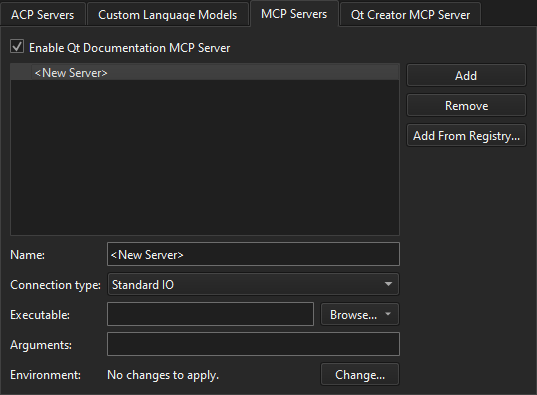
- 「Add 」を選択します。
- サーバーの設定を行います。
- 「Apply 」を選択します。
以下の表に設定の概要を示します。
| 設定 | 値 |
|---|---|
| Connection type | MCP サーバーに使用する接続の種類。 |
| Executable | MCP サーバープロセスを起動するための実行ファイル。標準 IO 接続でのみ使用されます。 |
| Arguments | 起動コマンドの引数。 |
| Environment | 標準 I/O 接続を介して MCP サーバープロセスを起動する際に適用される環境の変更。 |
レジストリからMCPサーバーを追加する
レジストリからMCPサーバーをインストールし、それらへの接続を作成するには:
- 「Preferences 」>「AI 」>「MCP Servers 」の順に移動します。
- 「Add from Registry 」を選択します。
- リストから MCP サーバーを選択します。
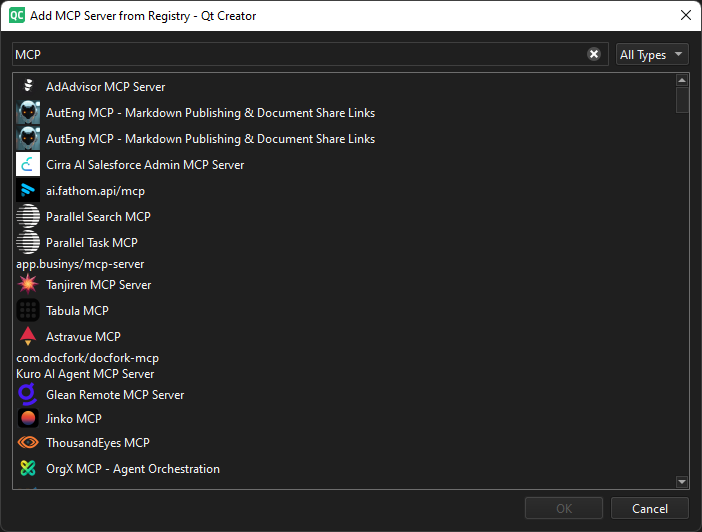
- 「OK 」を選択します。
Copyright © The Qt Company Ltd. and other contributors. Documentation contributions included herein are the copyrights of their respective owners. The documentation provided herein is licensed under the terms of the GNU Free Documentation License version 1.3 as published by the Free Software Foundation. Qt and respective logos are trademarks of The Qt Company Ltd in Finland and/or other countries worldwide. All other trademarks are property of their respective owners.
