
QNX Neutrino デバイスの追加
ウィザードを使用して QNX Neutrino デバイスを追加することも、手動で追加することもできます。
ウィザードを使用してデバイスを追加する
ウィザードを使用してQNX Device を追加するには:
- 「Preferences 」>「Devices 」>「Devices 」の順に移動します。
- 「Add 」>「QNX Device 」>「Start Wizard 」を選択します。
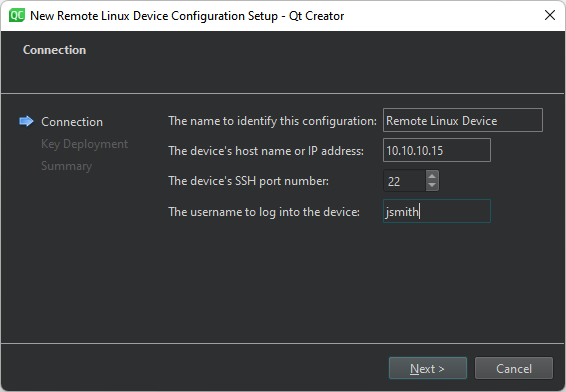
- 「The name to identify this configuration 」で、接続の名前を入力します。
- 「The device's host name or IP address 」で、デバイスのホスト名またはIPアドレスを入力します。これが「
%{Device:HostAddress}」変数の値となります。 - The device's SSH port number で、SSH 接続用のポート番号を入力します。これが
%{Device:SshPort}変数の値になります。 - 「The username to log into the device 」で、デバイスにログインしてアプリケーションを実行するためのユーザー名を入力します。これが
%{Device:UserName}変数の値になります。 - 「Next 」を選択して、「Key Deployment 」ダイアログを開きます。
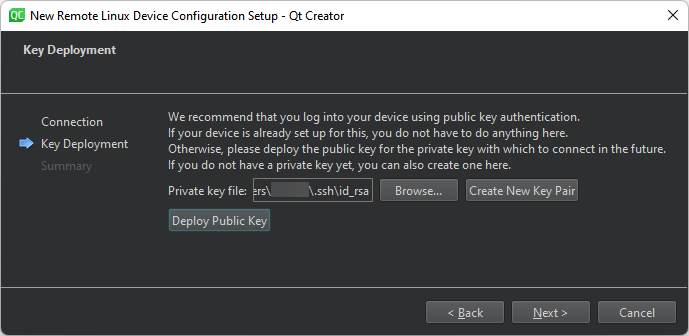
- 「Private key file 」で、認証用の秘密鍵ファイルを選択します。これが
%{Device:PrivateKeyFile}変数の値になります。 - 公開鍵と秘密鍵のペアをお持ちでない場合は、[Create New Key Pair] を選択してください。詳細については、「SSH 鍵の生成」を参照してください。
- 「Deploy Public Key 」を選択して、公開鍵をデバイスにコピーします。
- 「Next 」を選択して、接続を作成します。
デバイスの設定を変更するには、[Preferences ] > [Devices ] > [Devices ] の順に移動し、[Device] からデバイスを選択します。
デバイスを手動で追加する
ウィザードを使用せずにデバイスを追加するには、Add ボタンのプルダウンメニューからQNX Device を選択します。
「QNX Neutrino デバイス向けの開発」、「QNX 向けの開発方法」、 「リモート Linux 向けの開発方法」、および「キットの管理方法」も参照してください 。
Copyright © The Qt Company Ltd. and other contributors. Documentation contributions included herein are the copyrights of their respective owners. The documentation provided herein is licensed under the terms of the GNU Free Documentation License version 1.3 as published by the Free Software Foundation. Qt and respective logos are trademarks of The Qt Company Ltd in Finland and/or other countries worldwide. All other trademarks are property of their respective owners.
