
FakeVim
Vim スタイルの編集に関する設定を行うには、Preferences >FakeVim に移動してください。
Vimの動作の設定
Vimの挙動を設定するには、Preferences >FakeVim >General に移動します。
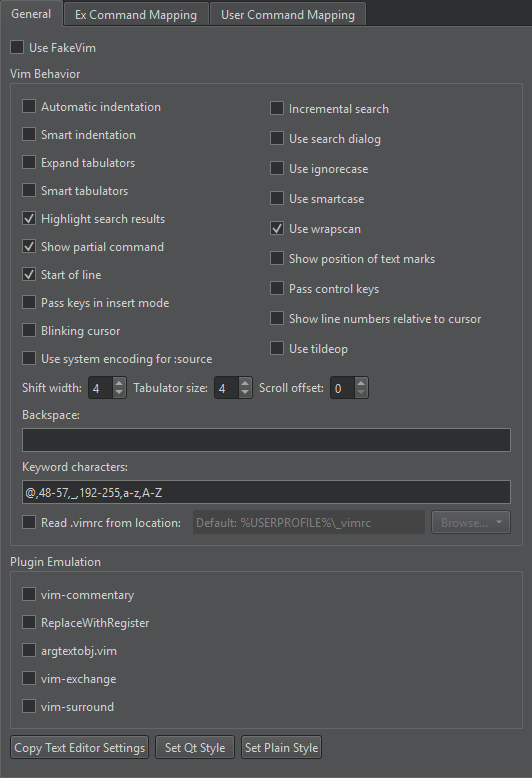
プリセットを使用するには:
- テキストエディタ用に指定されたインデント設定を事前に選択するには、[Copy Text Editor Settings] を選択します。
- Qtのコーディングスタイルを事前に選択するには、「Set Qt Style 」を選択します。
- シンプルなインデントスタイルを事前に選択するには、[Set Plain Style] を選択します。
その後、事前選択された設定を変更します。
プラグインのエミュレーション
Plugin Emulation で、エミュレートする一般的な vim プラグインを選択します。
次の表は、利用可能なプラグインと、それらへのリンクをまとめたものです。
| Vim プラグイン | 説明 |
|---|---|
| vim-commentary | gc アクションを使用してコード領域をコメントアウトします。例:gcc 、gc2j 、gcip |
| ReplaceWithRegister |
|
| argtextobj.vim | 関数の引数用に、ia およびaa というテキストオブジェクトを定義します。 |
| vim-exchange | vim 用のテキスト交換演算子。 |
| vim-surround | 周囲の削除、追加、変更を行うマッピングを追加します。 |
FakeVim コマンドのマッピング
FakeVim のコマンドラインで入力されたコマンドをQt Creator の関数にマッピングするには:
- 「Preferences 」>「FakeVim 」>「Ex Command Mapping 」の順に選択します。
- 「Filter 」フィールドに文字列を入力して、Qt Creator の関数を検索します。
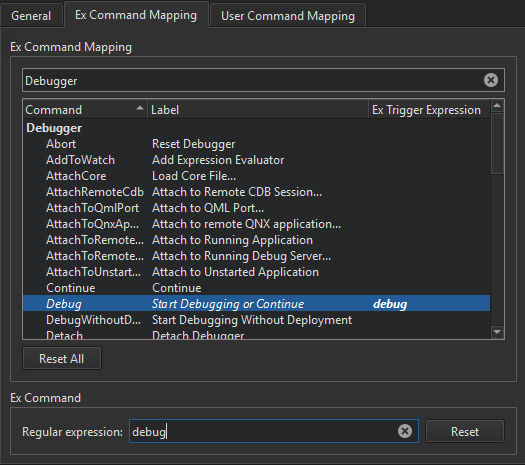
- リストから関数を選択します。
- 「Regular expression 」フィールドに、関数をトリガーする文字列を入力します。
「Ex Trigger Expression 」フィールドにトリガー式が表示されます。
選択したトリガー式を削除するには、「Reset 」を選択します。
すべての関数のトリガー式をリセットするには、「Reset All 」を選択します。
ユーザーコマンドのマッピング
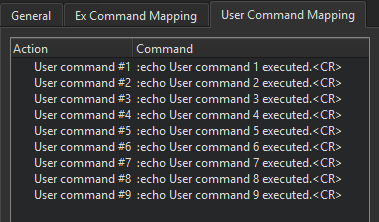
ユーザーコマンドをキーボードショートカットに割り当てるには、[Preferences ] > [FakeVim ] > [User Command Mapping] の順に選択します。ショートカットに割り当てられたユーザーコマンドは、あたかもそのコマンドを入力したかのように(マクロを再生する場合と同様に)、FakeVim によって実行されます。
「Vim のように編集する」および「FakeVim のモードとコマンド」も参照してください 。
Copyright © The Qt Company Ltd. and other contributors. Documentation contributions included herein are the copyrights of their respective owners. The documentation provided herein is licensed under the terms of the GNU Free Documentation License version 1.3 as published by the Free Software Foundation. Qt and respective logos are trademarks of The Qt Company Ltd in Finland and/or other countries worldwide. All other trademarks are property of their respective owners.
