
调试器日志
您可以在“Debugger Log ”视图中查看调试输出,以排查调试器问题。
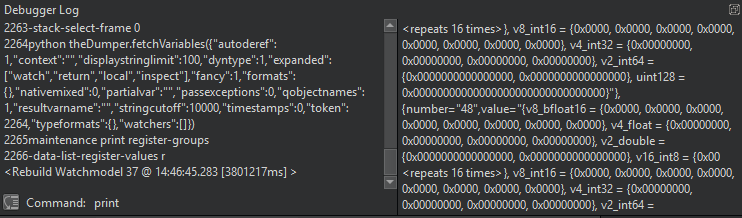
如果调试输出被发送到系统日志,请转到“Preferences ” > “Debugger ” > “General ”,然后选择“Force logging to console ”。
右键单击该视图以选择以下操作:
- 复制、粘贴、剪切和删除日志内容。
- 撤销和重做编辑操作。
- 全选日志内容。
- 清除日志内容。
- 将日志内容另存为文件。
- 日志时间戳。
- 在添加自定义调试辅助工具后重新加载调试辅助工具。
- 设置调试器首选项。
直接与调试器交互
您可以使用“Debugger Log ”视图的左侧窗格直接与调试器的命令行进行交互。
按Ctrl+Enter将文本光标所在行下的内容发送至调试器。或者,在“Command ”字段中输入命令。Debugger Log 视图的右侧窗格会显示命令的输出结果。
注意:通常情况下, 您无需使用此功能,因为“Qt Creator ”提供了更佳的处理方式。例如,与其在命令行中使用 GDB 的 `print ` 命令,不如在“Expressions”视图中求值。
Copyright © The Qt Company Ltd. and other contributors. Documentation contributions included herein are the copyrights of their respective owners. The documentation provided herein is licensed under the terms of the GNU Free Documentation License version 1.3 as published by the Free Software Foundation. Qt and respective logos are trademarks of The Qt Company Ltd in Finland and/or other countries worldwide. All other trademarks are property of their respective owners.
