
配置 EBlink
EBlink是一款基于 Arm Cortex-M 的调试工具,支持 Squirrel 脚本、实时变量和热插拔功能。
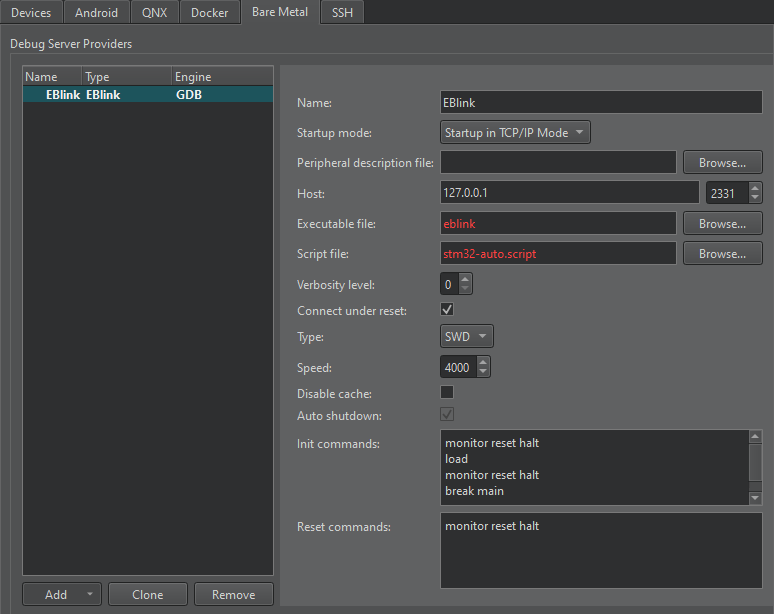
要设置 EBlink 的首选项:
- 转到“Preferences ” > “Devices ” > Bare Metal.
- 选择“Add ”。
- 选择“EBlink ”。
- 在“Name ”中,输入连接名称。
- 在“Startup mode ”中,选择启动调试服务器提供程序的模式。
- 在“Peripheral description file ”中,指定描述设备外设的文件路径。
- 在“Host ”中,选择用于连接调试服务器提供程序的主机名和端口号。
- 在“Executable file ”中,输入调试服务器提供程序可执行文件的路径。
- 在“Script file ”中,输入设备脚本文件的路径。
- 在“Verbosity level ”中,输入详细日志记录的级别。
- 选中“Connect under reset ”以使用 ST-Link 接口。若需热插拔,请取消选中该选项。
- 在“Type ”中,选择接口类型。
- 在“Speed ”中,输入 120 至 8000 千赫(kHz)之间的接口速度。
- 选择“Disable cache ”以禁用 EBlink 闪存缓存。
- 选择“Auto shutdown ”以在断开连接后自动关闭 EBlink 服务器。
- 在“Init commands ”中,输入初始化连接时要执行的命令。
- 在“Reset commands ”中,输入在重置连接时要执行的命令。
- 选择“Apply ”以添加调试服务器提供程序。
另请参阅 《如何:为Bare Metal 开发》和《为Bare Metal 设备开发》。
Copyright © The Qt Company Ltd. and other contributors. Documentation contributions included herein are the copyrights of their respective owners. The documentation provided herein is licensed under the terms of the GNU Free Documentation License version 1.3 as published by the Free Software Foundation. Qt and respective logos are trademarks of The Qt Company Ltd in Finland and/or other countries worldwide. All other trademarks are property of their respective owners.
