
突出显示代码块
代码块高亮功能可直观地将属于同一部分的代码区分开来。例如,当您将光标置于一组大括号内时,大括号所包围的代码会被高亮显示。
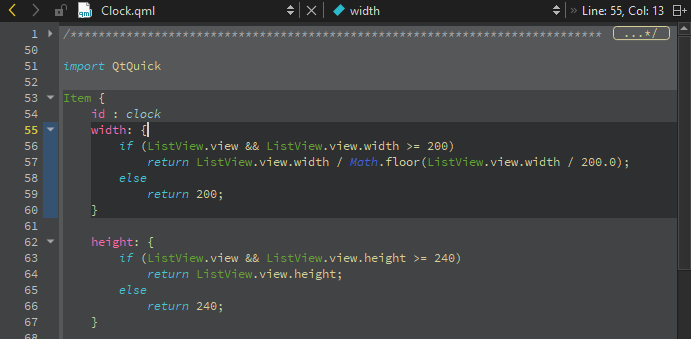
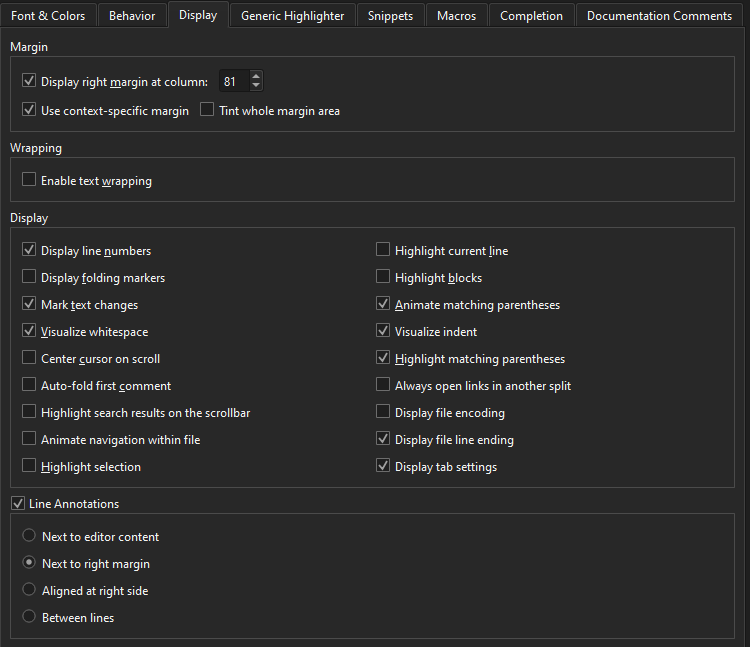
要启用代码块高亮显示,请转至Preferences >Text Editor >Display ,然后选择“Highlight blocks ”。
折叠代码块
选中折叠标记可折叠或展开大括号内的代码块。在上图中,折叠标记位于行号和文本窗格之间。
要显示折叠标记,请转至“Preferences ” > “Text Editor ” > “Display ”,然后选择“Display folding markers ”。此选项默认处于启用状态。
折叠所有注释块
要折叠所有注释块,请转至“Tools ” > “C++ ” > “Fold All Comment Blocks ”。
要展开所有注释块,请选择“Unfold All Comment Blocks ”。
匹配大括号动画
当光标位于大括号上时,默认情况下其配对大括号会显示动画效果。
若要关闭动画效果,仅突出显示代码块和花括号,请前往Preferences >Text Editor >Display ,并取消勾选“Animate matching parentheses ”。
在代码块之间移动
使用键盘快捷键在代码块内部及代码块之间移动:
- 要跳转到代码块末尾,请按Ctrl+]。
- 要跳转到代码块开头,请按Ctrl+[。
若要同时选中从光标位置到代码块末尾或起始处的行,请分别按Ctrl+Shift+]和Ctrl+Shift+[。
Copyright © The Qt Company Ltd. and other contributors. Documentation contributions included herein are the copyrights of their respective owners. The documentation provided herein is licensed under the terms of the GNU Free Documentation License version 1.3 as published by the Free Software Foundation. Qt and respective logos are trademarks of The Qt Company Ltd in Finland and/or other countries worldwide. All other trademarks are property of their respective owners.
