
使用工作区
Qt Quick Designer 提供了一个灵活的用户界面,允许您自由排列视图并将设置保存为工作区。您也可以使用预定义的工作区之一。
要切换当前工作区,请转至“View ” > “Workspaces ”。
在工作区中移动视图
要将视图移动到工作区中的其他位置,请从标题栏将其拖动到新位置。您可以将视图停靠在停靠区域中,也可以将其从停靠区域中分离。
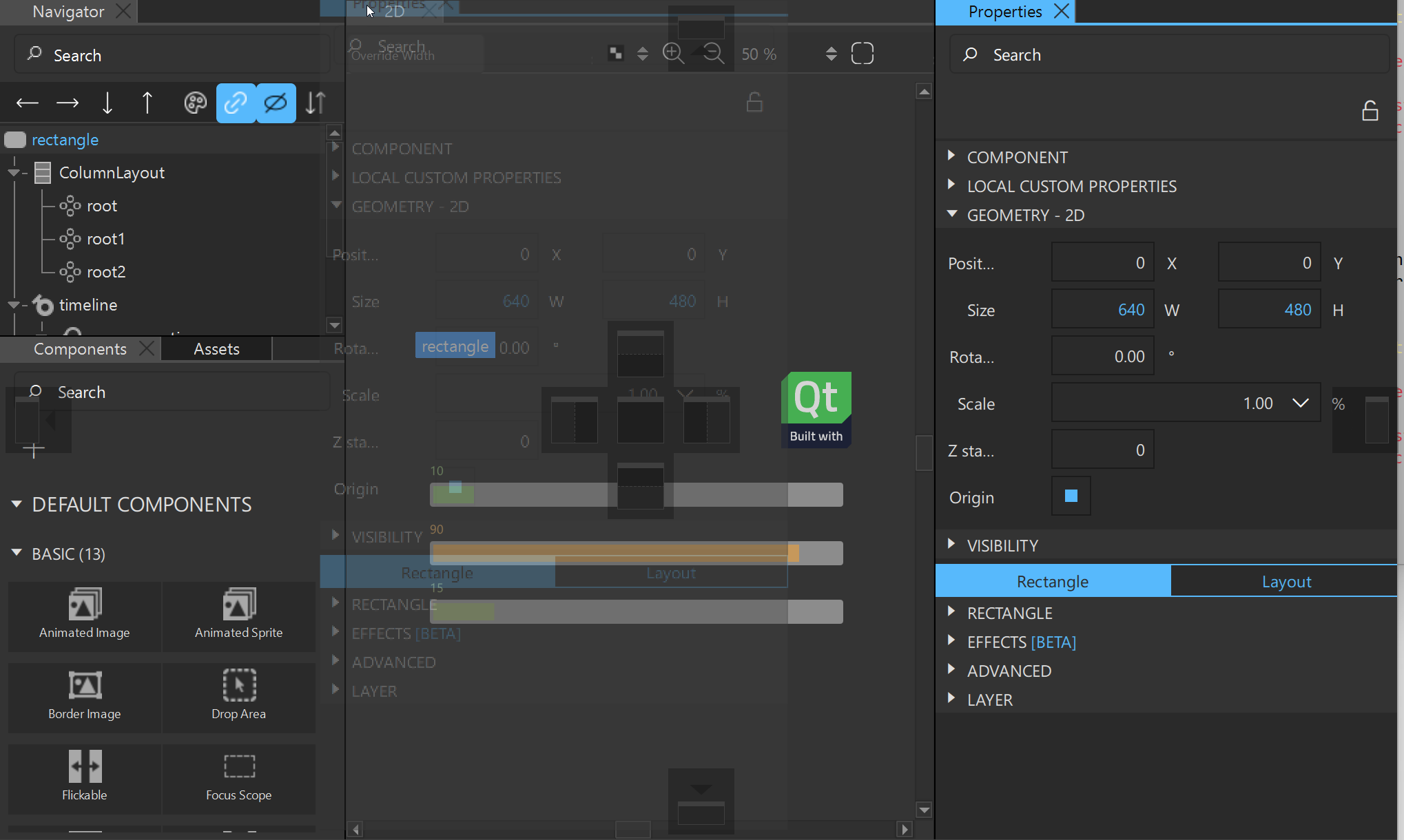
注意:您 还可以移动视图组。
要关闭一组视图,请右键单击该组的顶部栏,然后选择“Close Group ”。要关闭所有其他组,请选择“Close Other Groups ”。
要解除视图组的停靠,请右键单击该组的顶部栏,然后选择“Detach Group ”。
要打开已折叠的视图,请选择“View ” > “Views ”。
注意:要 锁定所有视图,请转至“View ” > “Workspaces ”,然后选择“Lock Workspaces ”。
管理工作区
要管理工作区,请从View >Workspaces >Manage 打开Workspace Manager 。
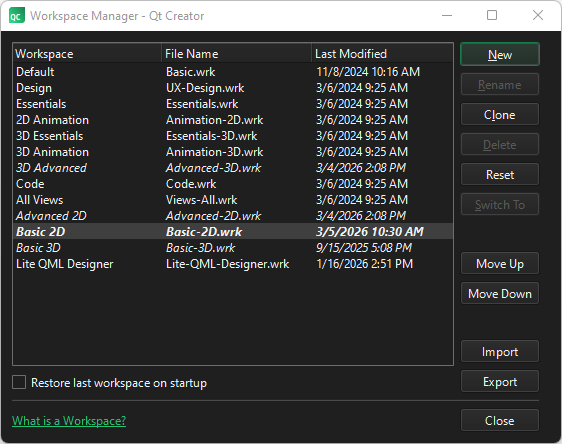
在“Workspace Manager ”中,您可以创建、重命名、克隆、删除、重置、导入和导出工作区,以及在列表中向上或向下移动它们。
在启动时恢复工作区
当您关闭Qt Creator 时,对工作区所做的更改会被保存。在Workspace Manager 中,选择Restore last workspace on startup ,以便下次启动Qt Creator 时恢复当前工作区。
创建自定义工作区
要在工作区中进行更改后将其保存为自定义工作区:
- 转至View >Workspaces >Manage 以打开Workspace Manager 。
- 选择New 。
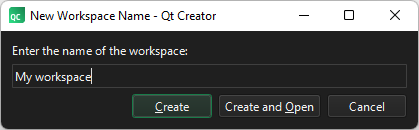
- 输入工作区的名称。
- 选择“Create ”以创建一个新的空工作区,或选择“Create and Open ”以创建工作区并切换至该工作区。
另请参阅 《如何设计Qt Quick 用户界面》、《Qt Quick 用户界面设计》和《 设计Qt Quick 用户界面》。
Copyright © The Qt Company Ltd. and other contributors. Documentation contributions included herein are the copyrights of their respective owners. The documentation provided herein is licensed under the terms of the GNU Free Documentation License version 1.3 as published by the Free Software Foundation. Qt and respective logos are trademarks of The Qt Company Ltd in Finland and/or other countries worldwide. All other trademarks are property of their respective owners.
