
FakeVim
要设置 Vim 风格编辑的偏好设置,请前往Preferences >FakeVim 。
设置 Vim 行为
要设置 Vim 行为,请前往Preferences >FakeVim >General 。
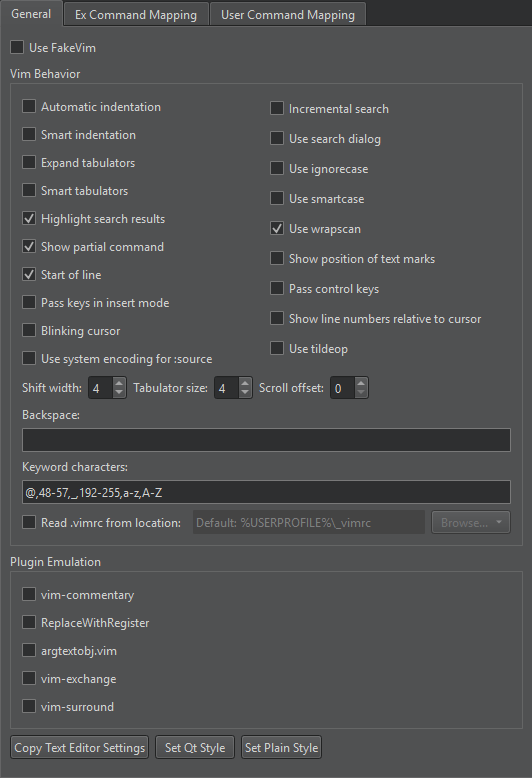
要使用预设:
- 若要预选文本编辑器中指定的缩进设置,请选择Copy Text Editor Settings 。
- 若要预选 Qt 编码风格,请选择Set Qt Style 。
- 若要预选简单的缩进样式,请选择“Set Plain Style ”。
然后修改预选的设置。
模拟插件
在“Plugin Emulation ”中选择要模拟的常用 vim 插件。
下表介绍了可用的插件及其链接。
| Vim 插件 | 描述 |
|---|---|
| vim-commentary | gc 用于将代码区域注释化的操作。例如:gcc 、gc2j 、gcip |
| ReplaceWithRegister |
|
| argtextobj.vim | 定义函数参数的文本对象ia 和aa 。 |
| vim-exchange | 一个用于 Vim 的文本交换运算符。 |
| vim-surround | 添加了用于删除、添加和修改包围文本的映射。 |
FakeVim 命令的映射
若要将FakeVim 命令行中输入的命令映射到Qt Creator 函数:
- 前往“Preferences ” > “FakeVim ” > “Ex Command Mapping ”。
- 在“Filter ”字段中输入字符串以查找Qt Creator 函数。
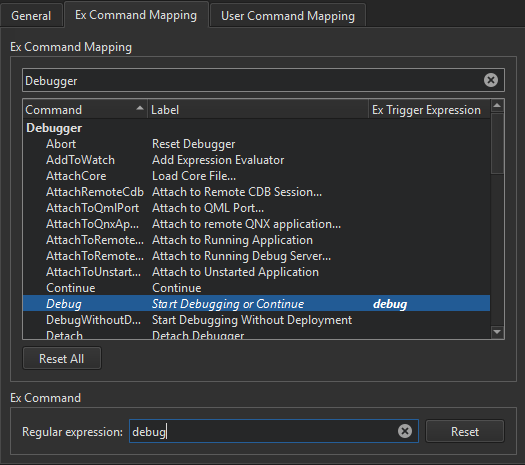
- 从列表中选择一个函数
- 在“Regular expression ”字段中,输入将触发该函数的字符串。
您可以在“Ex Trigger Expression ”字段中查看触发表达式。
要删除所选的触发表达式,请选择“Reset ”。
要重置所有函数的触发表达式,请选择“Reset All ”。
映射用户命令
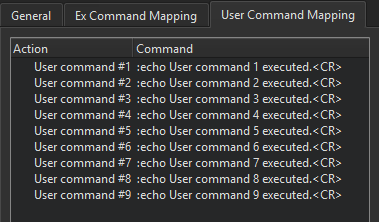
要将用户命令映射到键盘快捷键,请转到“Preferences ” > “FakeVim ” > “User Command Mapping ”。FakeVim 会像您亲自输入一样执行映射到快捷键的用户命令(如同回放宏时一样)。
另请参阅 “像在 Vim 中一样编辑”以及“FakeVim 模式与命令”。
Copyright © The Qt Company Ltd. and other contributors. Documentation contributions included herein are the copyrights of their respective owners. The documentation provided herein is licensed under the terms of the GNU Free Documentation License version 1.3 as published by the Free Software Foundation. Qt and respective logos are trademarks of The Qt Company Ltd in Finland and/or other countries worldwide. All other trademarks are property of their respective owners.
