
5.1.4.6. Browsing the Files
The Index Page lists the files present in a version of the project selected
by the version selector in the toolbar. It
allows for a flat, tabular display,
as well as a nested, tree-like arrangement
of the project files. You can
switch between the two possible arrangements at any time via the switch button
Tree/List in the toolbar.
The Index Page most importantly shows the number of contained issues in total as
well as grouped by issue kind.
The tree variant additionally contains these figures recursively
aggregated for any directory. The Revision is specific to the underlying
Version Control System the project uses.
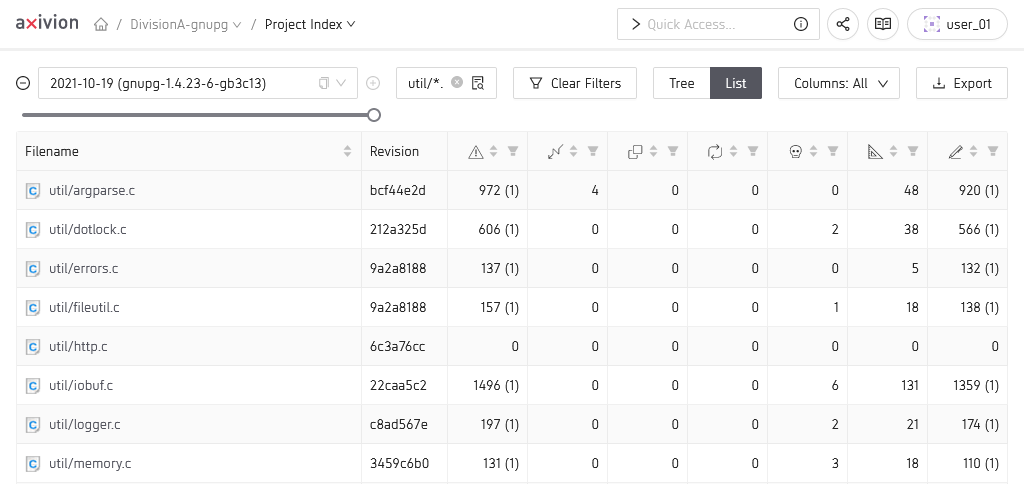
The flat Index Page.
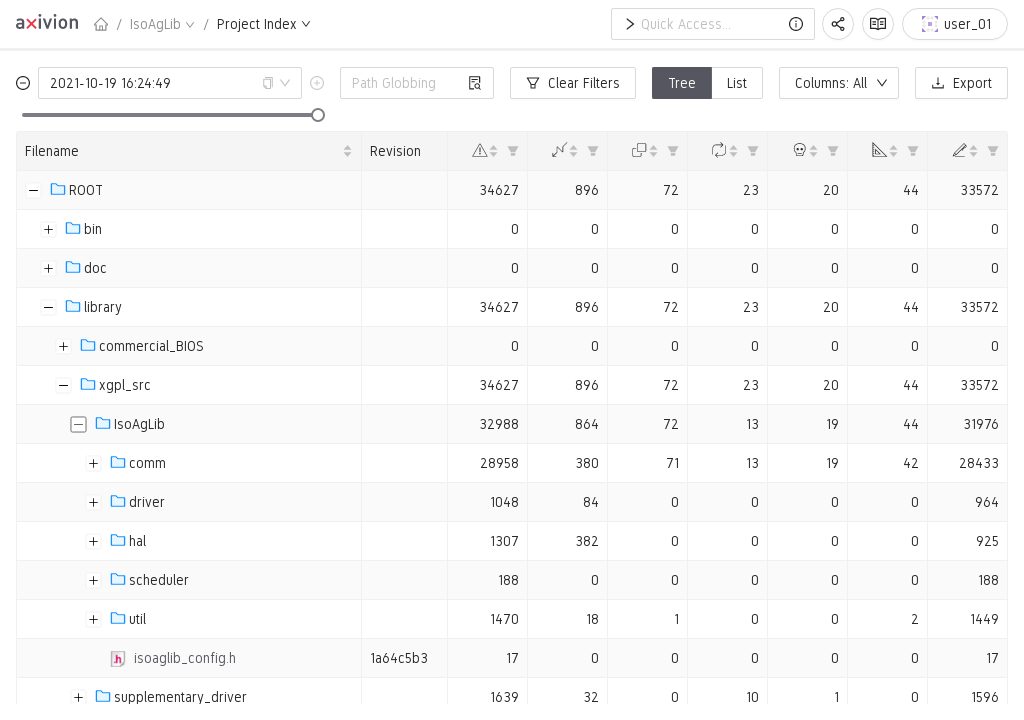
The Index Page in its tree-like arrangement.
The files in the view can be filtered via a Path Globbing pattern that allows
for * as a wildcard matcher and matches on the whole path (including directories),
with all path separators normalized to /.
If you only want to see files that actually contain issues simply set the column filter of the total issue count to only display files (and directories) containing more than 0 issues as shown here
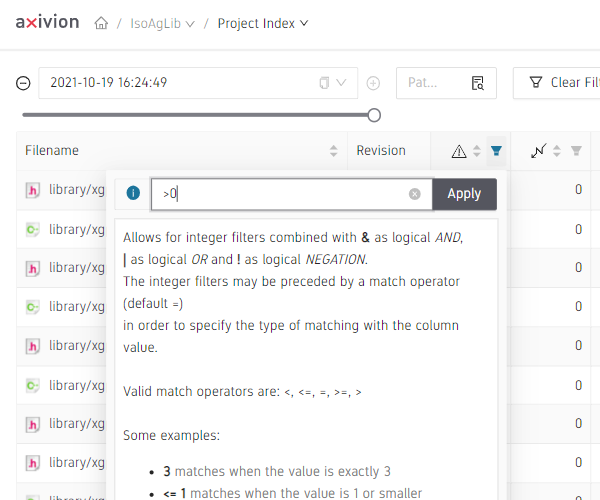
Only show files that actually contain issues.
CSV Download
The files matching the currently selected criteria can be exported as CSV file (e.g.
for postprocessing in Microsoft Excel) by clicking the
Export  button.
You may need to
configure the CSV separator character as the correct one
cannot always be determined automatically.
button.
You may need to
configure the CSV separator character as the correct one
cannot always be determined automatically.
Inspecting a specific file
A File View or Source View can be opened from a Index Page by clicking on one of the files.
It displays the contents of the file inside the browser in a monospace font with some source code coloring for better readability.
With the version selector on top you can travel through the file’s history to see different versions that have been analyzed.
The code viewer itself hosts an additional toolbar that helps you adjust the settings of the file viewer and interact with the file content. These are identical to those available in the Issue View. The toolbar includes a find button to help you search the file content – which is equivalent to pressing Ctrl + F once the file viewer has focus –, a button to download the currently displayed file, a button to open the file for editing and a settings buttons to fine-tune the appearance of the file viewer to your specific needs.
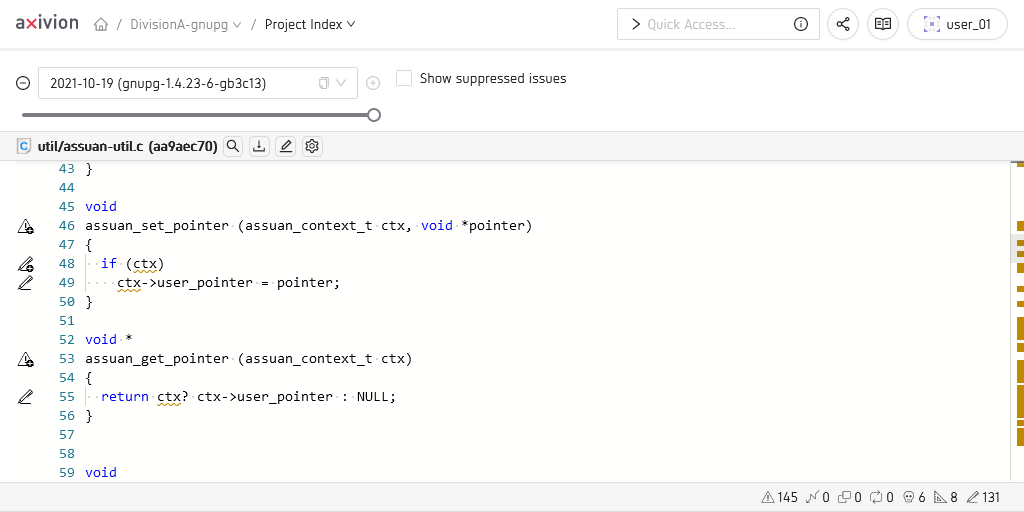
An example File View.
Note
You can also open files in the File View that do not contain source code and are not analyzed by the Axivion Suite . Beware however that only text-based files can be displayed in a human-readable way.
As you can see in the example, the source
code is decorated with line numbers as well as Issue Kind symbols
indicating what kind of
issues can be found in the line. You can also quickly jump to a specific line by using
Ctrl+G as a shortcut. At the bottom right corner you can see the
Issue Kind symbols again.
They contain the quantitative summary of issues in the file per
kind, and in the leftmost symbol as sum over all issues in the file. Clicking on any of
these symbols pops up an interactive tooltip
describing all of the issues of the line or the file respectively. The
tooltip rows all describe an individual issue and can be clicked to open the
Issue View of that specific issue.
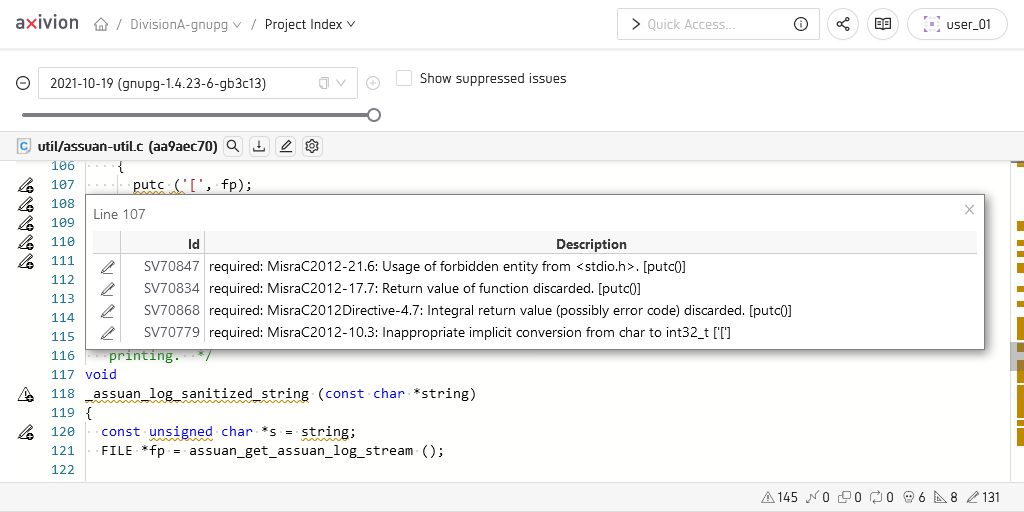
A File View with an opened issue icon tooltip.