
5.1.4.7. Named Filters
The Issue Table has a feature called
Named Filters that can be used to store and remember certain filter configurations
in order to assist with establishing predefined workflows.
Such a Named Filter might for example limit the shown issues to a given set of
Error Numbers a developer should focus on and filter out certain filesystem paths
that are not to be looked at while at the same time sorting by filesystem path.
The user interface will give you an indication once you have done some changes that
can be persisted as a new Named Filter as shown in the next screenshot where a
column filter for column Error Number
has been applied:
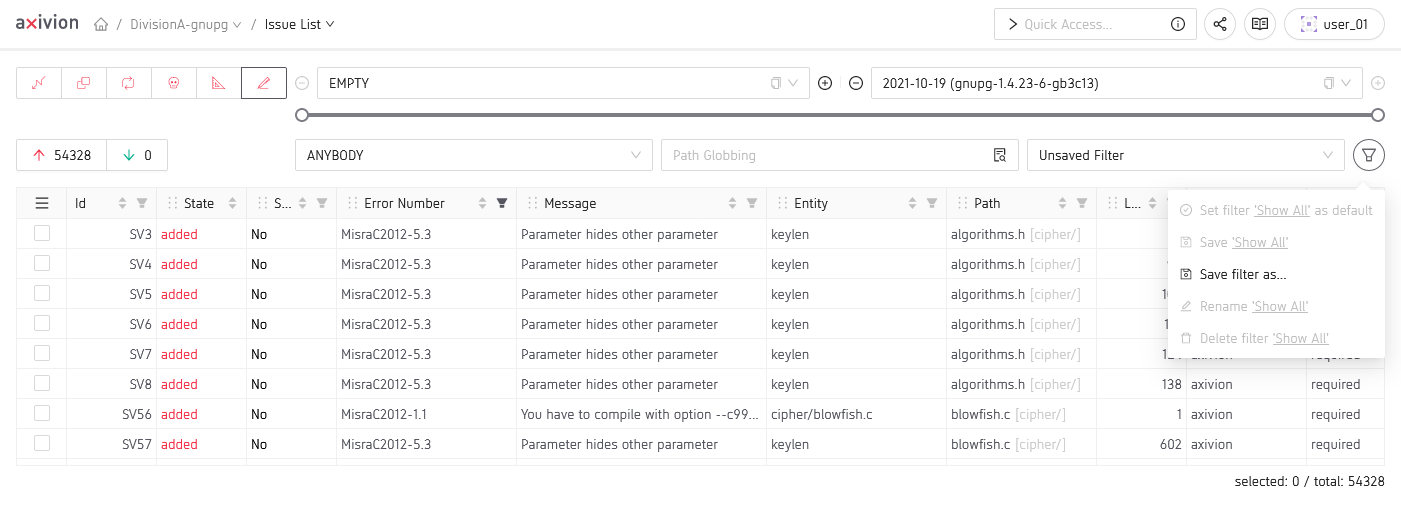
An unsaved Named Filter and the Named Filter menu
Named Filters can also be updated, renamed, deleted or set as default for the current issue kind.
You can choose a Named Filter to apply via the corresponding selector:
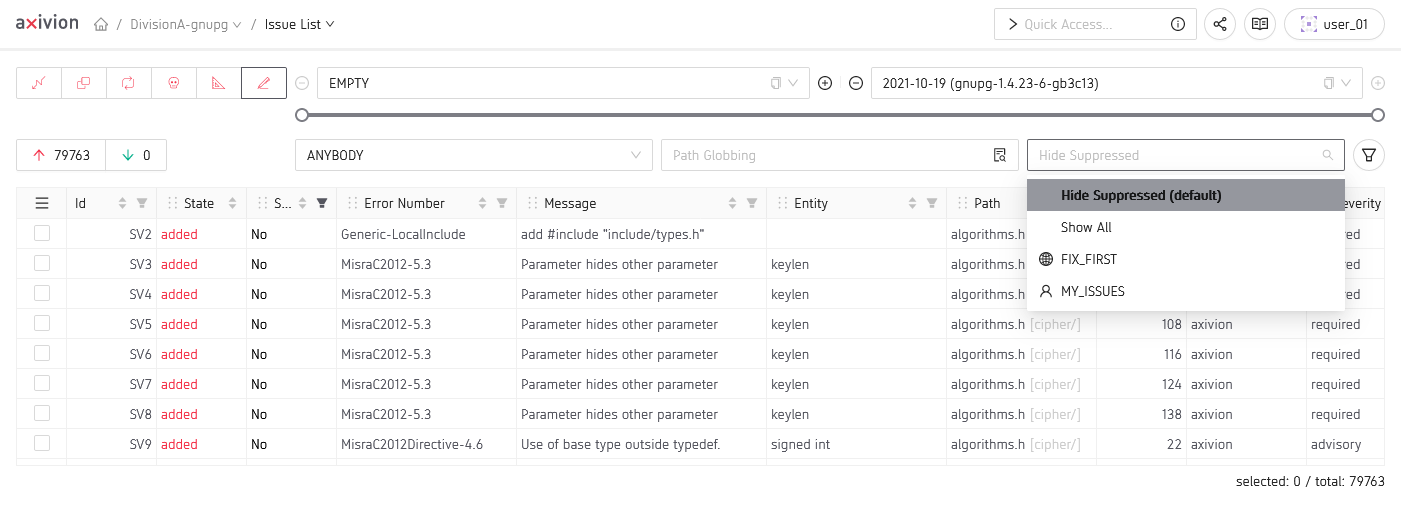
The opened Named Filter selector
Named Filter Elements
The following UI elements can be part of a Named Filter:
- Column Filters
All filterable columns. Some columns do not have a filter icon and also cannot be part of a Named Filter
- Column Sorters
All sortable columns and also the sort order in case you are using multisort. Some columns cannot be sorted which should be indicated via the missing sorting icon.
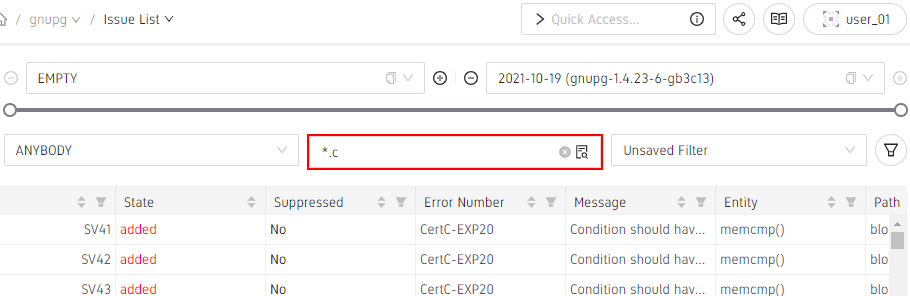
A path filter example.
Predefined Named Filters
There exist two predefined Named Filters that cannot be modified:
Show AllThis is always available and basically is the empty Named Filter. Select this in order to clear all filters.
Hide SuppressedThis is only available, if your project has importing of suppressed issues enabled. In that case, this will also be the default Named Filter.
Named Filter Compatibility
Named Filters have an associated Issue Kind
compatibility.
A Named Filter that was created for e.g. Style Violations usually won’t be available for use with other Issue Kinds like Clones or Architecture Violations.
Some Named Filters are considered universal, i.e. they can be used with
every Issue Kind. An example are the
predefined Named Filters but in general
all Named Filters that only make use of certain
columns available on all Issue Kinds
are considered universal and will appear as a filtering option on all Issue Kinds.
It is currently not possible to change the Issue Kind compatibility of an existing Named Filter.
Named Filter Categories
There are two categories of Named Filters that distinguish by whom and with what
features they can be managed and used.
Global
Global Named Filters are by default usable by everyone but they can only be created and managed by users having the Manage Named Filters permission. It is still possible to restrict the availability of these Global Named Filters to a set of Dashboard user groups. Remember that because a Named Filter is a view of issues based on certain filter configurations, changes to a
GlobalNamed Filter will affect everyone using it.Custom
Custom Named Filters are creatable by everyone but only for their own private use, i.e. they cannot be shared with or used by other users
In the following screenshot you can see how the two categories are distinguished in
the Named Filter selector:
The Named Filter selector showing the predefined, a global and a custom entry
Global Named Filters can be managed
via an administrative
page which is only accessible to owners of the Manage Named Filters
permission.
It shows all Global Named Filters regardless
of their
Issue Kind compatibility
and allows configuring the visibility restrictions:
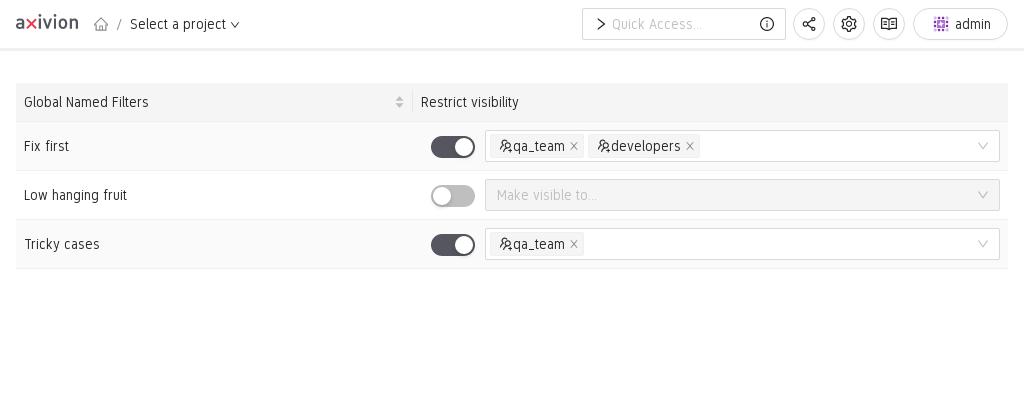
The Named Filter Management view
Saving a Named Filter
When saving a new Named Filter over the Save filter as... option, a dialog appears.
If you have the Manage Named Filters permission, you will be able to determine if the new filter will be of type Custom or Global.
Further, if Global is selected, you can also restrict the visibility and grant usage rights to certain user-groups.
Note
Overwriting a Global Named Filter can lead to situations where other
users of the overwritten filter receive a different set of results than
expected. Please refer to
Global Named Filters for details.
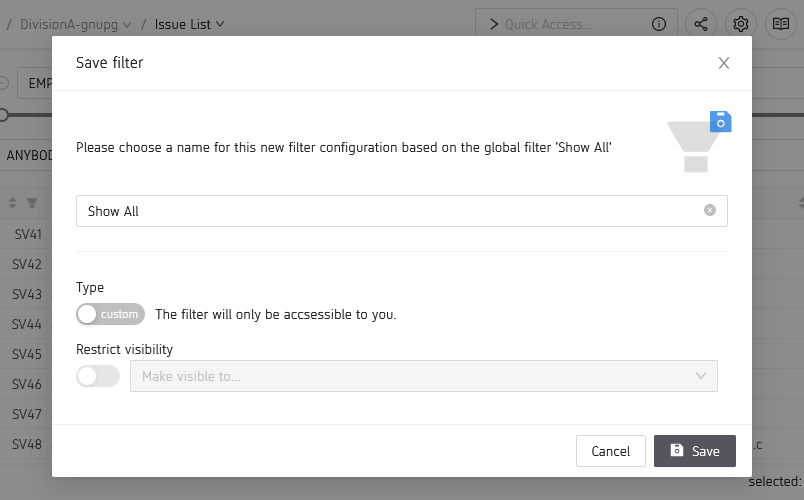
The “Save as…” dialog with Manage Named Filters permissions
Default Named Filters
The Named Filter Menu allows you to set a default Named Filter per
Issue Kind.
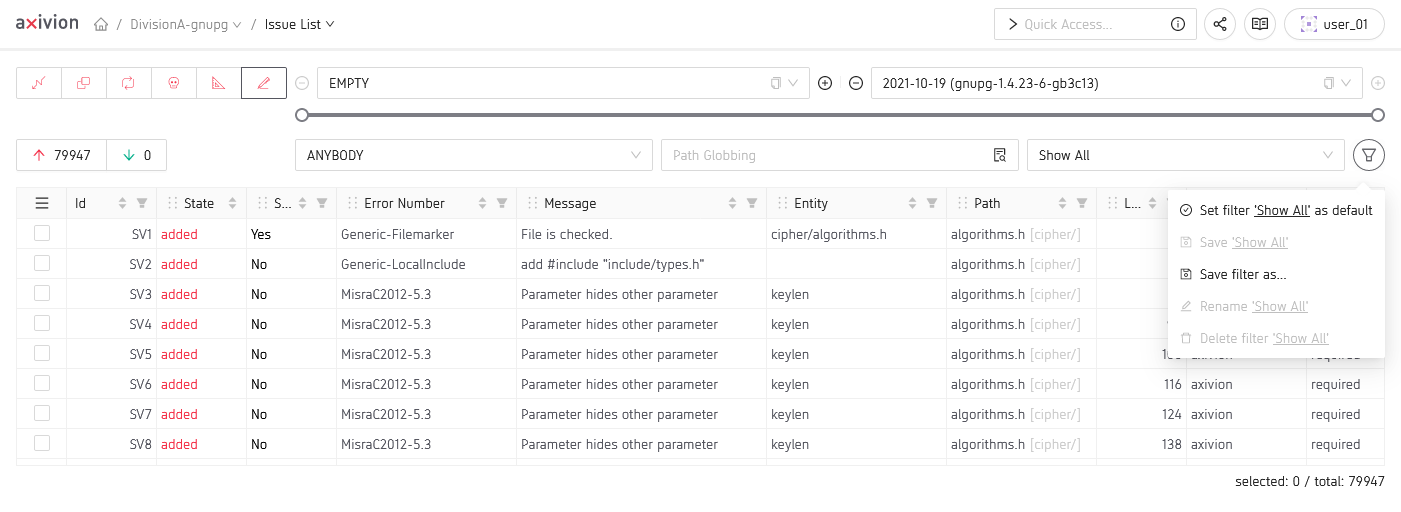
The Named Filter Menu with the “Set as default” option
This will result in that Named Filter being shown by default when opening an
issue list showing the respective issue kind.