
5.1.4.12. User Preferences
The User Preferences are accessible via the User Menu in the Navigation Bar that also contains actions related to the profile of the logged in user like changing the password and logging out.
For administrators it is also reachable via the user management page by clicking on the respective user name.
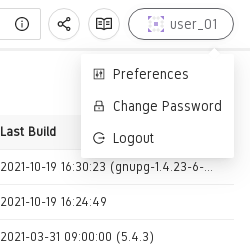
The user settings menu.
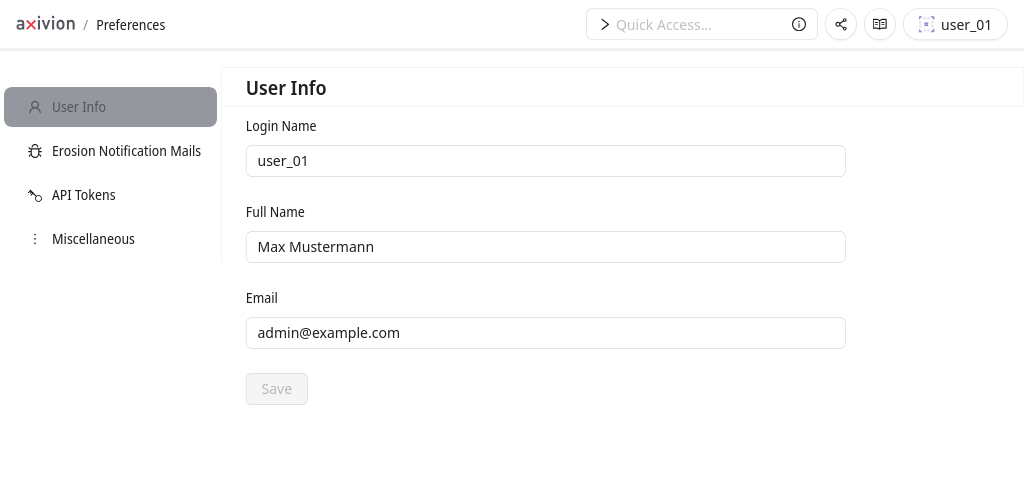
The user preferences page.
Sub-pages that reference preferences of features that are disabled by an administrator, e.g., Erosion Notification System, will not be visible for the users.
Erosion Notification Emails
If the Dashboard integrated Erosion Notification System is enabled by an administrator you have the possibility to subscribe to or unsubscribe from the projects visible to you in your personal settings.
In order to do that you define an ordered set of subscription rules where a rule is identified by a projectname or a *-pattern where the first match determines the notification contents or whether you want to receive notifications for the matched project at all.
By default you will be subscribed to all projects visible to you. This is expressed by a single rule matching all projects using “*” as matcher. “Enabled” decides whether you want to receive notifications at all. The next 5 columns define user categories of which you want to include or exclude information in your notification. The last 6 columns define what issue kinds you are interested in for the matched projects.
The 5 user categories are
- Me
Your own issues. This is the only user category enabled by default. This will not have any effect if you are not mapped onto the project, i.e. from the point of view of the dashboard do not have any issues in the project.
- Anybody
The user-neutral, total numbers of all issues.
- Nobody
The issues owned by the special “Nobody” user. This will not have any effect if this user does not exist in the project.
- Public
The issues of all public users detailed on a per-user basis.
- NonPublic
The issues of all users that are mapped onto the project except those of the “Me”, “Nobody” and “Public” categories detailed on a per-user basis. This will only have an effect for users with the View Issue Owners permission.
For each user category you can choose between 4 “events” that will cause their inclusion in a notification email.
- Changed
Include the user category in your notification if its users have added or removed issues.
- Added
Same as “Changed” but ignore removed issues.
- Always
Always include the user category
- Never
Never include the user category.
Caution
If none of the user categories will be included due to the absence of relevant issue changes you will receive no notification email. If you want to make sure to receive a notification email for every new version you should use “Always” instead of “Changed”
Application Tokens
In this section of the user settings page you can configure secrets that can be used as a replacement for your login password that usually cause less problems should they be stolen. It is especially recommended to make use of them wherever possible, if your Dashboard is integrated with a centralized user database like ActiveDirectory in case of which a password usually also grants access to other services than just the Dashboard.
All IDE plugins coming with the Axivion Suite and connecting to the Dashboard will make use of them internally in order to increase the security of your password.
You should consider using Application Tokens (also called API Tokens) for the following usecases:
Scripting against the Dashboard JSON API
Scripting against the Dashboard Python API
Creating reports using the Report Scripting Framework
Integrating the Dashboard into external services, e.g. Jenkins
In almost all of these cases, it is sufficient to create tokens of type IDE Plugin which is the type that grants the least permissions.
Depending on the usecase there may be different mechanisms on how to use an Application Token instead of a password, but most of the time you can simply specify the Token String where normally you would specify the password.