
5.1.4.11. User Reports Page
Reports triggered through the Report Creation Dialog (cf. Section 5.1.4.10) can be managed on the User Reports Page. The page is accessible via the User Menu and lists all running, completed, and failed report jobs. Note that users can only access and manage their own reports.
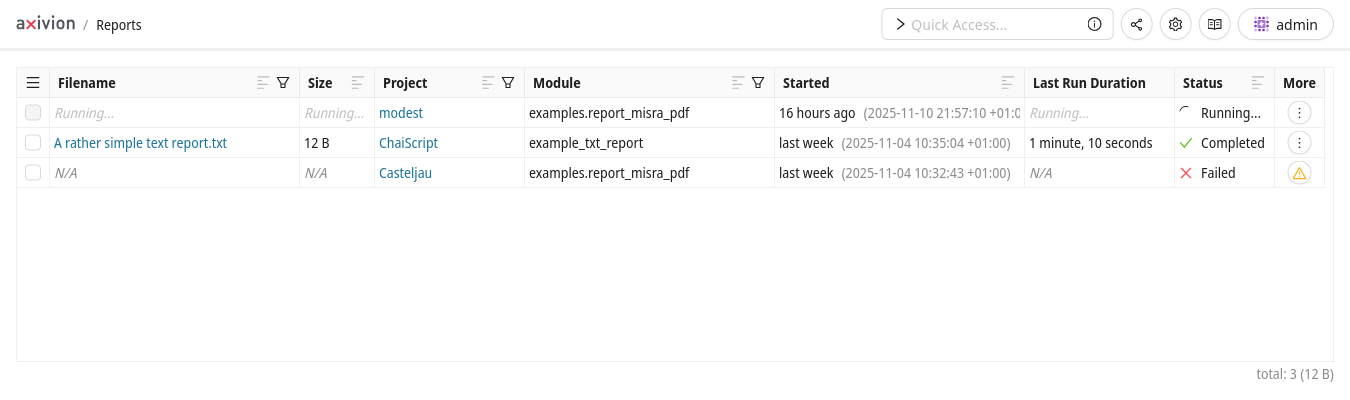
The reports table where users can manage their report jobs.
The following actions are available in the Popover Menu:
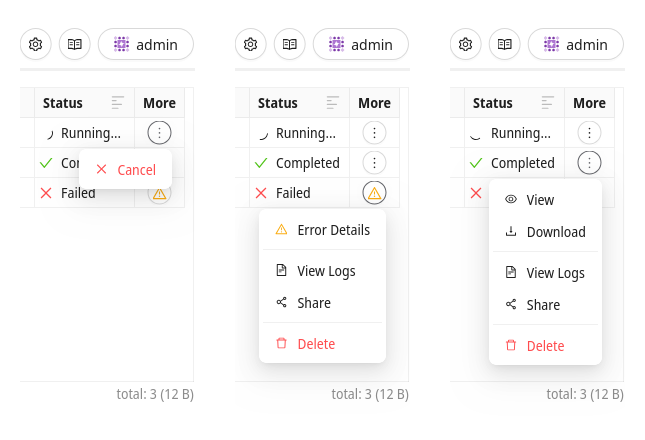
- View/Download Report
The file(s) generated by a completed report can be viewed in the browser or downloaded to disk.
- View Logs
The logs of completed and failed reports can be viewed in the Report Log Dialog. This dialog also provides the option for downloading the logs to disk.
- View Error Details
The error message printed by a failed report can be viewed in the Error Details Dialog.
- Delete Report
Completed and failed reports can be deleted. Note: The files associated with a deleted report cannot be restored.
- Cancel Report
Running reports can be canceled. Canceled reports are also deleted.
- Share
The generated file(s) as well as the logs of completed and failed reports can be shared via email.
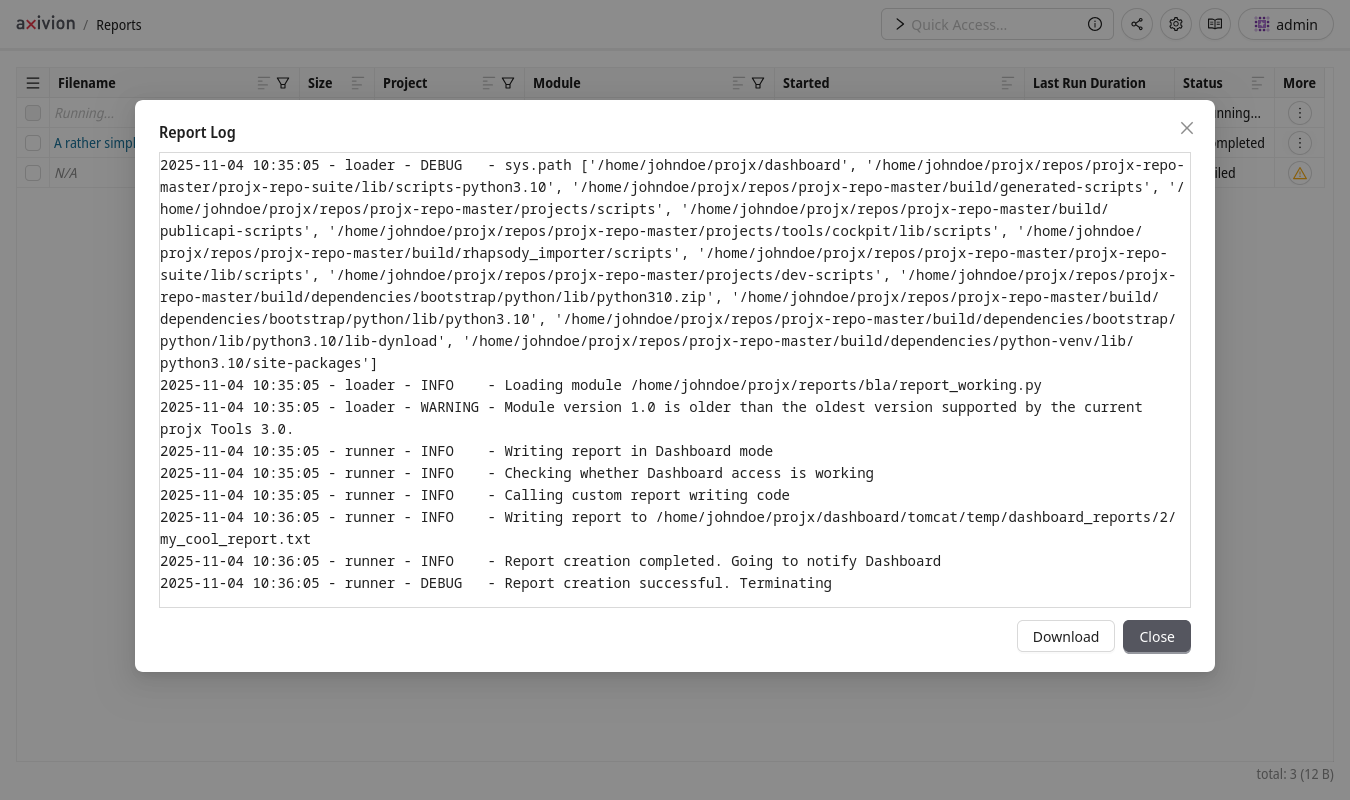
Logs printed by completed and failed reports can be viewed in the report log dialog.
Additionally, reports can be batch-deleted via the table’s Burger Menu:
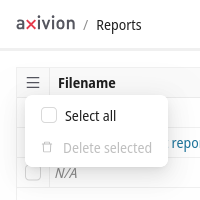
Batch processing is provided via the burger menu in the Reports Table.