
5.1.4.10. Creating Custom Reports
In addition to the built-in capability of exporting Issue Lists as structured tabular data in CSV format, there also exists the option of creating custom scripts that can fetch data from the Dashboard API and process it in arbitrary ways—for example, generating HTML pages or PDF documents with embedded graphs and visualizations.
In order for users who are granted the Generate Reports permission to execute report scripts, the Report Script Invocation Interface must be enabled and configured.
Note
Starting with 7.11, the Report Script Invocation Interface is enabled by default for newly created Axivion Dashboard Server configurations, with the module search path set to <confdir>/modules. Additionally, this directory is populated with a set of example scripts.
The Report Creation Dialog can be accessed through either of the following methods:
Select a project from the Projects Menu and click the Generate Report button in the Project Pages Menu.
Open the Popover Menu in the Overview and click the Generate Report button.
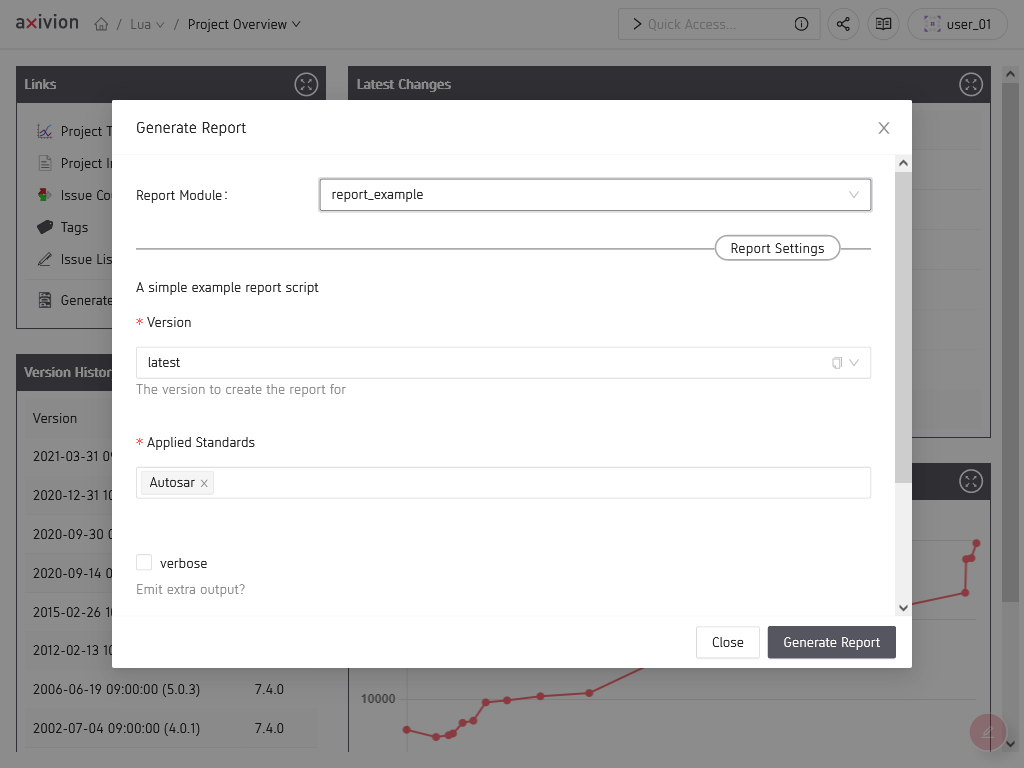
The report creation dialog.
Inside the Report Creation Dialog, select one of the available report modules and configure its options. When ready, click the Generate Report button to trigger report generation. Reports triggered this way can be managed on the User Reports Page.
More details on creating new report modules can be found in Section 7.2.3.