
5.2. Launcher
5.2.1. Introduction
The Bauhaus Launcher handles clicks on the  icon in the dashboard
issue view by opening a local copy of the file in an editor.
icon in the dashboard
issue view by opening a local copy of the file in an editor.
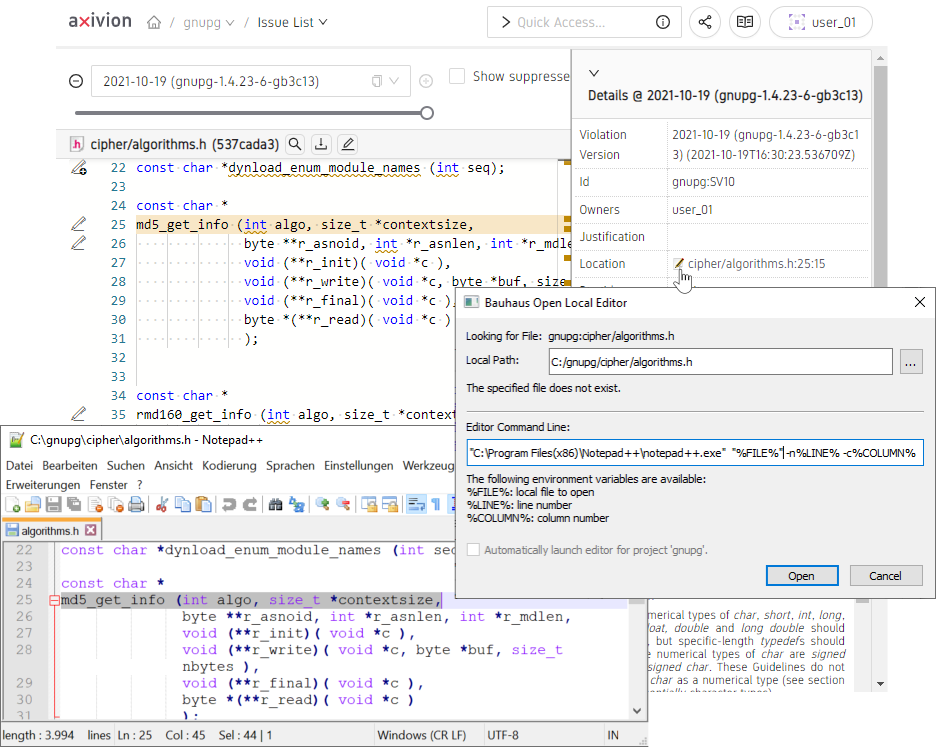
Bauhaus Launcher
5.2.2. Installation
The Bauhaus Launcher is distributed as part of the Axivion Suite . See Installation for information on how to install the Axivion Suite .
When the Axivion Suite is installed, it will automatically associate the launcher with
the “ axivion:“ protocol scheme used for the link in the
dashboard.
The association is created for whoever the Axivion Suite was installed for: an installation for all users associates the launcher for all users, an installation for the current user only for that user account.
5.2.2.1. Windows
In case of problems with the “ axivion:“ protocol scheme, run ”
bauhaus_launcher.exe“ to re-register the protocol scheme handler. The
association consists of the registry key HKEY_CLASSES_ROOT\axivion, which is
written below HKEY_LOCAL_MACHINE for all users and below
HKEY_CURRENT_USER for the current user account.
5.2.2.2. Linux
On Linux, run “ bauhaus_launcher“ to re-register the protocol scheme handler.
This will create the FreeDesktop file
/usr/local/share/applications/Axivion-Bauhaus.desktop (if possible), or
$HOME/.local/share/applications/Axivion-Bauhaus.desktop (otherwise). It will
then run update-desktop-database to update the mimeinfo.cache file.
To choose between the two explicitly (instead of deciding via permissions), run ”
bauhaus_launcher --install=system“ or “ bauhaus_launcher --install=user“.
The same suffixes work for --uninstall, which then leaves the other
registration in place.
5.2.2.3. macOS
On macOS, run “ bauhaus_launcher“ to re-register the protocol scheme handler.
This registers the application bundle bin/BauhausLauncher.app inside the
installation with Launch Services and makes it the default handler for the ”
axivion:“ scheme.
5.2.2.4. Uninstall
To uninstall the protocol scheme handler, run the following command:
bauhaus_launcher --uninstall
On Windows, this happens automatically when the Axivion Suite is uninstalled.
On macOS, Launch Services has no unregistration command; removing the
installation directory is sufficient. If a leftover registration of an older
installation still receives the “ axivion:“ links, remove it manually:
/System/Library/Frameworks/CoreServices.framework/Versions/A/Frameworks/LaunchServices.framework/Versions/A/Support/lsregister -u /path/to/old/bin/BauhausLauncher.app
or run “ bauhaus_launcher --install“ from the installation that should
handle the links.
5.2.2.5. Mozilla Firefox
If Mozilla Firefox does not use the protocol handler as expected, type ”
about:config“ in the browser’s address bar, and add the following preferences
(right-click > New > Boolean):
network.protocol-handler.expose.axivion = false
network.protocol-handler.external.axivion = true
5.2.3. Configuration
When clicking on the icon in the dashboard, the Bauhaus Launcher
configuration window will appear:
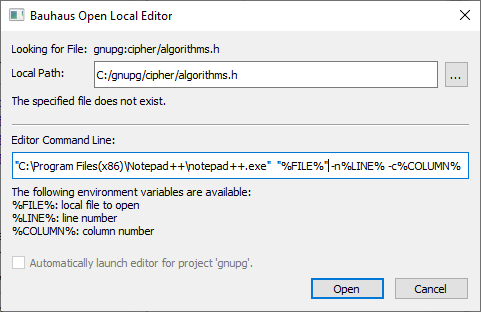
Bauhaus Launcher Configuration Window
For Local Path, select the local file that corresponds to the remote file
name shown.
For Editor Command Line, specify the command that opens the editor.
If you select Automatically launch editor, the launcher will directly
start the editor without showing the configuration window.
Caution
Ensure the configuration is correct before enabling the automatic launch setting.
After automatic launch is enabled, the configuration can only be changed by manually
editing $HOME/.bauhaus/launcher.config.
Example command lines for Windows:
notepad.exe "%FILE%""C:Program FilesNotepad++notepad++.exe" "%FILE%" -n%LINE% -c%COLUMN%devenv /Command "Edit.Goto %LINE%" "%FILE%"code --goto "%FILE%":%LINE%:%COLUMN%eclipse --launcher.openFile "%FILE%"+%LINE%
Example command lines for GNU/Linux:
xterm -e vi +$LINE "$FILE"emacs +$LINE "$FILE"gedit +$LINE "$FILE"code --goto "$FILE":$LINE:$COLUMNeclipse --launcher.openFile "$FILE"+$LINE
Example command lines for macOS:
open "vscode://file/$FILE:$LINE:$COLUMN"open -a TextEdit "$FILE"bbedit +$LINE "$FILE"
Caution
The launcher does not automatically open a terminal to run the command. When using a non-graphical editor, ensure the command opens a new terminal. If the launcher does not open a graphical editor as expected, try running the command in a terminal in order to see error messages.