
5.1.2.3. Users
User administration, once authentication is set up, see Section Authentication, is done entirely from within the dashboard.
Users are managed within the user management table, see Figure The dashboard user administration view.. This table contains a list of all users and internal groups known to the dashboard.
Internal users and groups are recognizable by a blueish icon whilst external users and groups (i.e. the ones that are found by an external authenticator) are recognizable by a greenish icon. Unmapped Users, see Section User name and Name Mappings are recognizable by a greyish icon.
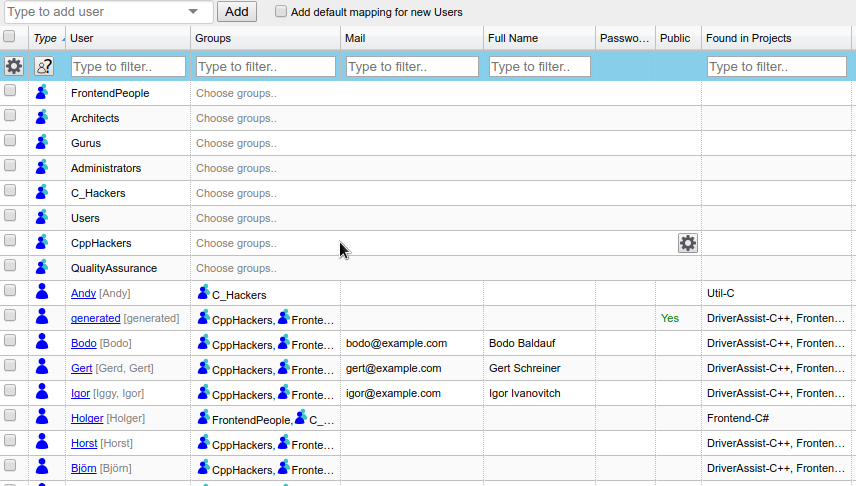
The dashboard user administration view.
Beside the type there are several more aspects of a dashboard user, some of which you can directly edit in the table:
- User Mappings
edit by double-clicking on the grey names, see Section User name and Name Mappings
- Groups
the groups a user or an internal group is member of, double-click to edit
the user’s email address used for erosion notifications, edit by double-clicking on the cell
- Full Name
the user’s fullname used for polite addressing, edit by double-clicking on the cell
- Password
An internal password that can be used for authentication (usually users will need one unless you are using an external authenticator), edit or delete by double-clicking on the cell
- Disabled
disables the account, overriding all permissions
- Public
whether the user is
Public, double-click to change, see Section Public- Found in Projects
shows projects, the user has issues in
- User
whether the user may use basic functionality, see Section Permissions
- Admin
whether the user may administrate the dashboard, see Section Permissions
- Project Permissions
fine-grained project-specific permissions of the user, see Section Permissions
- Last Activity
The last time the user logged in to the Dashboard.
The names of internal groups can also be edited in the user management by double-clicking on it. The hyperlink on the username leads to the user profile page.
User name and Name Mappings
User Association is a very important step necessary so your dashboard users will be able to actually be considered the “owner” of issues found by your Continuous Integration. As the Continuous Integration only knows users as named by the Version Control System of your project, you might need to provide associations between a dashboard user and one or multiple names as provided by your Version Control System.
These can be flexibly configured on a per-project or project-pattern basis via the username-column.
For example, suppose a company has a company-wide LDAP and uses this for authentication with the dashboard as well. Developer “Jane White” has the ID “wjane”. For some reason the version control system of the project “someproject” knows the users only by their real names and that is what the issues are associated with in the analysis results. Their administrator configures a mapping for the dashboard user “wjane” on the VCS user “Jane White” on every project using the * character as all the companies projects are using the same Version Control System. Now suppose Jane White gets married and commits further code as “Jane Doe”. In this case the administrator adds an additional mapping so Jane owns her old issues as well as her new issues.
Of course maintaining this kind of mappings can be quite cumbersome so most users simply
will want to have user-ids in sync company-wide. For this case, there exists an option
called Add Default Mapping for new Users which is also enabled by default.
If it is enabled the dashboard will assume for every one of its users, that the name in
the project databases is the same. That way, a user that is newly created, e.g. by
logging himself in via LDAP automatically will be associated with the user of the same
name in the project databases. That way, without explicitly creating them as Dashboard
Users, Project Users can also be looked up in an external authenticator before they are
created by logging in or by manual creation.
In the user management table, see Figure The dashboard user administration view. you can configure these mappings by double-clicking on a username. If you change the user-type-filter in the user-type-column to also show unmapped users in the project databases, you can easily create a corresponding dashboard user by double-clicking on the name of the unmapped user.
Public
We provide the option to be rather restrictive in terms of Dashboard Users being able to
see the issues of other users via the Permission View Issue Owners,
see Section Permissions. In case you choose not
to generally give this permission to your users you may want to mark certain users as
Public so users can still see their issues although they do not have the
general permission to view issues of other users.