
Animaciones
Qt Quick ofrece la posibilidad de animar propiedades. La animación de propiedades permite que los valores de las propiedades se muevan a través de valores intermedios en lugar de cambiar inmediatamente al valor de destino. Para animar la posición de un elemento, puede animar las propiedades que controlan la posición del elemento, x e y por ejemplo, de modo que la posición del elemento cambie en cada fotograma de camino a la posición objetivo.
Interfaces de usuario fluidas
QML se diseñó para facilitar la creación de interfaces de usuario fluidas. Se trata de interfaces de usuario en las que los componentes de la interfaz de usuario se animan en lugar de aparecer, desaparecer o saltar bruscamente. Qt Quick proporciona dos formas sencillas de hacer que los componentes de la interfaz de usuario se muevan con animación en lugar de aparecer instantáneamente en su nueva ubicación.
Estados y transiciones
Qt Quick permite declarar varios estados de la interfaz de usuario en los objetos de State. Estos estados se componen de cambios de propiedades a partir de un estado base, y pueden ser una forma útil de organizar tu lógica de IU. Las transiciones son objetos que puedes asociar a un elemento para definir cómo se animarán sus propiedades cuando cambien debido a un cambio de estado.
Los estados y transiciones de un elemento pueden declararse con las propiedades Item::states y Item::transitions. Los estados se declaran dentro de la propiedad lista de estados de un elemento, normalmente el elemento raíz del componente. Las transiciones definidas en el mismo elemento se utilizan para animar los cambios de estado. He aquí un ejemplo.
Item {
    id: container
    width: 320
    height: 120

    Rectangle {
        id: rect
        color: "red"
        width: 120
        height: 120

        TapHandler {
            onTapped: container.state === '' ? container.state = 'other' : container.state = ''
        }
    }
    states: [
        // This adds a second state to the container where the rectangle is farther to the right

        State { name: "other"

            PropertyChanges {
                target: rect
                x: 200
            }
        }
    ]
    transitions: [
        // This adds a transition that defaults to applying to all state changes

        Transition {

            // This applies a default NumberAnimation to any changes a state change makes to x or y properties
            NumberAnimation { properties: "x,y" }
        }
    ]
}
Animación de cambios de propiedad.
Los comportamientos se pueden utilizar para especificar una animación para una propiedad que se utilizará cuando cambie. Esto se aplica a todos los cambios, independientemente de su origen. El siguiente ejemplo anima un botón que se mueve por la pantalla utilizando comportamientos.
Item {
    width: 320
    height: 120

    Rectangle {
        color: "green"
        width: 120
        height: 120

        // This is the behavior, and it applies a NumberAnimation to any attempt to set the x property
        Behavior on x {

            NumberAnimation {
                //This specifies how long the animation takes
                duration: 600
                //This selects an easing curve to interpolate with, the default is Easing.Linear
                easing.type: Easing.OutBounce
            }
        }

        TapHandler {
            onTapped: parent.x == 0 ? parent.x = 200 : parent.x = 0
        }
    }
}
Otras animaciones
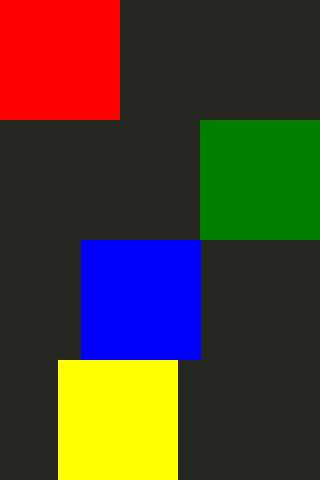
No todas las animaciones tienen que estar ligadas a una propiedad o estado específico. También puede crear animaciones de forma más general y especificar elementos y propiedades de destino dentro de la animación. Aquí tienes algunos ejemplos de distintas formas de hacerlo:
Item {
    width: 320
    height: 120

    Rectangle {
        color: "blue"
        width: 120
        height: 120

        // By setting this SequentialAnimation on x, it and animations within it will automatically animate
        // the x property of this element
        SequentialAnimation on x {
            id: xAnim
            // Animations on properties start running by default
            running: false
            loops: Animation.Infinite // The animation is set to loop indefinitely
            NumberAnimation { from: 0; to: 200; duration: 500; easing.type: Easing.InOutQuad }
            NumberAnimation { from: 200; to: 0; duration: 500; easing.type: Easing.InOutQuad }
            PauseAnimation { duration: 250 } // This puts a bit of time between the loop
        }

        TapHandler {
            // The animation starts running when you click within the rectangle
            onTapped: xAnim.running = true
        }
    }
}
Item {
    width: 320
    height: 120

    Rectangle {
        id: rectangle
        color: "yellow"
        width: 120
        height: 120

        TapHandler {
            // The animation starts running when you click within the rectangle
            onTapped: anim.running = true;
        }
    }

    // This animation specifically targets the Rectangle's properties to animate
    SequentialAnimation {
        id: anim
        // Animations on their own are not running by default
        // The default number of loops is one, restart the animation to see it again

        NumberAnimation { target: rectangle; property: "x"; from: 0; to: 200; duration: 500 }

        NumberAnimation { target: rectangle; property: "x"; from: 200; to: 0; duration: 500 }
    }
}
Encontrará más información sobre las animaciones en la página Conceptos importantes en Qt Quick - Estados, transiciones y animaciones.
© 2026 The Qt Company Ltd. Documentation contributions included herein are the copyrights of their respective owners. The documentation provided herein is licensed under the terms of the GNU Free Documentation License version 1.3 as published by the Free Software Foundation. Qt and respective logos are trademarks of The Qt Company Ltd. in Finland and/or other countries worldwide. All other trademarks are property of their respective owners.
