
Qt Quick 3D - Ejemplo de View3D
Demuestra el uso de View3D para mostrar una escena desde múltiples cámaras.
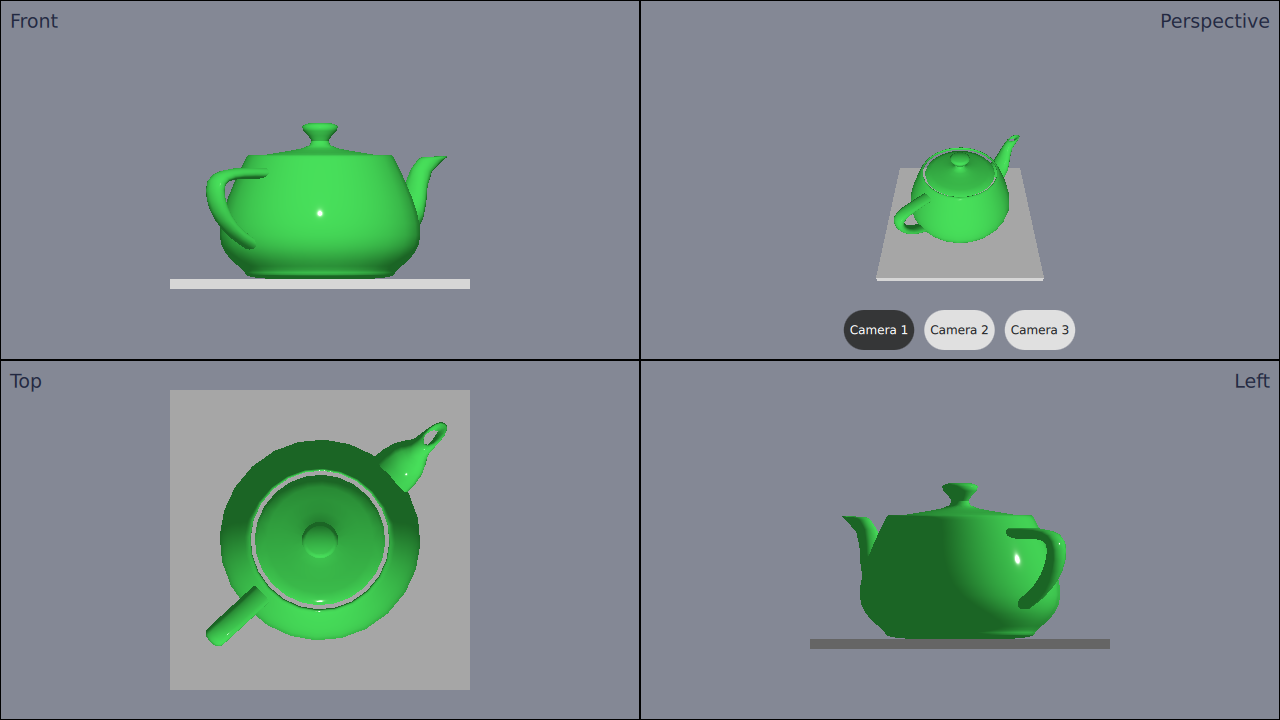
Este ejemplo demuestra el uso de cuatro View3Ds separados con diferentes cámaras en una aplicación.
Definición de las cámaras
Primero definimos el cameras. Vamos a definir varias cámaras diferentes, aunque sólo añadiremos 4 vistas. Hacemos esto porque queremos poder cambiar la cámara en una de las vistas.
Las cámaras tienen que ser definidas dentro de la raíz Node. Así es como se definen las cámaras:
Node {
    id: standAloneScene
    ...
// The predefined cameras. They have to be part of the scene, i.e. inside the root node.
// Animated perspective camera
Node {
    PerspectiveCamera {
        id: cameraPerspectiveOne
        z: 600
    }

    PropertyAnimation on eulerRotation.x {
        loops: Animation.Infinite
        duration: 5000
        to: -360
        from: 0
    }
}

// Stationary perspective camera
PerspectiveCamera {
    id: cameraPerspectiveTwo
    z: 600
}
    ...
    // Stationary orthographic camera viewing from left
    OrthographicCamera {
        id: cameraOrthographicLeft
        x: -600
        eulerRotation.y: -90
    }
}
Añadiendo las Vistas
Después de definir las cámaras podemos añadir views. Dividimos la pantalla en cuatro partes, y añadimos las vistas una a una de la siguiente manera:
// The views
Rectangle {
    id: topLeft
    anchors.top: parent.top
    anchors.left: parent.left
    width: parent.width * 0.5
    height: parent.height * 0.5
    color: "#848895"
    border.color: "black"

    View3D {
        id: topLeftView
        anchors.fill: parent
        importScene: standAloneScene
        camera: cameraOrthographicFront
    }

    Label {
        text: "Front"
        anchors.top: parent.top
        anchors.left: parent.left
        anchors.margins: 10
        color: "#222840"
        font.pointSize: 14
    }
}
    ...
La vista superior derecha tiene tres botones. Los botones se pueden utilizar para cambiar la cámara utilizada en esa vista sobre la marcha. El cambio se realiza simplemente configurando la propiedad camera:
RoundButton {
    text: "Camera 1"
    highlighted: topRightView.camera == cameraPerspectiveOne
    implicitWidth: controlsContainer.buttonWidth
    onClicked: {
        topRightView.camera = cameraPerspectiveOne
    }
}
    ...
© 2026 The Qt Company Ltd. Documentation contributions included herein are the copyrights of their respective owners. The documentation provided herein is licensed under the terms of the GNU Free Documentation License version 1.3 as published by the Free Software Foundation. Qt and respective logos are trademarks of The Qt Company Ltd. in Finland and/or other countries worldwide. All other trademarks are property of their respective owners.
