
Qt Quick 3D - Exemple de rendu volumétrique
Montrant comment réaliser un rendu volumétrique dans Qt Quick 3D.
Introduction
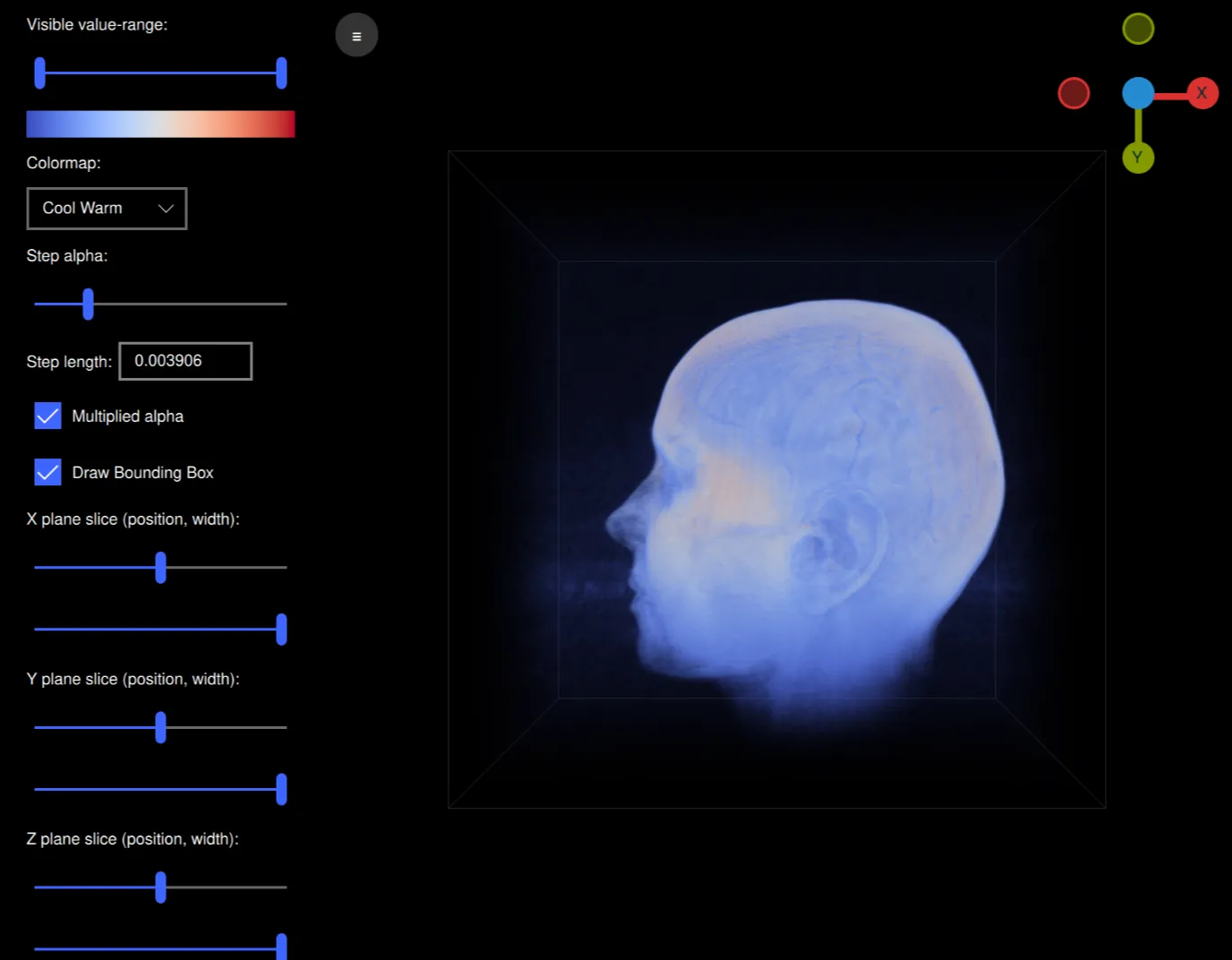
Cet exemple montre comment réaliser un rendu volumétrique à l’aide d’un shader personnalisé et d’une texture volumique 3D, grâce à une technique appelée « ray casting volumique ». Cet exemple est une application capable de lire des fichiers de volume bruts et de les rendre, tout en permettant de modifier de manière interactive divers paramètres de rendu tels que la carte de couleurs, l’alpha et les plans de coupe utilisés. Elle est conçue pour fonctionner correctement avec les volumes hébergés sur https://klacansky.com/open-scivis-datasets/ et pour définir automatiquement les dimensions et l’échelle appropriées.
Mise en œuvre
L’application utilise QML et se présente sous la forme d’une « ApplicationWindow » (structure de données) comprenant un « View3D » contenant le volume et un « ScrollView » contenant les paramètres. Pour effectuer le rendu de notre volume, nous créons une scène dans notre objet « View3D » avec simplement un modèle de cube au centre.
Model {
    id: cubeModel
    source: "#Cube"
    visible: true
    materials: CustomMaterial {
        shadingMode: CustomMaterial.Unshaded
        vertexShader: "alpha_blending.vert"
        fragmentShader: "alpha_blending.frag"

        property TextureInput volume: TextureInput {
            texture: Texture {
                textureData: VolumeTextureData {
                    id: volumeTextureData
                    source: "file:///default_colormap"
                    dataType: dataTypeComboBox.currentText ? dataTypeComboBox.currentText : "uint8"
                    width: parseInt(dataWidth.text)
                    height: parseInt(dataHeight.text)
                    depth: parseInt(dataDepth.text)
                }
                minFilter: Texture.Nearest
                mipFilter: Texture.None
                magFilter: Texture.Nearest
                tilingModeHorizontal: Texture.ClampToEdge
                tilingModeVertical: Texture.ClampToEdge
                //tilingModeDepth: Texture.ClampToEdge // Qt 6.7
            }
        }

        property TextureInput colormap: TextureInput {
            enabled: true
            texture: Texture {
                id: colormapTexture
                tilingModeHorizontal: Texture.ClampToEdge
                source: window.getColormapSource(colormapCombo.currentIndex)
            }
        }
        property real stepLength: Math.max(0.0001, parseFloat(
                                               stepLengthText.text,
                                               1 / cubeModel.maxSide))
        property real minSide: 1 / cubeModel.minSide
        property real stepAlpha: stepAlphaSlider.value
        property bool multipliedAlpha: multipliedAlphaBox.checked

        property real tMin: tSlider.first.value
        property real tMax: tSlider.second.value
        property vector3d sliceMin: window.sliceSliderMin(
                                        xSliceSlider.value,
                                        xSliceWidthSlider.value,
                                        ySliceSlider.value,
                                        ySliceWidthSlider.value,
                                        zSliceSlider.value,
                                        zSliceWidthSlider.value)
        property vector3d sliceMax: window.sliceSliderMax(
                                        xSliceSlider.value,
                                        xSliceWidthSlider.value,
                                        ySliceSlider.value,
                                        ySliceWidthSlider.value,
                                        zSliceSlider.value,
                                        zSliceWidthSlider.value)

        sourceBlend: CustomMaterial.SrcAlpha
        destinationBlend: CustomMaterial.OneMinusSrcAlpha
    }
    property real maxSide: Math.max(parseInt(dataWidth.text),
                                    parseInt(dataHeight.text),
                                    parseInt(dataDepth.text))
    property real minSide: Math.min(parseInt(dataWidth.text),
                                    parseInt(dataHeight.text),
                                    parseInt(dataDepth.text))
    scale: Qt.vector3d(parseFloat(scaleWidth.text),
                       parseFloat(scaleHeight.text),
                       parseFloat(scaleDepth.text))

    Model {
        visible: drawBoundingBox.checked
        geometry: LineBoxGeometry {}
        materials: PrincipledMaterial {
            baseColor: "#323232"
            lighting: PrincipledMaterial.NoLighting
        }
        receivesShadows: false
        castsShadows: false
    }

    Model {
        visible: drawBoundingBox.checked
        geometry: LineBoxGeometry {}
        materials: PrincipledMaterial {
            baseColor: "#323232"
            lighting: PrincipledMaterial.NoLighting
        }
        receivesShadows: false
        castsShadows: false
        position: window.sliceBoxPosition(xSliceSlider.value,
                                   ySliceSlider.value,
                                   zSliceSlider.value,
                                   xSliceWidthSlider.value,
                                   ySliceWidthSlider.value,
                                   zSliceWidthSlider.value)
        scale: Qt.vector3d(xSliceWidthSlider.value,
                           ySliceWidthSlider.value,
                           zSliceWidthSlider.value)
    }
}
Ce cube utilise un shader personnalisé avec une texture 3D pour le volume et une texture d’image pour la palette de couleurs. Il existe également diverses propriétés pour la fonction de transfert, les plans de coupe, etc. La propriété `textureData` de la texture du volume est un type QML personnalisé appelé « VolumeTextureData » et est définie dans ` volumetexturedata.cpp ` et ` volumetexturedata.h`.
property TextureInput volume: TextureInput {
    texture: Texture {
        textureData: VolumeTextureData {
            id: volumeTextureData
            source: "file:///default_colormap"
            dataType: dataTypeComboBox.currentText ? dataTypeComboBox.currentText : "uint8"
            width: parseInt(dataWidth.text)
            height: parseInt(dataHeight.text)
            depth: parseInt(dataDepth.text)
        }
        minFilter: Texture.Nearest
        mipFilter: Texture.None
        magFilter: Texture.Nearest
        tilingModeHorizontal: Texture.ClampToEdge
        tilingModeVertical: Texture.ClampToEdge
        //tilingModeDepth: Texture.ClampToEdge // Qt 6.7
    }
}
Elle contient les options source, dataType, width, height et depth qui définissent la manière dont le fichier de volume brut doit être interprété. VolumeTextureData contient également la fonction loadAsync permettant de charger un volume de manière asynchrone. Elle enverra soit un signal loadSucceeded, soit un signal loadFailed.
Ce modèle de cube contient également deux modèles comportant une « LineBoxGeometry ». Il s’agit de boîtes représentant le parallélépipède englobant le volume et les plans de coupe.
Model {
    visible: drawBoundingBox.checked
    geometry: LineBoxGeometry {}
    materials: PrincipledMaterial {
        baseColor: "#323232"
        lighting: PrincipledMaterial.NoLighting
    }
    receivesShadows: false
    castsShadows: false
}

Model {
    visible: drawBoundingBox.checked
    geometry: LineBoxGeometry {}
    materials: PrincipledMaterial {
        baseColor: "#323232"
        lighting: PrincipledMaterial.NoLighting
    }
    receivesShadows: false
    castsShadows: false
    position: window.sliceBoxPosition(xSliceSlider.value,
                               ySliceSlider.value,
                               zSliceSlider.value,
                               xSliceWidthSlider.value,
                               ySliceWidthSlider.value,
                               zSliceWidthSlider.value)
    scale: Qt.vector3d(xSliceWidthSlider.value,
                       ySliceWidthSlider.value,
                       zSliceWidthSlider.value)
}
Examinons les shaders. Le shader de sommets est très simple et, outre la projection MVP de la position, il calculera la direction du rayon allant de la caméra au modèle dans l’espace du modèle :
void MAIN()
{
    POSITION = MODELVIEWPROJECTION_MATRIX * vec4(VERTEX, 1.0);
    ray_direction_model = VERTEX - (inverse(MODEL_MATRIX) * vec4(CAMERA_POSITION, 1.0)).xyz;
}
Le shader de fragment commencera par calculer le point de départ de notre ray-marching dans l’espace du modèle, en tenant compte des plans de coupe. La boucle « while » parcourra le rayon, échantillonnera les voxels à distance égale et attribuera la couleur et l’opacité correspondant à la valeur du voxel dans la carte de couleurs.
void MAIN()
{
    FRAGCOLOR = vec4(0);

    // The camera position (eye) in model space
    const vec3 ray_origin_model = (inverse(MODEL_MATRIX) * vec4(CAMERA_POSITION, 1)).xyz;

    // Get the ray intersection with the sliced box
    float t_0, t_1;
    const vec3 top_sliced = vec3(100)*sliceMax - vec3(50);
    const vec3 bottom_sliced = vec3(100)*sliceMin - vec3(50);
    if (!ray_box_intersection(ray_origin_model, ray_direction_model, bottom_sliced, top_sliced, t_0, t_1))
        return; // No ray intersection with sliced box, nothing to render

    // Get the start/end points of the ray in original box
    const vec3 top = vec3(50, 50, 50);
    const vec3 bottom = vec3(-50, -50, -50);
    const vec3 ray_start = (ray_origin_model + ray_direction_model * t_0 - bottom) / (top - bottom);
    const vec3 ray_stop =  (ray_origin_model + ray_direction_model * t_1 - bottom) / (top - bottom);

    vec3 ray = ray_stop - ray_start;
    float ray_length = length(ray);
    vec3 step_vector = stepLength * ray / ray_length;

    vec3 position = ray_start;

    // Ray march until reaching the end of the volume, or color saturation
    while (ray_length > 0) {
        ray_length -= stepLength;
        position += step_vector;

        float val = textureLod(volume, position, 0).r;
        if (val == 0 || val < tMin || val > tMax)
            continue;

        const float alpha = multipliedAlpha ? val * stepAlpha : stepAlpha;
        vec4 val_color = vec4(textureLod(colormap, vec2(val, 0.5), 0).rgb, alpha);
        // Opacity correction
        val_color.a = 1.0 - pow(max(0.0, 1.0 - val_color.a), 1.0);
        FRAGCOLOR.rgb += (1.0 - FRAGCOLOR.a) * val_color.a * val_color.rgb;
        FRAGCOLOR.a += (1.0 - FRAGCOLOR.a) * val_color.a;
        if (FRAGCOLOR.a >= 0.95)
            break;
    }
}
Pour contrôler la vue, nous ajoutons un élément personnalisé appelé « ArcballController » qui implémente un contrôleur « arcball », ce qui nous permet de faire pivoter librement le modèle et de zoomer avec la caméra.
ArcballController {
    id: arcballController
    camera: cameraNode
    controlledObject: cubeModel

    function jumpToAxis(axis) {
        cameraRotation.from = arcballController.controlledObject.rotation
        cameraRotation.to = originGizmo.quaternionForAxis(
                    axis, arcballController.controlledObject.rotation)
        cameraRotation.duration = 200
        cameraRotation.start()
    }

    function jumpToRotation(qRotation) {
        cameraRotation.from = arcballController.controlledObject.rotation
        cameraRotation.to = qRotation
        cameraRotation.duration = 200
        cameraRotation.start()
    }

    QuaternionAnimation {
        id: cameraRotation
        target: arcballController.controlledObject
        property: "rotation"
        type: QuaternionAnimation.Slerp
        running: false
        loops: 1
    }
}
Nous disposons d’un autre élément personnalisé appelé OriginGizmo : il s’agit d’un petit gizmo permettant d’afficher l’orientation du modèle pivoté.
OriginGizmo {
    id: originGizmo
    anchors.top: parent.top
    anchors.right: parent.right
    anchors.margins: 10
    width: 120
    height: 120
    targetNode: cubeModel

    onAxisClicked: axis => {
                       arcballController.jumpToAxis(axis)
                   }
}
Pour contrôler tous les paramètres, nous disposons d’ ScrollView, à gauche, comprenant plusieurs éléments d’interface utilisateur :
ScrollView {
    id: settingsPane
    height: parent.height
    property bool hidden: false

    function toggleHide() {
        if (settingsPane.hidden) {
            settingsPaneAnimation.from = settingsPane.x
            settingsPaneAnimation.to = 0
        } else {
            settingsPaneAnimation.from = settingsPane.x
            settingsPaneAnimation.to = -settingsPane.width
        }
        settingsPane.hidden = !settingsPane.hidden
        settingsPaneAnimation.running = true
    }

    NumberAnimation on x {
        id: settingsPaneAnimation
        running: false
        from: view.width
        to: view.width
        duration: 100
    }

    Column {
        topPadding: 10
        bottomPadding: 10
        leftPadding: 20
        rightPadding: 20

        spacing: 10

        Label {
            text: qsTr("Visible value-range:")
        }

        RangeSlider {
            id: tSlider
            from: 0
            to: 1
            first.value: 0
            second.value: 1
        }

        Image {
            width: tSlider.width
            height: 20
            source: window.getColormapSource(colormapCombo.currentIndex)
        }

        Label {
            text: qsTr("Colormap:")
        }

        ComboBox {
            id: colormapCombo
            model: [qsTr("Cool Warm"), qsTr("Plasma"), qsTr("Viridis"), qsTr("Rainbow"), qsTr("Gnuplot")]
        }

        Label {
            text: qsTr("Step alpha:")
        }

        Slider {
            id: stepAlphaSlider
            from: 0
            value: 0.2
            to: 1
        }

        Grid {
            horizontalItemAlignment: Grid.AlignHCenter
            verticalItemAlignment: Grid.AlignVCenter
            spacing: 5
            Label {
                text: qsTr("Step length:")
            }

            TextField {
                id: stepLengthText
                text: "0.00391" // ~1/256
                width: 100
            }
        }

        CheckBox {
            id: multipliedAlphaBox
            text: qsTr("Multiplied alpha")
            checked: true
        }

        CheckBox {
            id: drawBoundingBox
            text: qsTr("Draw Bounding Box")
            checked: true
        }

        CheckBox {
            id: autoRotateCheckbox
            text: qsTr("Auto-rotate model")
            checked: false
        }

        // X plane
        Label {
            text: qsTr("X plane slice (position, width):")
        }

        Slider {
            id: xSliceSlider
            from: 0
            to: 1
            value: 0.5
        }

        Slider {
            id: xSliceWidthSlider
            from: 0
            value: 1
            to: 1
        }

        // Y plane
        Label {
            text: qsTr("Y plane slice (position, width):")
        }

        Slider {
            id: ySliceSlider
            from: 0
            to: 1
            value: 0.5
        }

        Slider {
            id: ySliceWidthSlider
            from: 0
            value: 1
            to: 1
        }

        // Z plane
        Label {
            text: qsTr("Z plane slice (position, width):")
        }

        Slider {
            id: zSliceSlider
            from: 0
            to: 1
            value: 0.5
        }

        Slider {
            id: zSliceWidthSlider
            from: 0
            value: 1
            to: 1
        }

        // Dimensions
        Label {
            text: qsTr("Dimensions (width, height, depth):")
        }

        Row {
            spacing: 5
            TextField {
                id: dataWidth
                text: "256"
                validator: IntValidator {
                    bottom: 1
                    top: 2048
                }
            }
            TextField {
                id: dataHeight
                text: "256"
                validator: IntValidator {
                    bottom: 1
                    top: 2048
                }
            }
            TextField {
                id: dataDepth
                text: "256"
                validator: IntValidator {
                    bottom: 1
                    top: 2048
                }
            }
        }

        Label {
            text: qsTr("Scale (x, y, z):")
        }

        Row {
            spacing: 5
            TextField {
                id: scaleWidth
                text: "1"
                validator: DoubleValidator {
                    bottom: 0.001
                    top: 1000
                    decimals: 4
                }
            }
            TextField {
                id: scaleHeight
                text: "1"
                validator: DoubleValidator {
                    bottom: 0.001
                    top: 1000
                    decimals: 4
                }
            }
            TextField {
                id: scaleDepth
                text: "1"
                validator: DoubleValidator {
                    bottom: 0.001
                    top: 1000
                    decimals: 4
                }
            }
        }

        Label {
            text: qsTr("Data type:")
        }

        ComboBox {
            id: dataTypeComboBox
            model: ["uint8", "uint16", "int16", "float32", "float64"]
        }

        Label {
            text: qsTr("Load Built-in Volume:")
        }

        Row {
            spacing: 5

            Button {
                text: qsTr("Helix")
                onClicked: {
                    volumeTextureData.loadAsync("file:///default_helix",
                                                256, 256, 256, "uint8")
                    spinner.running = true
                }
            }

            Button {
                text: qsTr("Box")
                onClicked: {
                    volumeTextureData.loadAsync("file:///default_box", 256,
                                                256, 256, "uint8")
                    spinner.running = true
                }
            }

            Button {
                text: qsTr("Colormap")
                onClicked: {
                    volumeTextureData.loadAsync("file:///default_colormap",
                                                256, 256, 256, "uint8")
                    spinner.running = true
                }
            }
        }

        Button {
            text: qsTr("Load Volume...")
            onClicked: fileDialog.open()
        }
    }
}
Grâce à la collaboration de tous ces éléments, l'application est capable d'afficher nos volumes et de les contrôler de manière interactive. Notez que la taille des volumes que cet exemple peut afficher, ainsi que les performances, dépendront de votre carte graphique.
© 2026 The Qt Company Ltd. Documentation contributions included herein are the copyrights of their respective owners. The documentation provided herein is licensed under the terms of the GNU Free Documentation License version 1.3 as published by the Free Software Foundation. Qt and respective logos are trademarks of The Qt Company Ltd. in Finland and/or other countries worldwide. All other trademarks are property of their respective owners.
