
Qt Canvas Painter - 「Hello」ウィジェットの例
QCanvasPainter およびQCanvasPainterWidget の使用方法を示します。
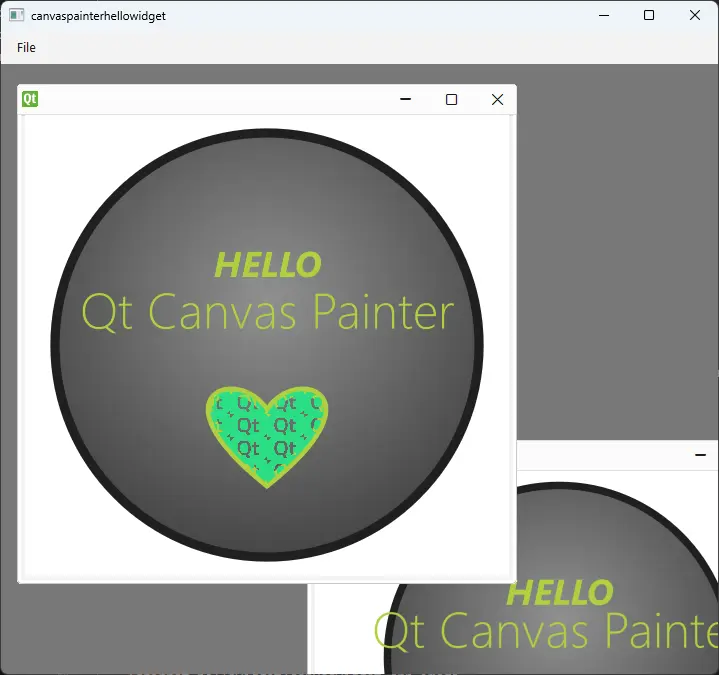
このサンプルでは、QCanvasPainterWidget のサブクラスを実装しています。このウィジェットのインスタンスを1つ以上、QMainWindow 内のQMdiArea に追加することができます。
QCanvasPainterWidget このウィジェット自体はQRhiWidget から派生しており、常にQRhi を介してアクセラレーションされた3Dレンダリングを使用しています。
QCanvasPainterWidget のサブクラスは、少なくともpaint()を実装する必要があります。この例では、PNGファイルから読み込まれた画像も使用しています。
class CanvasWidget : public QCanvasPainterWidget
{
public:
    CanvasWidget();
    void initializeResources(QCanvasPainter *p) override;
    void paint(QCanvasPainter *p) override;
    void graphicsResourcesInvalidated() override;

private:
    QCanvasImage m_image;
};
paint() 関数は、プロバイダ `QCanvasPainter ` を使用してすぐに描画を開始できます:
void CanvasWidget::paint(QCanvasPainter *p)
{
    const float size = std::min(width(), height());
    const float centerX = width() / 2;
    const float centerY = height() / 2;

    // Paint the background circle
    QCanvasRadialGradient gradient1(centerX, centerY - size * 0.1f, 0, size * 0.6f);
    gradient1.setStartColor(QColor(0x909090));
    gradient1.setEndColor(QColor(0x404040));
    p->beginPath();
    p->circle(QPointF(centerX, centerY), size * 0.46f);
    p->setFillStyle(gradient1);
    p->fill();
    p->setStrokeStyle(QColor(0x202020));
    p->setLineWidth(size * 0.02f);
p->stroke();この例で使用されている機能の詳細については、QCanvasPainter 、QCanvasBrush 、QCanvasRadialGradient 、QCanvasImagePattern 、QCanvasImage 、およびQFont を参照してください。
画像は、ハートの形を塗りつぶすためのパターンとして使用されます:
    // Paint heart
    QCanvasImagePattern pattern(m_image, centerX, centerY, size * 0.08f, size * 0.05f);
    p->setFillStyle(pattern);
QCanvasImage やQCanvasOffscreenCanvas のようなリソースが関与する場合、これらはinitializeResources()およびgraphicsResourcesInvalidated()内で管理されます:
void CanvasWidget::initializeResources(QCanvasPainter *p)
{
    Q_ASSERT(m_image.isNull());
    const auto flags = QCanvasPainter::ImageFlag::Repeat | QCanvasPainter::ImageFlag::GenerateMipmaps;
    m_image = p->addImage(QImage(u":/qt-translucent.png"_s), flags);
}

void CanvasWidget::graphicsResourcesInvalidated()
{
    m_image = {};
}
initializeResources() はあくまで便宜上のものです。これを実装する代わりに、paint() 内で次のように記述することも可能です:
if (m_image.isNull())
    m_image = p->addImage(QImage(":/qt-translucent.png"), QCanvasPainter::ImageFlag::Repeat);
この例では、ウィンドウ間でウィジェットの親を変更しないため、グラフィックリソースが失われることはありません。とはいえ、graphicsResourcesInvalidated() 内で、すべてのQCanvasImage およびQCanvasOffscreenCanvas 変数に、デフォルトの空のオブジェクトを割り当てるのは良いパターンです。
main() 関数では、QMainWindow およびQMdiArea を作成します。CanvasWidget クラスの複数のインスタンスをサブウィンドウとして追加できます。hasSharedPainter() のデフォルト値が true であること、および同じトップレベルウィジェット内に配置されていることから、すべてのペインターウィジェットは専用のものを生成するのではなく、同じQCanvasPainter および関連するレンダリングインフラストラクチャを共有することになります。
© 2026 The Qt Company Ltd. Documentation contributions included herein are the copyrights of their respective owners. The documentation provided herein is licensed under the terms of the GNU Free Documentation License version 1.3 as published by the Free Software Foundation. Qt and respective logos are trademarks of The Qt Company Ltd. in Finland and/or other countries worldwide. All other trademarks are property of their respective owners.
