
在 8155P 上刷写并运行镜像
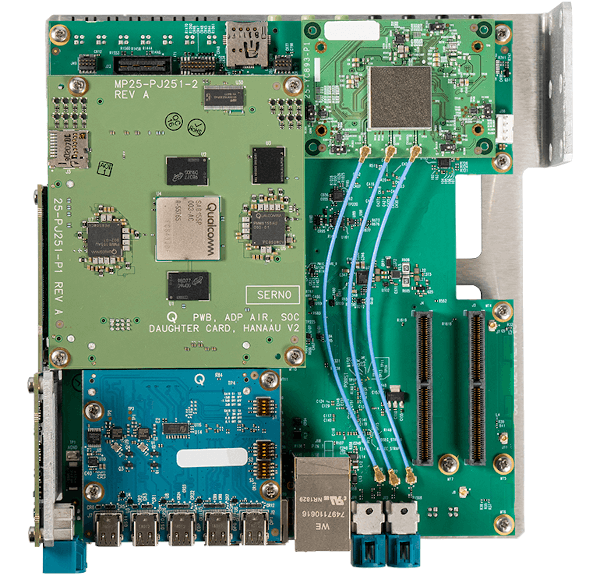
高通骁龙 8155P 开发板
这是高通骁龙 8155P 开发板的俯视图。
设置接线
在开发板上刷写固件和调试应用程序时,需要在 PC 与开发板之间连接多根电缆:
- 电源连接器
- Micro USB 接口为 FT 串行控制台输出端口
- 标准USB接口为QFIL/Fastboot端口(需使用USB-A至USB-A或USB-A至USB-C数据线)
- DisplayPort 线缆用于图形输出
- 以太网端口,用于动态加载应用程序。
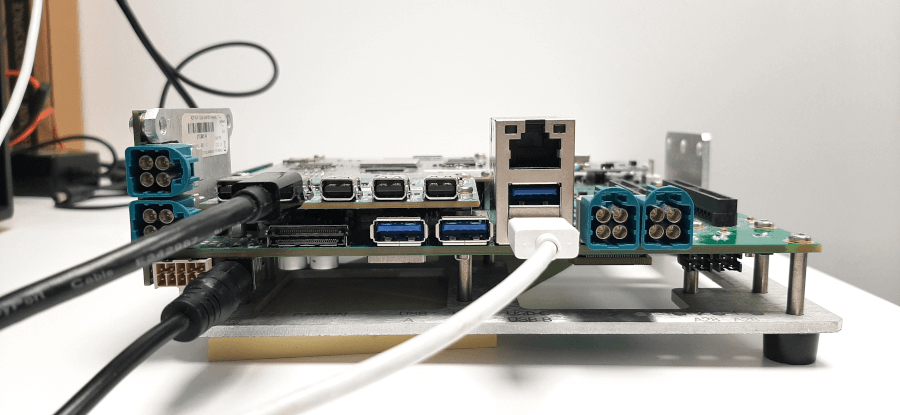
以下为接线配置示例:电源已开启,USB-A 公头已连接用于刷写镜像,DisplayPort 线缆已连接用于图形输出。
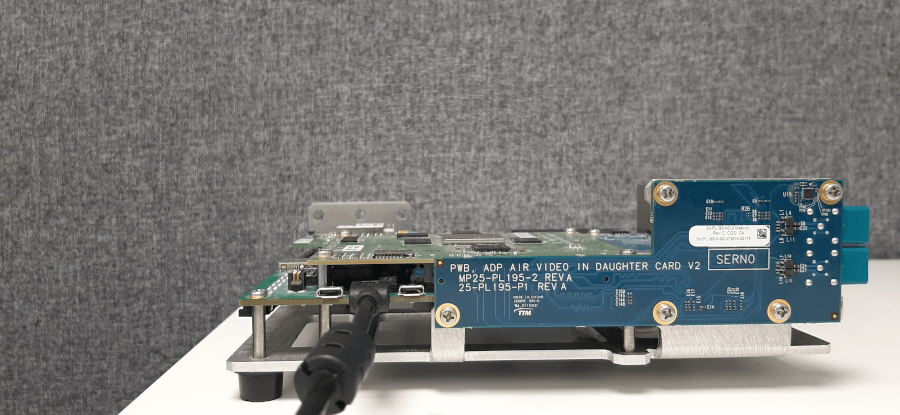
连接 Micro USB 接口用于使用 FT 串行控制台。
切换至 Fastboot 模式
要在高通骁龙 8155P 开发板上刷写镜像,请在主机操作系统上安装 Fastboot 工具。参见Fastboot 工具
刷写前,请将开发板切换至 Fastboot 模式:
- 与开发板建立串行连接:
putty /dev/ttyUSB0 -serial -sercfg 115200,8,1 - 有两种方法:
- 在设备上,按住音量键并重启设备。
- 或者在 UART 命令行界面中按下向下箭头键,然后重启设备。
- 如果开发板成功切换到 Fastboot 模式,控制台会显示以下输出:
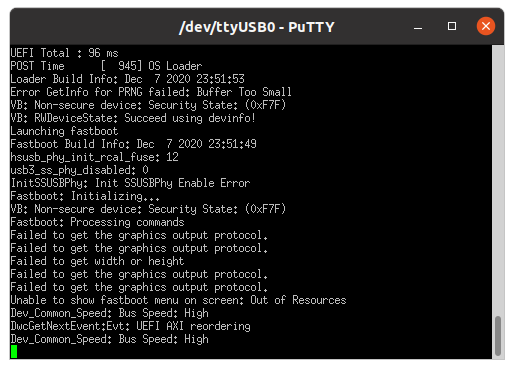
检查主板是否处于 Fastboot 模式的另一种方法是运行以下命令:
fastboot devices
烧录镜像
构建脚本会生成一套用于开发板分区的镜像文件。
boot.img, perf_dyn.img, misc_dyn.img, abl.elf, etc切换到 Fastboot 模式后,即可将镜像刷入主板。
- 首次设置时,请按照 GHSES7_FinalCopy/ES7_customer_package_readme.docx 中的镜像刷写流程操作:
cd /work/ghs/sa8155/es7/es7_dev_env/hlos_dev_boot/apps/ghs_apps_proc/qc_bsp/out/chk/bin/target
fastboot flash abl  abl.elf
fastboot flash boot vmm-adp-gvm-sa8155/boot.img
fastboot flash perf_dyn_a vmm-adp-gvm-sa8155/perf_dyn.img
fastboot flash misc_dyn_a  vmm-adp-gvm-sa8155/misc_dyn.img

cd /work/ghs/sa8155/es7/es7_dev_env/ES7_FinalCopy/Images/sa8155_hyp
fastboot flash hyp_a hyp.mbn
fastboot flash tz tz.mbn
fastboot flash apdp apdp.mbn

cd /work/ghs/sa8155/es7/es7_dev_env/hlos_dev_boot/apps/ghs_apps_proc/qc_bsp/out/chk/bin/target/fs
fastboot flash gh_sys sys.img
fastboot flash gh_persist ghs_persist.img
fastboot flash gh_test ghs_test.img.sparse

cd /work/ghs/sa8155/es7/es7_dev_env/hlos_dev_boot/apps/ghs_apps_proc/qc_bsp/prebuilt_NHLOS/adsp/asic_8150
fastboot flash adsp adsp.img

cd /work/ghs/sa8155/es7/es7_dev_env/hlos_dev_boot/lagvm/LINUX/android/out/target/product/msmnile_gvmgh
fastboot flash vendor vendor.img
注意: ES7_FinalCopy/ES7_customer_package_readme.docx是 QC [ES7] 客户包的一部分。如需更多信息,请联系高通支持团队。
- 如果这不是首次刷写,则应刷写monolith部分:
cd /work/ghs/sa8155/es7/es7_dev_env/hlos_dev_boot/apps/ghs_apps_proc/qc_bsp/out/chk/bin/target fastboot flash boot vmm-adp-gvm-sa8155/boot.img - 重启开发板。
在开发板上运行 Qt 应用程序
- 打开串行控制台:
putty /dev/ttyUSB0 -serial -sercfg 115200,8,1 - 执行以下命令:
rt <application name> Initial - 运行 Qt 应用程序示例:
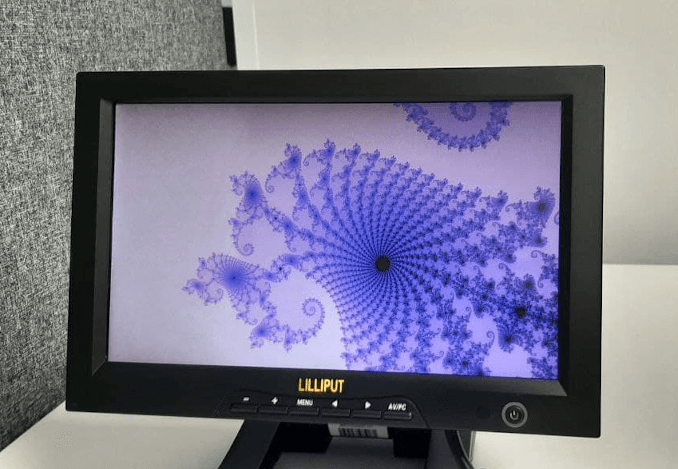
Qt 应用程序正在高通骁龙 8155P 开发板上运行,并在连接的屏幕上显示。
© 2026 The Qt Company Ltd. Documentation contributions included herein are the copyrights of their respective owners. The documentation provided herein is licensed under the terms of the GNU Free Documentation License version 1.3 as published by the Free Software Foundation. Qt and respective logos are trademarks of The Qt Company Ltd. in Finland and/or other countries worldwide. All other trademarks are property of their respective owners.
