
使用主题创建图表
注意:这是 “带小部件的图表图库”示例的一部分。
在此处,您可以更改部分受支持图表类型的不同内置主题的外观和风格。
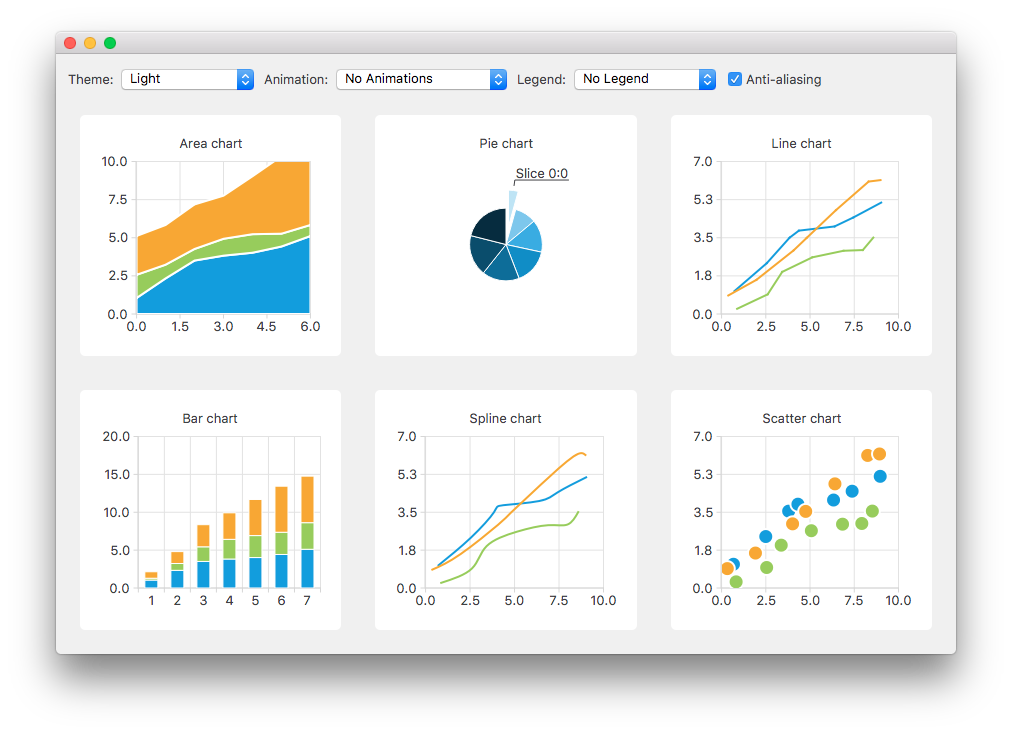
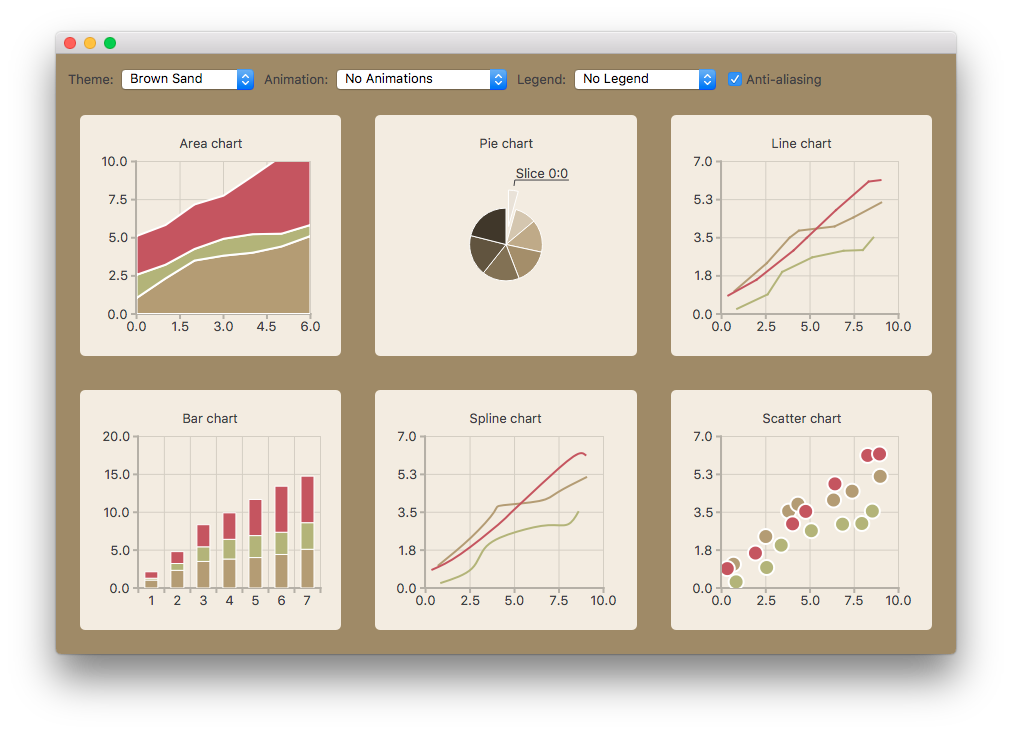
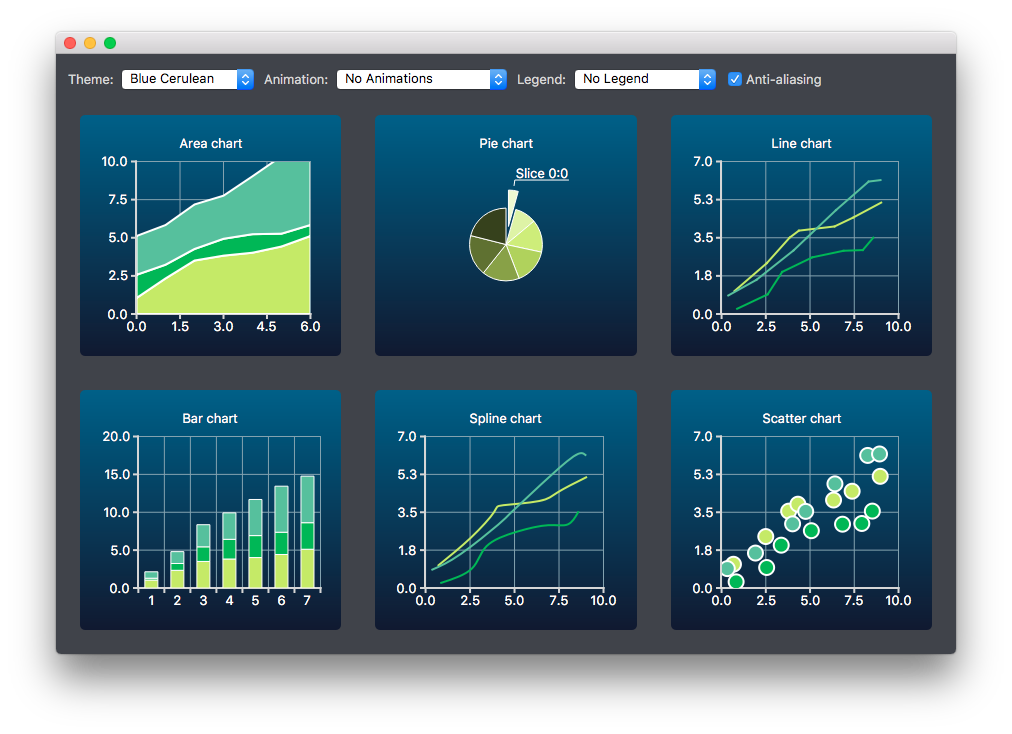
创建图表
不同类型的图表会分别生成并添加到布局中。例如,折线图的创建方法如下。其他图表类型的创建方法与此类似。
首先创建一个图表。
auto chart = new QChart;
chart->setTitle("Line Chart");
生成一组通用的随机数据并将其放入列表中。每种图表类型都会使用该列表将数据添加到图表的系列中。对于折线系列,会创建 QLineSeries 实例并将其添加到图表中。
QString name("Series ");
int nameIndex = 0;
for (const DataList &list : m_dataTable) {
    auto series = new QLineSeries(chart);
    for (const Data &data : list)
        series->append(data.first);
    series->setName(name + QString::number(nameIndex));
    nameIndex++;
    chart->addSeries(series);
}
为折线系列创建默认坐标轴。我们还会根据系列所用数据的范围来指定坐标轴的范围。
chart->createDefaultAxes();
chart->axes(Qt::Horizontal).first()->setRange(0, m_valueMax);
chart->axes(Qt::Vertical).first()->setRange(0, m_valueCount);
此外,我们希望在标签与 y 轴之间增加更多间距。为此,我们指定了一种在标签中插入空格字符的标签格式。
// Add space to label to add space between labels and axis
auto axisY = qobject_cast<QValueAxis *>(chart->axes(Qt::Vertical).first());
Q_ASSERT(axisY);
axisY->setLabelFormat("%.1f  ");
最后,将折线图添加到网格布局中。
chartView = new QChartView(createLineChart(), this);
m_ui->gridLayout->addWidget(chartView, 1, 2);
更改主题
用户可以选择一个内置主题用于本示例。该主题随后将应用于布局中的所有图表。
auto theme = static_cast<QChart::ChartTheme>(
            m_ui->themeComboBox->itemData(m_ui->themeComboBox->currentIndex()).toInt());
    ...
chartView->chart()->setTheme(theme);
更改动画、图例和抗锯齿
在此示例中,还可以观察到更改动画、图例和抗锯齿设置如何影响图表的外观。
根据用户的选择,每个图表都会设置相应的动画类型。图表可以不使用动画,也可以为网格轴或数据系列添加动画,或者两者都添加动画。
QChart::AnimationOptions options(
            m_ui->animatedComboBox->itemData(m_ui->animatedComboBox->currentIndex()).toInt());
if (!m_charts.isEmpty() && m_charts.at(0)->chart()->animationOptions() != options) {
    for (QChartView *chartView : charts)
        chartView->chart()->setAnimationOptions(options);
}
图表可显示图例,且图例可对齐到图表的不同侧边。
Qt::Alignment alignment(
            m_ui->legendComboBox->itemData(m_ui->legendComboBox->currentIndex()).toInt());

if (!alignment) {
    for (QChartView *chartView : charts)
        chartView->chart()->legend()->hide();
} else {
    for (QChartView *chartView : charts) {
        chartView->chart()->legend()->setAlignment(alignment);
        chartView->chart()->legend()->show();
    }
}
用户还可以观察到,更改抗锯齿选项会如何改变图表的外观。抗锯齿效果会根据用户的选择进行更新。
bool checked = m_ui->antialiasCheckBox->isChecked();
for (QChartView *chart : charts)
    chart->setRenderHint(QPainter::Antialiasing, checked);
© 2026 The Qt Company Ltd. Documentation contributions included herein are the copyrights of their respective owners. The documentation provided herein is licensed under the terms of the GNU Free Documentation License version 1.3 as published by the Free Software Foundation. Qt and respective logos are trademarks of The Qt Company Ltd. in Finland and/or other countries worldwide. All other trademarks are property of their respective owners.
