
创建环形图
注意:这是 “带小部件的图表图库”示例的一部分。
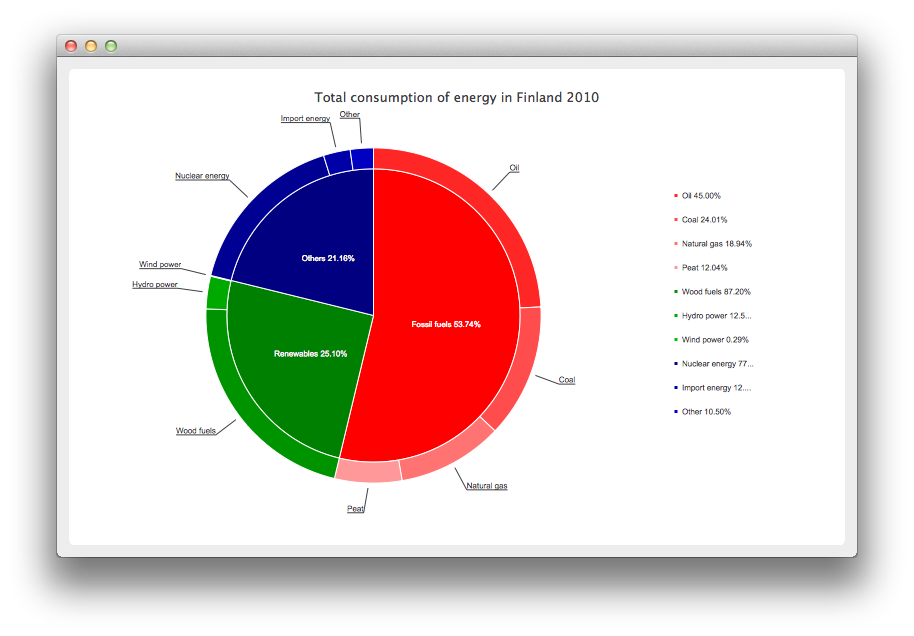
创建环形分类图
首先,让我们为图表定义一些数据。
// Graph is based on data of 'Total consumption of energy increased by 10 per cent in 2010'
// Statistics Finland, 13 December 2011
// http://www.stat.fi/til/ekul/2010/ekul_2010_2011-12-13_tie_001_en.html

auto series1 = new QPieSeries;
series1->setName("Fossil fuels");
series1->append("Oil", 353295);
series1->append("Coal", 188500);
series1->append("Natural gas", 148680);
series1->append("Peat", 94545);

auto series2 = new QPieSeries;
series2->setName("Renewables");
series2->append("Wood fuels", 319663);
series2->append("Hydro power", 45875);
series2->append("Wind power", 1060);

auto series3 = new QPieSeries;
series3->setName("Others");
series3->append("Nuclear energy", 238789);
series3->append("Import energy", 37802);
series3->append("Other", 32441);
然后,我们创建一个图表并向其中添加数据。请注意,这是我们基于 QChart 派生出的自定义图表。
auto donutBreakdown = new DonutBreakdownChart;
donutBreakdown->setAnimationOptions(QChart::AllAnimations);
donutBreakdown->setTitle("Total consumption of energy in Finland 2010");
donutBreakdown->legend()->setAlignment(Qt::AlignRight);
donutBreakdown->addBreakdownSeries(series1, Qt::red);
donutBreakdown->addBreakdownSeries(series2, Qt::darkGreen);
donutBreakdown->addBreakdownSeries(series3, Qt::darkBlue);
我们自定义图表的工作原理是:在构造函数中创建一个主系列,该主系列会汇总由细分系列提供的数据。这就是位于中央的饼图。
DonutBreakdownChart::DonutBreakdownChart(QGraphicsItem *parent, Qt::WindowFlags wFlags)
    : QChart(QChart::ChartTypeCartesian, parent, wFlags)
{
    // create the series for main center pie
    m_mainSeries = new QPieSeries;
    m_mainSeries->setPieSize(0.7);
    QChart::addSeries(m_mainSeries);
}
当添加一个细分序列时,其数据将用于在主序列中创建一个扇区,而细分序列本身则用于创建一个环形图段,其位置与主序列中对应的扇区对齐。
void DonutBreakdownChart::addBreakdownSeries(QPieSeries *breakdownSeries, QColor color)
{
    QFont font("Arial", 8);

    // add breakdown series as a slice to center pie
    auto mainSlice = new DonutBreakdownMainSlice(breakdownSeries);
    mainSlice->setName(breakdownSeries->name());
    mainSlice->setValue(breakdownSeries->sum());
    m_mainSeries->append(mainSlice);

    // customize the slice
    mainSlice->setBrush(color);
    mainSlice->setLabelVisible();
    mainSlice->setLabelColor(Qt::white);
    mainSlice->setLabelPosition(QPieSlice::LabelInsideHorizontal);
    mainSlice->setLabelFont(font);

    // position and customize the breakdown series
    breakdownSeries->setPieSize(0.8);
    breakdownSeries->setHoleSize(0.7);
    breakdownSeries->setLabelsVisible();
    const auto slices = breakdownSeries->slices();
    for (QPieSlice *slice : slices) {
        color = color.lighter(115);
        slice->setBrush(color);
        slice->setLabelFont(font);
    }

    // add the series to the chart
    QChart::addSeries(breakdownSeries);

    // recalculate breakdown donut segments
    recalculateAngles();

    // update customize legend markers
    updateLegendMarkers();
}
以下是甜甜圈扇区起始角和结束角的计算方法。
void DonutBreakdownChart::recalculateAngles()
{
    qreal angle = 0;
    const auto slices = m_mainSeries->slices();
    for (QPieSlice *slice : slices) {
        QPieSeries *breakdownSeries = qobject_cast<DonutBreakdownMainSlice *>(slice)->breakdownSeries();
        breakdownSeries->setPieStartAngle(angle);
        angle += slice->percentage() * 360.0; // full pie is 360.0
        breakdownSeries->setPieEndAngle(angle);
    }
}
图例标记已自定义为显示细分百分比。主级别扇区的标记被隐藏。
void DonutBreakdownChart::updateLegendMarkers()
{
    // go through all markers
    const auto allseries = series();
    for (QAbstractSeries *series : allseries) {
        const auto markers = legend()->markers(series);
        for (QLegendMarker *marker : markers) {
            auto pieMarker = qobject_cast<QPieLegendMarker *>(marker);
            if (series == m_mainSeries) {
                // hide markers from main series
                pieMarker->setVisible(false);
            } else {
                // modify markers from breakdown series
                pieMarker->setLabel(QString("%1 %2%")
                                    .arg(pieMarker->slice()->label())
                                    .arg(pieMarker->slice()->percentage() * 100, 0, 'f', 2));
                pieMarker->setFont(QFont("Arial", 8));
            }
        }
    }
}
取而代之的是,主级别扇区在标签上显示百分比。
DonutBreakdownMainSlice::DonutBreakdownMainSlice(QPieSeries *breakdownSeries, QObject *parent)
    : QPieSlice(parent),
      m_breakdownSeries(breakdownSeries)
{
    connect(this, &DonutBreakdownMainSlice::percentageChanged,
            this, &DonutBreakdownMainSlice::updateLabel);
}
    ...
void DonutBreakdownMainSlice::updateLabel()
{
    setLabel(QString("%1 %2%").arg(m_name).arg(percentage() * 100, 0, 'f', 2));
}
现在图表已定义完毕,我们可以最终创建一个 QChartView 并显示该图表。
createDefaultChartView(donutBreakdown);© 2026 The Qt Company Ltd. Documentation contributions included herein are the copyrights of their respective owners. The documentation provided herein is licensed under the terms of the GNU Free Documentation License version 1.3 as published by the Free Software Foundation. Qt and respective logos are trademarks of The Qt Company Ltd. in Finland and/or other countries worldwide. All other trademarks are property of their respective owners.
