
QML 高级教程 1 - 创建游戏画布和模块
创建应用程序界面
第一步是在应用程序中创建基本的 QML 元素。
首先,我们创建一个“Same Game”应用程序,其主屏幕如下所示:
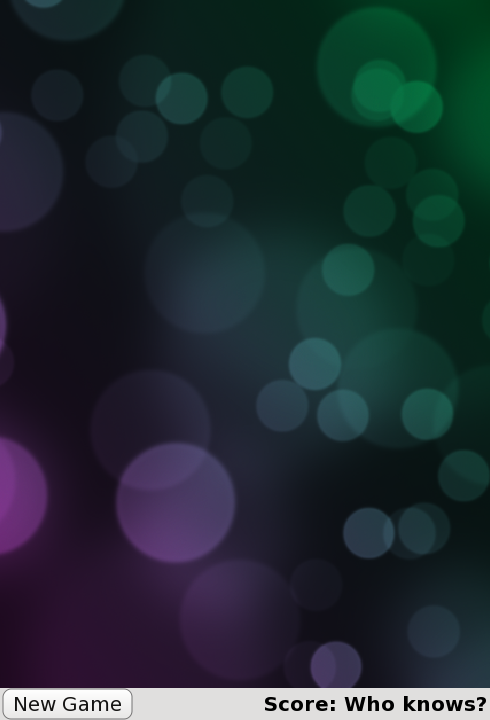
这由主应用程序文件samegame.qml 定义,内容如下:
import QtQuick

Rectangle {
    id: screen

    width: 490; height: 720

    SystemPalette { id: activePalette }

    Item {
        width: parent.width
        anchors { top: parent.top; bottom: toolBar.top }

        Image {
            id: background
            anchors.fill: parent
            source: "pics/background.jpg"
            fillMode: Image.PreserveAspectCrop
        }
    }

    Rectangle {
        id: toolBar
        width: parent.width; height: 30
        color: activePalette.window
        anchors.bottom: screen.bottom

        Button {
            anchors { left: parent.left; verticalCenter: parent.verticalCenter }
            text: "New Game"
            onClicked: console.log("This doesn't do anything yet...")
        }

        Text {
            id: score
            anchors { right: parent.right; verticalCenter: parent.verticalCenter }
            text: "Score: Who knows?"
        }
    }
}
这将生成一个基本的游戏窗口,其中包含方块的主画布、“新游戏”按钮和得分显示区。
这里有一个你可能不熟悉的项是SystemPalette 。它提供了访问Qt系统调色板的功能,用于使按钮具有更接近原生应用的外观和感觉。
请注意,Item 、Button 和Text 类型的锚点均采用点(.)表示法设置,以提高可读性。
添加Button 和Block 组件
上文代码中的Button 项定义在名为Button.qml 的独立组件文件中。要创建一个可用的按钮,我们需在Rectangle 内使用QML类型Text 和MouseArea 。以下是Button.qml 的代码:
import QtQuick

Rectangle {
    id: container

    property string text: "Button"

    signal clicked

    width: buttonLabel.width + 20; height: buttonLabel.height + 5
    border { width: 1; color: Qt.darker(activePalette.button) }
    antialiasing: true
    radius: 8

    // color the button with a gradient
    gradient: Gradient {
        GradientStop {
            position: 0.0
            color: {
                if (mouseArea.pressed)
                    return activePalette.dark
                else
                    return activePalette.light
            }
        }
        GradientStop { position: 1.0; color: activePalette.button }
    }

    MouseArea {
        id: mouseArea
        anchors.fill: parent
        onClicked: container.clicked();
    }

    Text {
        id: buttonLabel
        anchors.centerIn: container
        color: activePalette.buttonText
        text: container.text
    }
}这基本上定义了一个包含文本且可点击的矩形。MouseArea 拥有一个onClicked() 处理程序,该处理程序在区域被点击时,会触发container 的clicked() 信号。
在《Same Game》中,游戏开始时屏幕上会布满小方块。每个方块只是一个包含图片的项。方块的代码定义在一个单独的Block.qml 文件中:
import QtQuick

Item {
    id: block

    Image {
        id: img
        anchors.fill: parent
        source: "pics/redStone.png"
    }
}
目前,该方块没有任何功能,仅作为一张图片存在。随着教程的推进,我们将为方块添加动画效果和行为。我们尚未添加任何用于创建方块的代码;这将在下一章中进行。
我们已通过anchors.fill: parent 将图片大小设置为与其父级Item相同。这意味着在教程后续内容中,当我们动态创建并调整方块项的大小时,图片将自动按比例缩放至正确尺寸。
请注意 Image 类型的source 属性所使用的相对路径。该路径是以包含Image 类型的文件位置为基准的。此外,您也可以将 Image 的源设置为绝对文件路径或包含图片的 URL。
到目前为止,您应该已经熟悉了这些代码。我们刚刚创建了一些基本类型作为入门。接下来,我们将用一些方块填充游戏画布。
© 2026 The Qt Company Ltd. Documentation contributions included herein are the copyrights of their respective owners. The documentation provided herein is licensed under the terms of the GNU Free Documentation License version 1.3 as published by the Free Software Foundation. Qt and respective logos are trademarks of The Qt Company Ltd. in Finland and/or other countries worldwide. All other trademarks are property of their respective owners.
