
Qt Quick 3D - Quick Ball 示例
演示如何使用 Quick3D 创建一个简单的游戏。
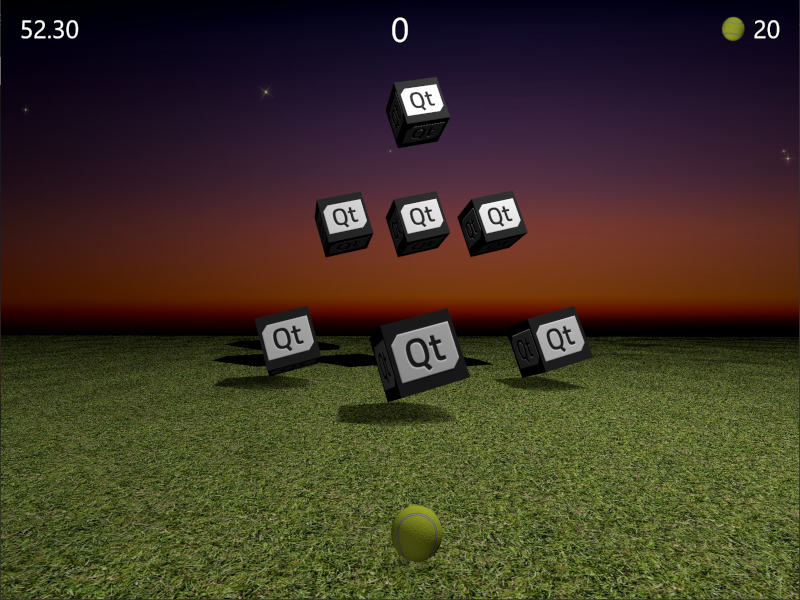
本示例演示了如何结合使用Qt Quick 和Qt Quick 3D 来制作一款简单的3D游戏。游戏的目标是通过投掷球来击中目标方块。得分依据在于以多快的速度、用最少的球数击倒所有目标。瞄准要准,动作要快!
源代码仅包含一个 QML 文件,旨在强调本示例的简洁性——尽管它是一个可以完整运行的游戏。让我们先来看看主要属性。这些属性不言自明,你可以轻松调整它们,观察其对游戏的影响。
// Scaling helpper
readonly property real px: 0.2 + Math.min(width, height) / 800
// This is false until the first game has started
property bool playingStarted: false
// This is true whenever game is on
property bool gameOn: false
// Sizes of our 3D models
readonly property real ballSize: 40
readonly property real targetSize: 120
// Playing time in seconds
readonly property real gameTime: 60
property real currentTime: 0
// Amount of balls per game
readonly property int gameBalls: 20
property int currentBalls: 0
// Scores
property int score: 0
property int timeBonus: 0
property int ballsBonus: 0
游戏逻辑通过 JavaScript 实现。View3D 包含一个用于启动游戏的函数,该函数会(重新)初始化所有必需变量并创建关卡目标。它还包含一个在游戏结束时计算最终得分的函数。
function createLevel1() {
    // Simple level of target items
    var level1 = [{ "x": 0, "y": 100, "z": -100, "points": 10 },
                  { "x": -300, "y": 100, "z": -400, "points": 10 },
                  { "x": 300, "y": 100, "z": -400, "points": 10 },
                  { "x": -200, "y": 400, "z": -600, "points": 20 },
                  { "x": 0, "y": 400, "z": -600, "points": 20 },
                  { "x": 200, "y": 400, "z": -600, "points": 20 },
                  { "x": 0, "y": 700, "z": -600, "points": 30 }];
    targetsNode.addTargets(level1);
}

function startGame() {
    ballModel.resetBall();
    targetsNode.resetTargets();
    createLevel1();
    mainWindow.score = mainWindow.timeBonus = mainWindow.ballsBonus = 0;
    mainWindow.currentBalls = mainWindow.gameBalls;
    mainWindow.gameOn = true;
    mainWindow.playingStarted = true;
}

function endGame() {
    if (targetsNode.currentTargets == 0) {
        // If we managed to get all targets down -> bonus points!
        mainWindow.timeBonus = mainWindow.currentTime;
        mainWindow.ballsBonus = mainWindow.currentBalls * 10;
    }
    mainWindow.gameOn = false;
    ballModel.resetBall();
}视图中还包含一个PointLight 节点,用于照亮场景。该节点位于物体上方,并设置为投射阴影。请注意,当游戏结束时,会通过调整亮度来加深游戏区域的暗度。ambientColor 属性用于柔化光照对比度,因为如果不使用该属性,物体的底部会变得非常暗。
PointLight {
    x: 400
    y: 1200
    castsShadow: true
    shadowMapQuality: Light.ShadowMapQualityHigh
    shadowFactor: 50
    quadraticFade: 2
    ambientColor: "#202020"
    brightness: mainWindow.gameOn ? 200 : 40
    Behavior on brightness {
        NumberAnimation {
            duration: 1000
            easing.type: Easing.InOutQuad
        }
    }
}投掷球体使用Qt Quick 的MouseArea 项,该项仅在游戏进行中且球体尚未移动时才被启用。
MouseArea {
    anchors.fill: parent
    enabled: mainWindow.gameOn && !ballModel.ballMoving
    onPressed: {
        ballModel.moveBall(mouseX, mouseY);
    }
    onPositionChanged: {
        ballModel.moveBall(mouseX, mouseY);
    }
    onReleased: {
        ballModel.throwBall();
    }
}
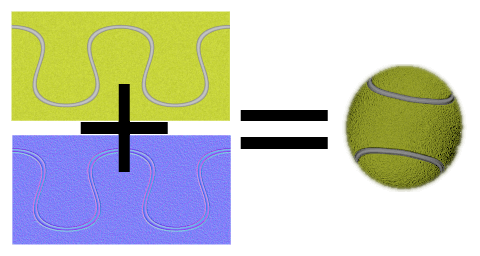
接下来我们进入实际的 3D 模型部分。球体模型是最大的,因为它包含了球的运动逻辑、动画以及碰撞检测。让我们先看看球的属性。球体使用了一个内置的球体模型,其尺寸根据 `ballSize` 进行缩放。我们通过 `PrincipledMaterial ` 配合 `baseColorMap ` 和 `normalMap ` 来创建网球的外观。
Model {
    id: ballModel
    property real directionX: 0
    property real directionY: 0
    // How many ms the ball flies
    readonly property real speed: 2000
    readonly property real ballScale: mainWindow.ballSize / 100
    property var moves: []
    readonly property int maxMoves: 5
    readonly property bool ballMoving: ballAnimation.running

    source: "#Sphere"
    scale: Qt.vector3d(ballScale, ballScale, ballScale)

    materials: PrincipledMaterial {
        baseColorMap: Texture {
            source: "images/ball.jpg"
        }
        normalMap: Texture {
            source: "images/ball_n.jpg"
        }
        normalStrength: 1.0
}当鼠标移动或触摸屏滑动时,球体在松开前的最后几个maxMoves 位置会被存储到moves 数组中。当用户松开球体时,会调用throwBall() ,该函数根据这些最新位置计算球体的运动方向,并开始进行动画播放。
function resetBall() {
    moves = [];
    x = 0;
    y = mainWindow.ballSize/2;
    z = 400;
}

function moveBall(posX, posY) {
    if (!mainWindow.gameOn) return;
    var pos = view3D.mapTo3DScene(Qt.vector3d(posX, posY, ballModel.z + mainWindow.ballSize));
    pos.y = Math.max(mainWindow.ballSize / 2, pos.y);
    var point = {"x": pos.x, "y": pos.y };
    moves.push(point);
    if (moves.length > maxMoves) moves.shift();
    // Apply position into ball model
    ballModel.x = pos.x;
    ballModel.y = pos.y;
}

function throwBall() {
    if (!mainWindow.gameOn) return;
    mainWindow.currentBalls--;
    var moveX = 0;
    var moveY = 0;
    if (moves.length >= 2) {
        var first = moves.shift();
        var last = moves.pop();
        moveX = last.x - first.x;
        moveY = last.y - first.y;
        if (moveY < 0) moveY = 0;
    }
    directionX = moveX * 20;
    directionY = moveY * 4;
    ballAnimation.start();
}球的位移动画在不同轴上分别进行。这些动画使用先前分配的directionX 和directionY 来定义球的移动目标,并借助speed 来控制球的飞行时间。垂直位置有两个连续的动画,因此我们可以使用缓动效果来模拟球的弹跳。当位置动画完成后,我们将检查是否还有剩余的球,或者游戏是否应该结束。 最后,我们还为球的旋转添加了动画效果,这样用户就可以投出曲球了。
ParallelAnimation {
    id: ballAnimation
    running: false
    // Move forward
    NumberAnimation {
        target: ballModel
        property: "z"
        duration: ballModel.speed
        to: -ballModel.directionY * 5
        easing.type: Easing.OutQuad
    }
    // Move up & down with a bounce
    SequentialAnimation {
        NumberAnimation {
            target: ballModel
            property: "y"
            duration: ballModel.speed * (1 / 3)
            to: ballModel.y + ballModel.directionY
            easing.type: Easing.OutQuad
        }
        NumberAnimation {
            target: ballModel
            property: "y"
            duration: ballModel.speed * (2 / 3)
            to: mainWindow.ballSize / 4
            easing.type: Easing.OutBounce
        }
    }
    // Move sideways
    NumberAnimation {
        target: ballModel
        property: "x"
        duration: ballModel.speed
        to: ballModel.x + ballModel.directionX
    }

    onFinished: {
        if (mainWindow.currentBalls <= 0)
            view3D.endGame();
        ballModel.resetBall();
    }
}

NumberAnimation on eulerRotation.z {
    running: ballModel.ballMoving
    loops: Animation.Infinite
    from: ballModel.directionX < 0 ? 0 : 720
    to: 360
    duration: 10000 / (2 + Math.abs(ballModel.directionX * 0.05))
}
游戏玩法的重要部分是检测球何时击中目标。每当球的 z 位置发生变化时,我们会遍历targets 数组,并使用fuzzyEquals() 检测球是否触碰到其中任何一个目标。每次检测到命中时,我们将调用目标的hit() 函数,并检查所有目标是否均已击倒。
onZChanged: {
    // Loop through target items and detect collisions
    var hitMargin = mainWindow.ballSize / 2 + mainWindow.targetSize / 2;
    for (var i = 0; i < targetsNode.targets.length; ++i) {
        var target = targetsNode.targets[i];
        var targetPos = target.scenePosition;
        var hit = ballModel.scenePosition.fuzzyEquals(targetPos, hitMargin);
        if (hit) {
            target.hit();
            if (targetsNode.currentTargets <= 0)
                view3D.endGame();
        }
    }
}随后我们可以切换到目标处理。这些目标会被动态生成到一个分组节点中,该节点包含辅助函数,并允许将所有目标作为一个整体进行动画处理。请注意,currentTargets 属性是必要的,因为在 QML 中数组的更改不会触发绑定,因此我们将手动更新目标的数量。
Node {
    id: targetsNode

    property var targets: []
    property int currentTargets: 0

    function addTargets(items) {
        items.forEach(function (item) {
            let instance = targetComponent.createObject(
                    targetsNode, { "x": item.x, "startPosY": item.y, "z": item.z, "points": item.points});
            targets.push(instance);
        });
        currentTargets = targets.length;
    }

    function removeTarget(item) {
        var index = targets.indexOf(item);
        targets.splice(index, 1);
        currentTargets = targets.length;
    }

    function resetTargets() {
        while (targets.length > 0)
            targets.pop().destroy();
        currentTargets = targets.length;
    }
}目标节点包含一个立方体模型和一个用于显示分数的文本元素。与球体模型类似,我们使用baseColorMap 和normalMap 纹理来创建带有 Qt 标志的立方体。当检测到命中时,我们会依次动画移除立方体,并显示从该目标获得的分数。动画结束后,我们将动态移除目标节点。
Component {
    id: targetComponent
    Node {
        id: targetNode

        property int points: 0
        property real hide: 0
        property real startPosY: 0
        property real posY: 0
        property real pointsOpacity: 0

        function hit() {
            targetsNode.removeTarget(this);
            mainWindow.score += points;
            hitAnimation.start();
            var burstPos = targetNode.mapPositionToScene(Qt.vector3d(0, 0, 0));
            hitParticleEmitter.burst(100, 200, burstPos);
        }

        y: startPosY + posY
        SequentialAnimation {
            running: mainWindow.gameOn && !hitAnimation.running
            loops: Animation.Infinite
            NumberAnimation {
                target: targetNode
                property: "posY"
                from: 0
                to: 150
                duration: 3000
                easing.type: Easing.InOutQuad
            }
            NumberAnimation {
                target: targetNode
                property: "posY"
                to: 0
                duration: 1500
                easing.type: Easing.InOutQuad
            }
        }

        SequentialAnimation {
            id: hitAnimation
            NumberAnimation {
                target: targetNode
                property: "hide"
                to: 1
                duration: 800
                easing.type: Easing.InOutQuad
            }
            NumberAnimation {
                target: targetNode
                property: "pointsOpacity"
                to: 1
                duration: 1000
                easing.type: Easing.InOutQuad
            }
            NumberAnimation {
                target: targetNode
                property: "pointsOpacity"
                to: 0
                duration: 200
                easing.type: Easing.InOutQuad
            }
            ScriptAction {
                script: targetNode.destroy();
            }
        }

        Model {
            id: targetModel

            readonly property real targetScale: (1 + targetNode.hide) * (mainWindow.targetSize / 100)

            source: "#Cube"
            scale: Qt.vector3d(targetScale, targetScale, targetScale)
            opacity: 0.99 - targetNode.hide * 2
            materials: PrincipledMaterial {
                baseColorMap: Texture {
                    source: "images/qt_logo.jpg"
                }
                normalMap: Texture {
                    source: "images/qt_logo_n.jpg"
                }
                normalStrength: 1.0
            }
            Vector3dAnimation on eulerRotation {
                loops: Animation.Infinite
                duration: 5000
                from: Qt.vector3d(0, 0, 0)
                to: Qt.vector3d(360, 360, 360)
            }
        }
        Text {
            anchors.centerIn: parent
            scale: 1 + targetNode.pointsOpacity
            opacity: targetNode.pointsOpacity
            text: targetNode.points
            font.pixelSize: 60 * mainWindow.px
            color: "#808000"
            style: Text.Outline
            styleColor: "#f0f000"
        }
    }
}
我们还需要一些用于游戏区域的模型。地面模型是一个矩形,其草地纹理经过缩放以填满更大的区域。
Model {
    source: "#Rectangle"
    scale: Qt.vector3d(50, 50, 1)
    eulerRotation.x: -90
    materials: PrincipledMaterial {
        baseColorMap: Texture {
            source: "images/grass.jpg"
            tilingModeHorizontal: Texture.Repeat
            tilingModeVertical: Texture.Repeat
            scaleU: 25.0
            scaleV: 25.0
        }
        normalMap: Texture {
            source: "images/grass_n.jpg"
        }
        normalStrength: 0.6
    }
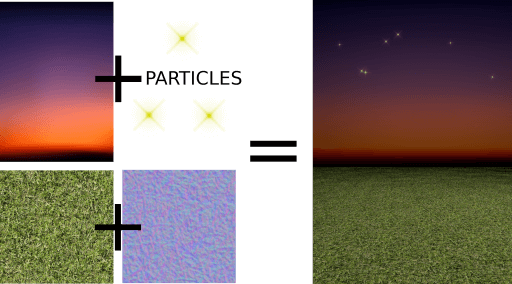
}天空模型位于更远处,且我们不希望阴影投射到天空中,因此将receivesShadows 设置为false。对于天空,我们还使用 Qt Quick Particles 模块添加了一些星星。与其他 2DQt Quick 元素类似,粒子也可以直接添加到 3D 节点中。
Model {
    id: sky
    property real scaleX: 100
    property real scaleY: 20
    source: "#Rectangle"
    scale: Qt.vector3d(sky.scaleX, sky.scaleY, 1)
    position: Qt.vector3d(0, 960, -2000)
    // We don't want shadows casted into sky
    receivesShadows: false
    materials: PrincipledMaterial {
        baseColorMap: Texture {
            source: "images/sky.jpg"
        }
    }
    // Star particles
    Node {
        z: 500
        y: 30
        // Stars are far away, scale up to half the resolution
        scale: Qt.vector3d(2 / sky.scaleX, 2 / sky.scaleY, 1)
        ParticleSystem {
            anchors.horizontalCenter: parent.horizontalCenter
            anchors.top: parent.top
            width: 3000
            height: 400
            ImageParticle {
                source: "qrc:///particleresources/star.png"
                rotationVariation: 360
                color: "#ffffa0"
                colorVariation: 0.1
            }
            Emitter {
                anchors.fill: parent
                emitRate: 4
                lifeSpan: 6000
                lifeSpanVariation: 4000
                size: 30
                sizeVariation: 20
            }
        }
    }
}
将上述地面模型和天空模型结合后,我们得到如下所示的3D世界:
最后,我们为目标添加一些闪烁效果,这次使用QtQuick3D.Particles3D 模块。ParticleSystem3D 中包含一个SpriteParticle3D ,我们为其分配了200 ,这足以支持两个同时发生的100 粒子爆发。ParticleEmitter3D 定义了粒子的发射属性,如缩放、旋转、速度和生命周期。我们还添加了Gravity3D 影响器,以适当的大小将粒子向下拖拽。
ParticleSystem3D {
    id: psystem
    SpriteParticle3D {
        id: sprite
        sprite: Texture {
            source: "images/particle.png"
        }
        color: Qt.rgba(1.0, 1.0, 0.0, 1.0)
        colorVariation: Qt.vector4d(0.4, 0.6, 0.0, 0.0)
        unifiedColorVariation: true
        maxAmount: 200
    }
    ParticleEmitter3D {
        id: hitParticleEmitter
        particle: sprite
        particleScale: 4.0
        particleScaleVariation: 2.0
        particleRotationVariation: Qt.vector3d(0, 0, 180)
        particleRotationVelocityVariation: Qt.vector3d(0, 0, 250)
        velocity: VectorDirection3D {
            direction: Qt.vector3d(0, 300, 0)
            directionVariation: Qt.vector3d(200, 150, 100)
        }
        lifeSpan: 800
        lifeSpanVariation: 200
        depthBias: 100
    }
    Gravity3D {
        magnitude: 600
    }
}
至此,我们游戏的 3D 部分已完成。还有一些 2DQt Quick 元素用于显示时间、分数、开始按钮等,这些对游戏很重要,但与本《快速 3D 教程》无关。
现在轮到你大显身手了(双关语)。欢迎以各种方式扩展游戏,并创建新奇古怪的关卡!
© 2026 The Qt Company Ltd. Documentation contributions included herein are the copyrights of their respective owners. The documentation provided herein is licensed under the terms of the GNU Free Documentation License version 1.3 as published by the Free Software Foundation. Qt and respective logos are trademarks of The Qt Company Ltd. in Finland and/or other countries worldwide. All other trademarks are property of their respective owners.
