
Qt Quick Controls - 文本编辑器
一款基于Qt Quick Controls 的富文本编辑器应用。
“文本编辑器”示例支持对HTML、Markdown或纯文本文件进行所见即所得(WYSIWYG)编辑。 该应用程序提供两种用户界面:一种适用于大屏幕,另一种是针对小型触控设备的简化界面。两者均为“纯”QML实现。texteditor.cpp 中包含main() 函数,该函数通过调用QFontDatabase::addApplicationFont()来添加图标字体。(FontLoader 是实现相同效果的另一种方式。)
桌面用户界面
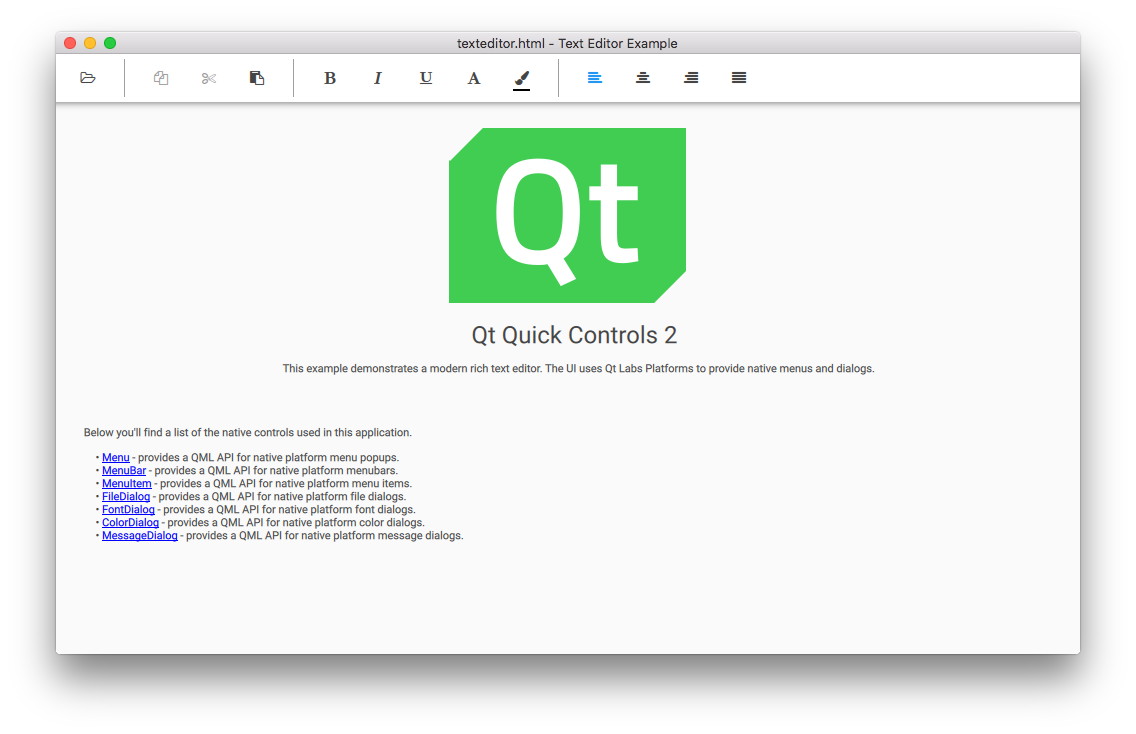
桌面版是一个功能齐全的文本编辑器,支持文本格式化,以及打开和保存 HTML、Markdown 和纯文本文件。
在模型-视图-控制器(MVC)设计模式中,控制器层包含可执行的操作集。在Qt Quick Controls 中,Action 类型用于封装单个操作或命令。因此,我们首先定义一组 Action 对象:
    Action {
        id: openAction
        text: qsTr("&Open")
        shortcut: StandardKey.Open
        onTriggered: {
            if (textArea.textDocument.modified)
                discardDialog.open()
            else
                openDialog.open()
        }
}用于打开文件的Action 必须首先提示用户现有文档是否已被修改,以避免丢失用户的更改。否则,它只需打开下文中声明的FileDialog 即可。
用于保存文件的Action 仅在有待保存的更改时才启用:
    Action {
        id: saveAction
        text: qsTr("&Save…")
        shortcut: StandardKey.Save
        enabled: textArea.textDocument.modified
        onTriggered: textArea.textDocument.save()
}用于复制所选文本的Action 仅在选中了某些文本时才被启用:
    Action {
        id: copyAction
        text: qsTr("&Copy")
        shortcut: StandardKey.Copy
        enabled: textArea.selectedText
        onTriggered: textArea.copy()
}每个用于更改文本格式(如加粗、斜体和对齐方式)的操作(checkable )都是 ,其布尔状态checked 与selected text 中的相关属性保持同步。由于声明式双向同步较为困难,我们使用onTriggered 脚本在操作被激活时修改该属性。cursorSelection 属性是Qt 6.7中的新特性,使得这一操作比以前简单得多。
    Action {
        id: boldAction
        text: qsTr("&Bold")
        shortcut: StandardKey.Bold
        checkable: true
        checked: textArea.cursorSelection.font.bold
        onTriggered: textArea.cursorSelection.font.bold = checked
    }

    Action {
        id: alignCenterAction
        text: qsTr("&Center")
        shortcut: "Ctrl+|"
        checkable: true
        checked: textArea.cursorSelection.alignment === Qt.AlignCenter
        onTriggered: textArea.cursorSelection.alignment = Qt.AlignCenter
}我们有一个MenuBar ,其中包含Menus 和MenuItems的层级结构。每个MenuItem 只需绑定相应的action ,该对象封装了UI表示形式和实现逻辑。
    menuBar: MenuBar {
        Menu {
            title: qsTr("&File")

            MenuItem {
                action: openAction
            }
            MenuItem {
                action: saveAction
            }
            MenuItem {
                action: saveAsAction
            }
            MenuItem {
                action: quitAction
            }
        }

        Menu {
            title: qsTr("&Edit")

            MenuItem {
                action: copyAction
            }
...这些Action 对象在ToolBar 中被复用;但在此处,我们重写了每个Action的text 属性,以便从图标字体中选择一个文本图标:
    header: ToolBar {
        Flow {
            width: parent.width

            Row {
                id: fileRow
                ToolButton {
                    id: openButton
                    text: "\uF115" // icon-folder-open-empty
                    font.family: "fontello"
                    action: openAction
                    focusPolicy: Qt.TabFocus
                }
                ToolButton {
                    id: saveButton
                    text: "\uE80A" // icon-floppy-disk
                    font.family: "fontello"
                    action: saveAction
                    focusPolicy: Qt.TabFocus
                }
                ToolSeparator {
                    contentItem.visible: fileRow.y === editRow.y
                }
            }

            Row {
                id: editRow
                ToolButton {
                    id: copyButton
                    text: "\uF0C5" // icon-docs
                    font.family: "fontello"
                    focusPolicy: Qt.TabFocus
                    action: copyAction
                }
...文本编辑器的主体是一个位于Flickable 中的TextArea :
    Flickable {
        id: flickable
        flickableDirection: Flickable.VerticalFlick
        anchors.fill: parent

        ScrollBar.vertical: ScrollBar {}

        TextArea.flickable: TextArea {
            id: textArea
            textFormat: Qt.AutoText
            wrapMode: TextArea.Wrap
            focus: true
            selectByMouse: true
            persistentSelection: true
            ...
ScrollBar 附着于垂直轴上。由于已通过wrapMode 启用了自动换行功能,因此无需设置水平方向的ScrollBar 。
使用TextArea.flickable 附加属性是为了确保当文本光标移出视口(例如通过方向键,或输入大量文本)时,TextArea 会滚动Flickable 以保持光标可见。
我们将MenuBar 和ToolBar 中声明的操作,追加到TextArea 提供的标准context menu 中的现有项中:
                const menu = textArea.ContextMenu.menu
                menu.addItem(menuSeparatorComponent.createObject(menu.contentItem))
                menu.addAction(fontDialogAction)
menu.addAction(colorDialogAction)我们始终使用qsTr() 函数来启用 UI 文本的翻译,从而确保无论最终用户的母语是什么,应用程序都能正常运行。
我们使用了多种类型的dialogs :
    FileDialog {
        id: openDialog
        fileMode: FileDialog.OpenFile
        selectedNameFilter.index: 1
        nameFilters: ["Text files (*.txt)", "HTML files (*.html *.htm)", "Markdown files (*.md *.markdown)"]
        currentFolder: StandardPaths.writableLocation(StandardPaths.DocumentsLocation)
        onAccepted: {
            textArea.textDocument.modified = false // we asked earlier, if necessary
            textArea.textDocument.source = selectedFile
        }
    }

    FileDialog {
        id: saveDialog
        fileMode: FileDialog.SaveFile
        nameFilters: openDialog.nameFilters
        currentFolder: StandardPaths.writableLocation(StandardPaths.DocumentsLocation)
        onAccepted: textArea.textDocument.saveAs(selectedFile)
    }

    FontDialog {
        id: fontDialog
        onAccepted: textArea.cursorSelection.font = selectedFont
    }

    ColorDialog {
        id: colorDialog
        selectedColor: textArea.cursorSelection.color
        onAccepted: textArea.cursorSelection.color = selectedColor
    }

    MessageDialog {
        title: qsTr("Error")
        id: errorDialog
    }

    MessageDialog {
        id : quitDialog
        title: qsTr("Quit?")
        text: qsTr("The file has been modified. Quit anyway?")
        buttons: MessageDialog.Yes | MessageDialog.No
        onButtonClicked: function (button, role) {
            if (role === MessageDialog.YesRole) {
                textArea.textDocument.modified = false
                Qt.quit()
            }
        }
    }

    MessageDialog {
        id : discardDialog
        title: qsTr("Discard changes?")
        text: qsTr("The file has been modified. Open a new file anyway?")
        buttons: MessageDialog.Yes | MessageDialog.No
        onButtonClicked: function (button, role) {
            if (role === MessageDialog.YesRole)
                openDialog.open()
        }
}通常,为不同用途声明独立的实例会更方便。我们有两个FileDialog 实例,分别用于打开和保存文件。在 Qt 6.7 中,借助TextDocument 中的新功能,这一操作变得更加简单。
一个 `FontDialog ` 和一个 `ColorDialog ` 可用于更改文本格式。(在 Markdown 格式中,没有专门表示特定字体和颜色的语法;但粗体、斜体和等宽字体等字体特征会被保存。在 HTML 格式中,所有格式都会被保存。)
我们有一个MessageDialog 用于显示错误消息,还有两个用于在文件被修改时提示用户该如何操作。
触控用户界面
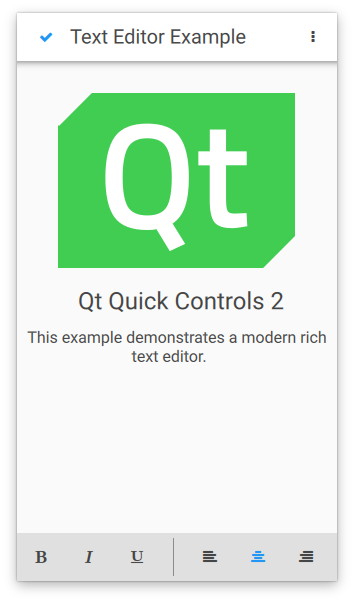
触摸用户界面是文本编辑器的简化版本。它适用于屏幕尺寸有限的触摸设备。该示例使用文件选择器来自动加载相应的用户界面。
运行示例
您可以通过以下方式运行示例:
- Qt Creator
打开Welcome 模式,并从Examples 中选择该示例。有关更多信息,请参阅Qt Creator :教程:构建和运行。
- Qt Extension for Visual Studio Code
在Command Palette 中运行Qt: Open Qt examples 命令,并从列表中选择该示例。有关更多信息,请参阅Qt Extension for Visual Studio Code :教程:构建和运行。
© 2026 The Qt Company Ltd. Documentation contributions included herein are the copyrights of their respective owners. The documentation provided herein is licensed under the terms of the GNU Free Documentation License version 1.3 as published by the Free Software Foundation. Qt and respective logos are trademarks of The Qt Company Ltd. in Finland and/or other countries worldwide. All other trademarks are property of their respective owners.
