
“快速语音”示例
“快速语音”示例可朗读用户提供的文本。
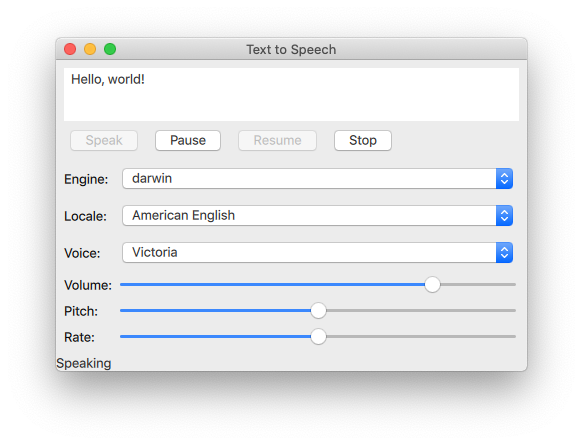
“快速语音”示例演示了如何在应用程序中使用TextToSpeech 类型 Qt Quick 应用程序中使用xml-ph-0000@deepl.internal类型来朗读文本并控制语音。
该示例使用 Qt Quick Controls 提供了对语音音高、音量和语速的控制。它还允许用户选择引擎、语言和语音。
初始化 TextToSpeech
首先,我们初始化文本转语音对象tts :
    TextToSpeech {
        id: tts
        volume: volumeSlider.value
        pitch: pitchSlider.value
        rate: rateSlider.value
获取状态
使用 switch 语句来更新页脚中的“statusLabel ”标签。
        onStateChanged: updateStateLabel(state)

        function updateStateLabel(state)
        {
            switch (state) {
                case TextToSpeech.Ready:
                    statusLabel.text = qsTr("Ready")
                    break
                case TextToSpeech.Speaking:
                    statusLabel.text = qsTr("Speaking")
                    break
                case TextToSpeech.Paused:
                    statusLabel.text = qsTr("Paused...")
                    break
                case TextToSpeech.Error:
                    statusLabel.text = qsTr("Error!")
                    break
            }
        }
在朗读时高亮显示单词
使用TextArea input 获取待输入的文本,并将onSayingWord 信号作为触发器,同时用于确定在语音播报时需要高亮的单词位置。
        onSayingWord: (word, id, start, length)=> {
            input.select(start, start + length)
        }
TextArea (input )在此处声明:
    ColumnLayout {
        anchors.fill: parent
        anchors.margins: 8
        id: inputForm

        TextArea {
            id: input
            wrapMode: TextEdit.WordWrap
            text: qsTr("Hello, world!")
            Layout.fillWidth: true
            Layout.minimumHeight: implicitHeight
            font.pointSize: 24
        }
语音控制
Button 类型通过RowLayout 进行排列,并配置为控制TextToSpeech 的tts 信号。
“Speak”按钮
创建了一个标有“Speak”的Button 。当tts 的状态属性为Paused 或Ready 时,该按钮处于启用状态。点击按钮后,将检索目标设备上可用的语音,并将tts.voice 设置为voicesComboBox 中当前选定的语音。随后调用TextToSpeech::say(),并向其传递inputbox 中的文本。
        RowLayout {
            Button {
                text: qsTr("Speak")
                enabled: [TextToSpeech.Paused, TextToSpeech.Ready].includes(tts.state)
                onClicked: {
                    let voices = tts.availableVoices()
                    tts.voice = voices[voicesComboBox.currentIndex]
                    tts.say(input.text)
                }
            }
暂停、继续和停止按钮
这些按钮的实现方式与Speak 按钮类似:
            Button {
                text: qsTr("Pause")
                enabled: tts.state == TextToSpeech.Speaking
                onClicked: tts.pause()
                visible: tts.engineCapabilities & TextToSpeech.Capabilities.PauseResume
            }
            Button {
                text: qsTr("Resume")
                enabled: tts.state == TextToSpeech.Paused
                onClicked: tts.resume()
                visible: tts.engineCapabilities & TextToSpeech.Capabilities.PauseResume
            }
            Button {
                text: qsTr("Stop")
                enabled: [TextToSpeech.Speaking, TextToSpeech.Paused].includes(tts.state)
                onClicked: tts.stop()
            }
选择文本转语音选项
使用GridLayout 来布局控件和标签,以便选择文本转语音合成中的引擎、语言环境、语音、音量、音高和语速等选项。
选择引擎、区域设置和语音
使用一组ComboBox 组件来选择这些参数。
对于引擎选择下拉列表控件(ComboBox ),采用tts.availableEngines() 作为模型。
onActivated 会触发将 ComboBox 当前索引处的文本赋值给 tts.engine。
            Label {
                text: qsTr("Engine:")
            }
            ComboBox {
                id: enginesComboBox
                Layout.fillWidth: true
                model: tts.availableEngines()
                onActivated: {
                    tts.engine = textAt(currentIndex)
                    updateLocales()
                    updateVoices()
                }
}上述代码片段中的最后两行表明,此时可用的语言环境和语音也会随之更新,因为它们取决于所选引擎。这些功能将在后续章节中介绍。
localesComboBox 的实现方式与engineComboBox 相同,但不会更新可用的引擎。
            Label {
                text: qsTr("Locale:")
            }
            ComboBox {
                id: localesComboBox
                Layout.fillWidth: true
                onActivated: {
                    let locales = tts.availableLocales()
                    tts.locale = locales[currentIndex]
                    updateVoices()
                }
            }
            Label {
                text: qsTr("Voice:")
            }
            ComboBox {
                id: voicesComboBox
                Layout.fillWidth: true
            }
选择音量、音高和语速
这些控制项通过Sliders 实现,具体如下:
            Label {
                text: qsTr("Volume:")
            }
            Slider {
                id: volumeSlider
                from: 0
                to: 1.0
                stepSize: 0.2
                value: 0.8
                Layout.fillWidth: true
            }
            Label {
                text: qsTr("Pitch:")
            }
            Slider {
                id: pitchSlider
                from: -1.0
                to: 1.0
                stepSize: 0.5
                value: 0
                Layout.fillWidth: true
            }
            Label {
                text: qsTr("Rate:")
            }
            Slider {
                id: rateSlider
                from: -1.0
                to: 1.0
                stepSize: 0.5
                value: 0
                Layout.fillWidth: true
            }
        }
    }
更新可用选项
通过使用Component.onCompleted 信号,在根ApplicationWindow 实例化后将执行以下操作:
- 将
enginesComboBox索引设置为tts当前设定的引擎。 - 更新可用区域设置和语音。
- 会发送
tts的当前状态信号。
    Component.onCompleted: {
        enginesComboBox.currentIndex = tts.availableEngines().indexOf(tts.engine)
        // some engines initialize asynchronously
        if (tts.state == TextToSpeech.Ready) {
            engineReady()
updateLocales() 和updateVoice() 函数在整个应用程序中被广泛使用,其实现如下:
        } else {
            tts.stateChanged.connect(root.engineReady)
        }

        tts.updateStateLabel(tts.state)
    }

    function engineReady() {
        tts.stateChanged.disconnect(root.engineReady)
        if (tts.state != TextToSpeech.Ready) {
            tts.updateStateLabel(tts.state)
            return;
        }
        updateLocales()
        updateVoices()
    }

    function updateLocales() {
        let allLocales = tts.availableLocales().map((locale) => locale.nativeLanguageName)
        let currentLocaleIndex = allLocales.indexOf(tts.locale.nativeLanguageName)
        localesComboBox.model = allLocales
        localesComboBox.currentIndex = currentLocaleIndex
    }

    function updateVoices() {
        voicesComboBox.model = tts.availableVoices().map((voice) => voice.name)
        let indexOfVoice = tts.availableVoices().indexOf(tts.voice)
        voicesComboBox.currentIndex = indexOfVoice
运行示例
您可以通过以下方式运行示例:
- Qt Creator
打开Welcome 模式,并从Examples 中选择该示例。有关更多信息,请参阅Qt Creator :教程:构建和运行。
- Qt Extension for Visual Studio Code
在Command Palette 中执行“Qt: Open Qt examples ”命令,然后从列表中选择该示例。有关更多信息,请参阅Qt Extension for Visual Studio Code :教程:构建和运行。
© 2026 The Qt Company Ltd. Documentation contributions included herein are the copyrights of their respective owners. The documentation provided herein is licensed under the terms of the GNU Free Documentation License version 1.3 as published by the Free Software Foundation. Qt and respective logos are trademarks of The Qt Company Ltd. in Finland and/or other countries worldwide. All other trademarks are property of their respective owners.
