
Starter layouts for Qt Quick desktop applications
Every Qt Bridges application uses Qt Quick for its user interface, no matter which programming language provides the backend. If you are new to Qt Quick and QML, deciding how to arrange the window is usually the first hurdle.
This page collects typical desktop application layouts. Each one is a small, self-contained Main.qml that you can paste into a new project, run, and then grow. They intentionally contain placeholders instead of real content and no backend logic, so you can focus on the structure.
Before you start
All the examples use three imports, for example:
import QtQuick
import QtQuick.Controls.Material
import QtQuick.Layouts- Qt Quick provides the basic visual items, such as
ItemandRectangle. - Qt Quick Controls provides ready-made controls and window parts, such as
ApplicationWindow,Button,ToolBar, andTabBar. The part afterQtQuick.Controlsselects a style, which decides how those controls look. - Qt Quick Layouts provides
RowLayout,ColumnLayout,GridLayout,FlexboxLayout, andStackLayout, which resize and position their children automatically.
A few rules of thumb apply to all layouts below:
- Use
ApplicationWindowas the root item. It gives you slots forheader,footer, andmenuBar. - Inside a layout, use
Layout.fillWidthandLayout.fillHeightto share the available space, instead of setting positions by hand. - Use
anchors.fill: parent only for a single child that should cover its parent. - Give windows a
minimumWidthandminimumHeightso your layout never collapses.
Note: The colored Rectangle items are only placeholders. Replace them with your own components as soon as you have them.
Note: Each layout uses a different Qt Quick Controls style, so you can see some of the options. The style is not tied to the layout: to use another one, change the import QtQuick.Controls.<Style> line, for example to QtQuick.Controls.Fusion. The Basic, Fusion, Material, Universal, and FluentWinUI3 styles are available on all platforms. See Styling Qt Quick Controls for the full list.
1. Single page
A single centered area of content. This is the best start for small tools, settings dialogs, login screens, and forms.
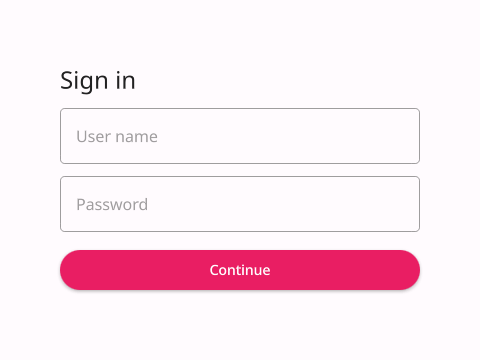
Shown with the Material style.
Show the code
// Copyright (C) 2026 The Qt Company Ltd.
// SPDX-License-Identifier: LicenseRef-Qt-Commercial OR BSD-3-Clause

import QtQuick
import QtQuick.Controls.Material
import QtQuick.Layouts

ApplicationWindow {
    id: root
    width: 480
    height: 360
    minimumWidth: 320
    minimumHeight: 240
    visible: true
    title: qsTr("Single page")

    ColumnLayout {
        anchors.centerIn: parent
        width: Math.min(parent.width - 48, 360)
        spacing: 12

        Label {
            text: qsTr("Sign in")
            font.pixelSize: 24
        }
        TextField {
            Layout.fillWidth: true
            placeholderText: qsTr("User name")
        }
        TextField {
            Layout.fillWidth: true
            placeholderText: qsTr("Password")
            echoMode: TextInput.Password
        }
        Button {
            Layout.fillWidth: true
            text: qsTr("Continue")
            highlighted: true
        }
    }
}
2. Header, content, footer
A toolbar at the top, a status bar at the bottom, and the content in between. This is the classic desktop application frame.
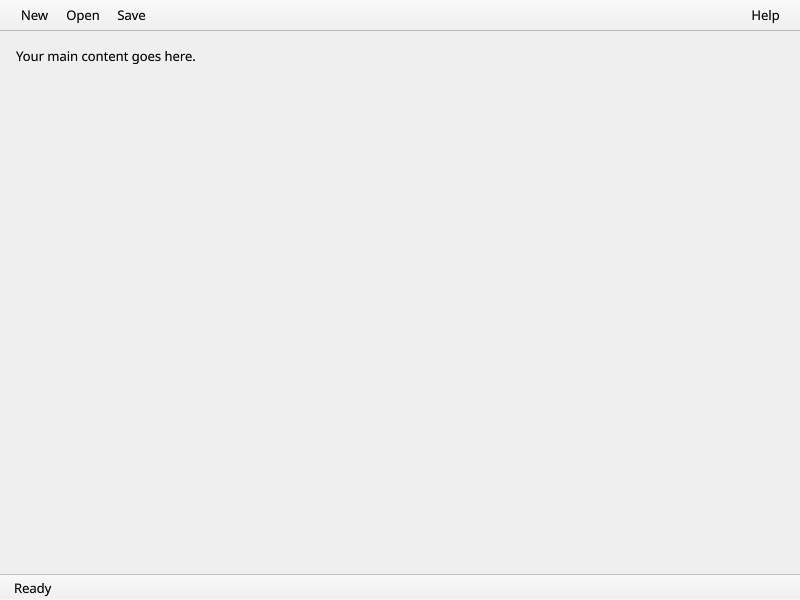
Shown with the Fusion style.
Show the code
// Copyright (C) 2026 The Qt Company Ltd.
// SPDX-License-Identifier: LicenseRef-Qt-Commercial OR BSD-3-Clause

import QtQuick
import QtQuick.Controls.Fusion
import QtQuick.Layouts

ApplicationWindow {
    width: 800
    height: 600
    minimumWidth: 400
    minimumHeight: 300
    visible: true
    title: qsTr("Header, content, footer")

    header: ToolBar {
        RowLayout {
            anchors.fill: parent
            anchors.leftMargin: 8
            anchors.rightMargin: 8

            ToolButton { text: qsTr("New") }
            ToolButton { text: qsTr("Open") }
            ToolButton { text: qsTr("Save") }
            Item { Layout.fillWidth: true }  // pushes what follows to the right
            ToolButton { text: qsTr("Help") }
        }
    }

    footer: ToolBar {
        Label {
            anchors.verticalCenter: parent.verticalCenter
            anchors.left: parent.left
            anchors.leftMargin: 8
            text: qsTr("Ready")
        }
    }

    // The window content fills the space between header and footer
    ScrollView {
        anchors.fill: parent
        contentWidth: availableWidth

        Label {
            width: parent.width
            padding: 16
            wrapMode: Text.Wrap
            text: qsTr("Your main content goes here.")
        }
    }
}
3. Sidebar and content
A side column for navigation or a file tree, and a main column for the content. The SplitView lets users resize both columns by dragging the handle.
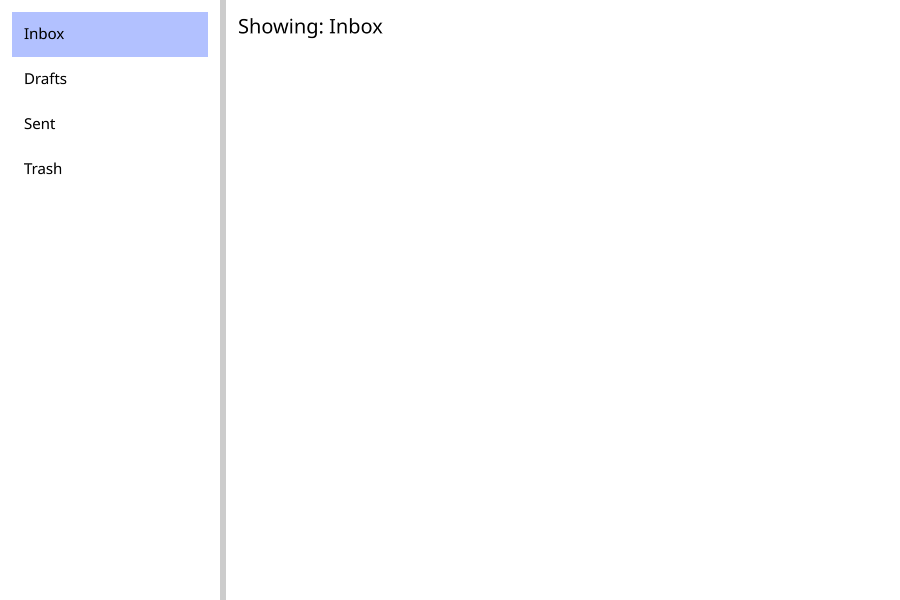
Shown with the Universal style.
Show the code
// Copyright (C) 2026 The Qt Company Ltd.
// SPDX-License-Identifier: LicenseRef-Qt-Commercial OR BSD-3-Clause

import QtQuick
import QtQuick.Controls.Universal
import QtQuick.Layouts

ApplicationWindow {
    width: 900
    height: 600
    minimumWidth: 500
    minimumHeight: 300
    visible: true
    title: qsTr("Sidebar and content")

    SplitView {
        anchors.fill: parent

        // Side column
        Pane {
            SplitView.preferredWidth: 220
            SplitView.minimumWidth: 140
            SplitView.maximumWidth: 400

            ListView {
                id: sidebar
                anchors.fill: parent
                model: [qsTr("Inbox"), qsTr("Drafts"), qsTr("Sent"), qsTr("Trash")]
                currentIndex: 0
                delegate: ItemDelegate {
                    required property int index
                    required property string modelData
                    width: ListView.view.width
                    text: modelData
                    highlighted: ListView.isCurrentItem
                    onClicked: sidebar.currentIndex = index
                }
            }
        }

        // Main column
        Pane {
            SplitView.fillWidth: true

            Label {
                text: qsTr("Showing: %1").arg(sidebar.currentItem
                                              ? sidebar.currentItem.text : "")
                font.pixelSize: 20
            }
        }
    }
}
4. Tabs
Top-level sections selected with a TabBar. Use it when the sections are equally important and the user switches between them often. A StackLayout shows only the page that matches the current tab.
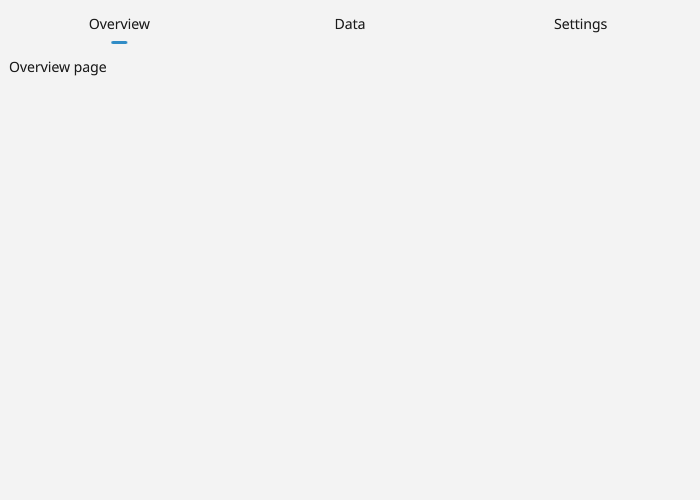
Shown with the Fluent (FluentWinUI3) style.
Show the code
// Copyright (C) 2026 The Qt Company Ltd.
// SPDX-License-Identifier: LicenseRef-Qt-Commercial OR BSD-3-Clause

import QtQuick
import QtQuick.Controls.FluentWinUI3
import QtQuick.Layouts

ApplicationWindow {
    width: 700
    height: 500
    minimumWidth: 400
    minimumHeight: 300
    visible: true
    title: qsTr("Tabs")

    header: TabBar {
        id: bar
        TabButton { text: qsTr("Overview") }
        TabButton { text: qsTr("Data") }
        TabButton { text: qsTr("Settings") }
    }

    StackLayout {
        anchors.fill: parent
        currentIndex: bar.currentIndex

        Pane { Label { text: qsTr("Overview page") } }
        Pane { Label { text: qsTr("Data page") } }
        Pane { Label { text: qsTr("Settings page") } }
    }
}
Note: In a real application, move each page into its own .qml file, for example OverviewPage.qml, and use it as OverviewPage {}.
5. Master-detail
A list of items on the left and the details of the selected item on the right. This is the natural fit for data coming from a backend model, such as contacts, messages, or products.
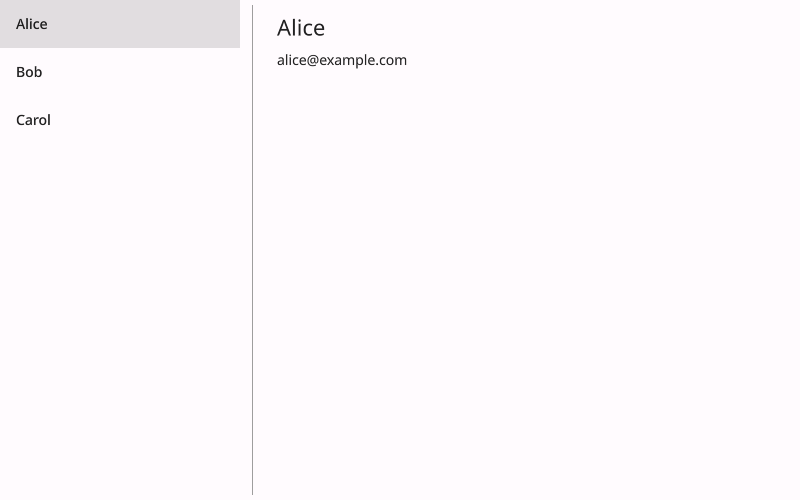
Shown with the Material style.
Show the code
// Copyright (C) 2026 The Qt Company Ltd.
// SPDX-License-Identifier: LicenseRef-Qt-Commercial OR BSD-3-Clause

import QtQuick
import QtQuick.Controls.Material
import QtQuick.Layouts

ApplicationWindow {
    width: 800
    height: 500
    minimumWidth: 480
    minimumHeight: 300
    visible: true
    title: qsTr("Master-detail")

    // Replace this with a model exposed by your backend
    ListModel {
        id: items
        ListElement { name: "Alice"; email: "alice@example.com" }
        ListElement { name: "Bob"; email: "bob@example.com" }
        ListElement { name: "Carol"; email: "carol@example.com" }
    }

    RowLayout {
        anchors.fill: parent
        spacing: 0

        ListView {
            id: list
            Layout.preferredWidth: 240
            Layout.fillHeight: true
            clip: true
            model: items
            currentIndex: 0
            delegate: ItemDelegate {
                required property int index
                required property string name
                width: ListView.view.width
                text: name
                highlighted: ListView.isCurrentItem
                onClicked: list.currentIndex = index
            }
            ScrollBar.vertical: ScrollBar {}
        }

        ToolSeparator { Layout.fillHeight: true }

        Pane {
            Layout.fillWidth: true
            Layout.fillHeight: true

            ColumnLayout {
                visible: list.currentIndex >= 0
                spacing: 8

                Label {
                    text: list.currentIndex >= 0 ? items.get(list.currentIndex).name : ""
                    font.pixelSize: 22
                }
                Label {
                    text: list.currentIndex >= 0 ? items.get(list.currentIndex).email : ""
                }
            }
            Label {
                anchors.centerIn: parent
                visible: list.currentIndex < 0
                text: qsTr("Select an item")
                opacity: 0.6
            }
        }
    }
}
6. Drawer navigation
A menu that slides in from the side, plus a StackView to move between pages and come back. It works well when you have many destinations, or when the window can be narrow.
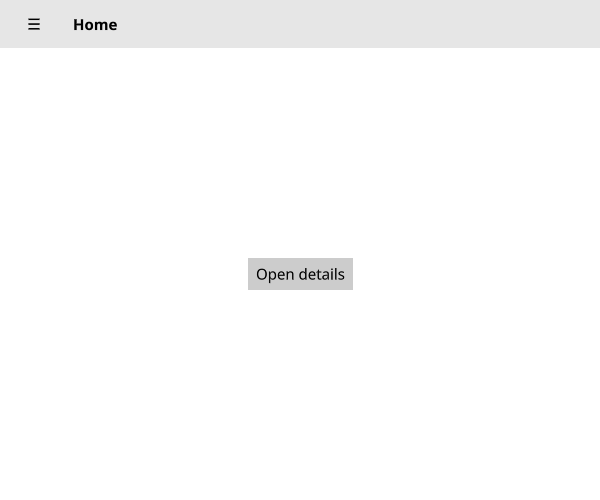
Shown with the Universal style.
Show the code
// Copyright (C) 2026 The Qt Company Ltd.
// SPDX-License-Identifier: LicenseRef-Qt-Commercial OR BSD-3-Clause

import QtQuick
import QtQuick.Controls.Universal
import QtQuick.Layouts

ApplicationWindow {
    width: 600
    height: 500
    minimumWidth: 320
    minimumHeight: 300
    visible: true
    title: qsTr("Drawer navigation")

    header: ToolBar {
        RowLayout {
            anchors.fill: parent

            ToolButton {
                text: stack.depth > 1 ? "‹" : "☰"  // back or menu
                onClicked: stack.depth > 1 ? stack.pop() : drawer.open()
            }
            Label {
                Layout.fillWidth: true
                text: stack.currentItem ? stack.currentItem.title : ""
                font.bold: true
            }
        }
    }

    Drawer {
        id: drawer
        width: Math.min(parent.width * 0.7, 280)
        height: parent.height

        Column {
            anchors.fill: parent

            ItemDelegate {
                width: parent.width
                text: qsTr("Home")
                onClicked: { stack.replace(homePage); drawer.close() }
            }
            ItemDelegate {
                width: parent.width
                text: qsTr("About")
                onClicked: { stack.replace(aboutPage); drawer.close() }
            }
        }
    }

    StackView {
        id: stack
        anchors.fill: parent
        initialItem: homePage
    }

    Component {
        id: homePage
        Page {
            title: qsTr("Home")
            Button {
                anchors.centerIn: parent
                text: qsTr("Open details")
                onClicked: stack.push(aboutPage)
            }
        }
    }

    Component {
        id: aboutPage
        Page {
            title: qsTr("About")
            Label { anchors.centerIn: parent; text: qsTr("About this app") }
        }
    }
}
7. Dashboard grid
Cards arranged in a grid that changes the number of columns with the window width. Use it for overviews, galleries, and status pages.
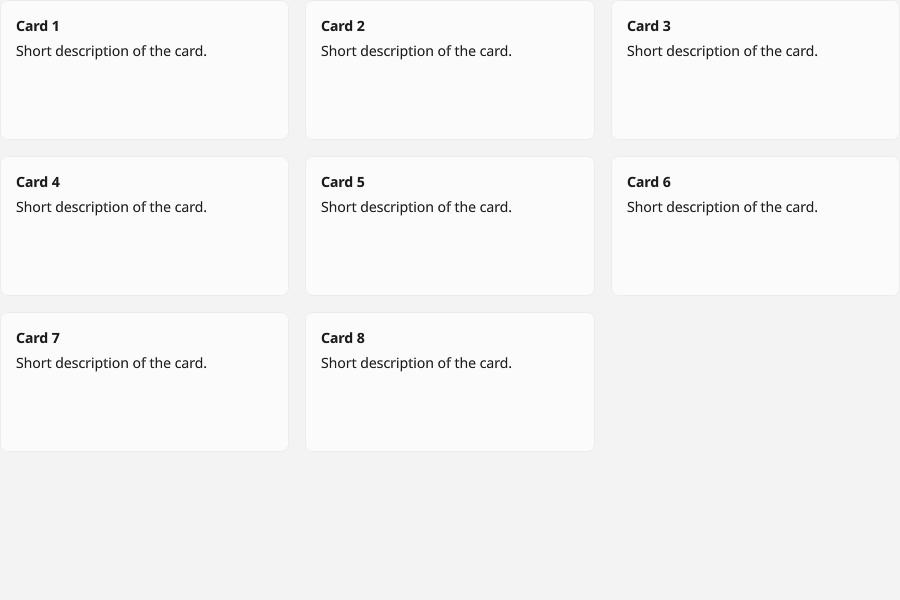
Shown with the Fluent (FluentWinUI3) style.
Show the code
// Copyright (C) 2026 The Qt Company Ltd.
// SPDX-License-Identifier: LicenseRef-Qt-Commercial OR BSD-3-Clause

import QtQuick
import QtQuick.Controls.FluentWinUI3
import QtQuick.Layouts

ApplicationWindow {
    width: 900
    height: 600
    minimumWidth: 360
    minimumHeight: 300
    visible: true
    title: qsTr("Dashboard grid")

    ScrollView {
        anchors.fill: parent
        contentWidth: availableWidth

        GridLayout {
            width: parent.width
            columns: Math.max(1, Math.floor(width / 240))
            rowSpacing: 16
            columnSpacing: 16

            Repeater {
                model: 8

                Frame {
                    required property int index
                    Layout.fillWidth: true
                    Layout.preferredHeight: 140

                    ColumnLayout {
                        anchors.fill: parent

                        Label {
                            text: qsTr("Card %1").arg(index + 1)
                            font.bold: true
                        }
                        Label {
                            Layout.fillWidth: true
                            Layout.fillHeight: true
                            wrapMode: Text.Wrap
                            text: qsTr("Short description of the card.")
                        }
                    }
                }
            }
        }
    }
}
8. Three-pane workspace
Tools on the left, a work area in the center, and an inspector on the right, with a status bar underneath. This is the typical structure of editors, IDEs, and design tools. It combines the ideas of the previous layouts.
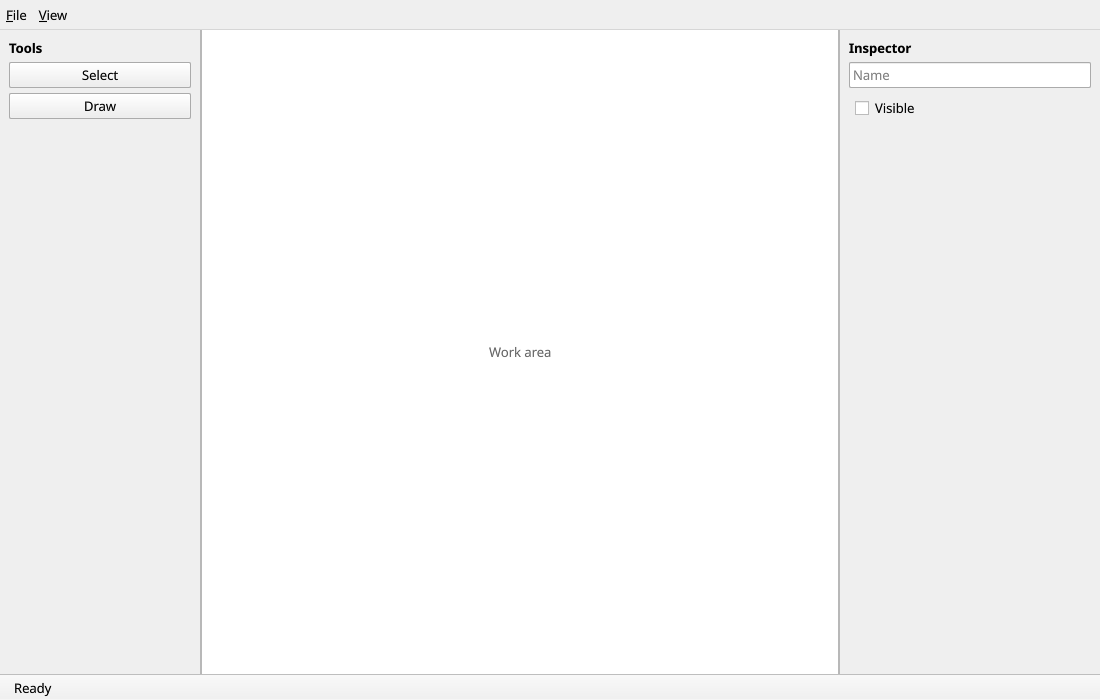
Shown with the Fusion style.
Show the code
// Copyright (C) 2026 The Qt Company Ltd.
// SPDX-License-Identifier: LicenseRef-Qt-Commercial OR BSD-3-Clause

import QtQuick
import QtQuick.Controls.Fusion
import QtQuick.Layouts

ApplicationWindow {
    width: 1100
    height: 700
    minimumWidth: 640
    minimumHeight: 400
    visible: true
    title: qsTr("Three-pane workspace")

    menuBar: MenuBar {
        Menu {
            title: qsTr("&File")
            MenuItem { text: qsTr("&Open...") }
            MenuItem { text: qsTr("&Quit"); onTriggered: Qt.quit() }
        }
        Menu {
            title: qsTr("&View")
            MenuItem { text: qsTr("Show &inspector"); checkable: true; checked: true }
        }
    }

    footer: ToolBar {
        Label {
            anchors.verticalCenter: parent.verticalCenter
            anchors.left: parent.left
            anchors.leftMargin: 8
            text: qsTr("Ready")
        }
    }

    SplitView {
        anchors.fill: parent

        // Tools
        Pane {
            SplitView.preferredWidth: 200
            SplitView.minimumWidth: 120

            ColumnLayout {
                anchors.fill: parent
                Label { text: qsTr("Tools"); font.bold: true }
                Button { Layout.fillWidth: true; text: qsTr("Select") }
                Button { Layout.fillWidth: true; text: qsTr("Draw") }
                Item { Layout.fillHeight: true }
            }
        }

        // Work area
        Rectangle {
            SplitView.fillWidth: true
            color: palette.base

            Label {
                anchors.centerIn: parent
                text: qsTr("Work area")
                opacity: 0.6
            }
        }

        // Inspector
        Pane {
            SplitView.preferredWidth: 260
            SplitView.minimumWidth: 160

            ColumnLayout {
                anchors.fill: parent
                Label { text: qsTr("Inspector"); font.bold: true }
                TextField { Layout.fillWidth: true; placeholderText: qsTr("Name") }
                CheckBox { text: qsTr("Visible") }
                Item { Layout.fillHeight: true }
            }
        }
    }
}
Where to go next
- Move repeated parts into their own
.qmlfiles and reuse them as components. - Replace the placeholder models with a model provided by your backend. See the documentation of your language for how to expose data to QML.
- Explore the Qt Quick layouts documentation to learn about anchors, alignment, and size policies.
- For complete applications, see the Qt Quick examples.
© 2026 The Qt Company Ltd. Documentation contributions included herein are the copyrights of their respective owners. The documentation provided herein is licensed under the terms of the GNU Free Documentation License version 1.3 as published by the Free Software Foundation. Qt and respective logos are trademarks of The Qt Company Ltd. in Finland and/or other countries worldwide. All other trademarks are property of their respective owners.
