
ボタンを作成する
ボタンコンポーネントを作成するには:
- 「File 」>「New File 」> Qt Quick Files > Qt Quick UI File > 「Choose 」を選択し、「
Button.ui.qml」(例)という名前のUI ファイルを作成します。注: ファイル名が大文字で始まる場合のみ、Components >My Components にコンポーネント が一覧表示されます。
- 「Design 」を選択し、「2D 」ビューでファイルを編集します。
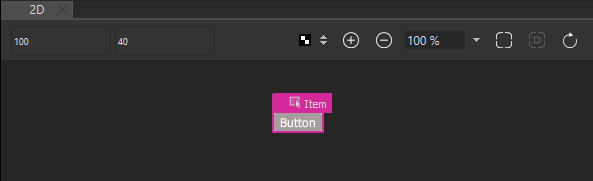
- Navigator で、Item を選択し、Properties にあるボタンの幅 (W) と高さ (H) を設定します。
- 「Components 」>「Default Components 」>「Basic 」から「Rectangle 」を、「Navigator 」内のコンポーネントにドラッグします。これにより、「Item」が「Rectangle」の親となるネストされたコンポーネントが作成されます。コンポーネントは親を基準に配置されます。
- 「Properties 」ビューで、矩形の外観を変更します。
- 「Color 」フィールドで、ボタンの色を選択します。
- 「Radius 」フィールドで、ボタンの角を丸くするために矩形の半径を設定します。
- 「Layout 」を選択し、次に「
 (Fill to Parent )」ボタンを選択して、矩形をそのアイテムにアンカーします。
- 「Navigator 」で、「Text 」コンポーネントを「Item」にドラッグします。
- 「Properties 」ビューで、Text コンポーネントのプロパティを編集します。
- 「Text 」フィールドに「Button」と入力します。
「Text color 」フィールドでテキストの色を、また「Font 」セクションでフォント、サイズ、スタイルを選択できます。
- 「Alignment 」フィールドで、中央のボタンを選択すると、テキストがボタンの中央に揃います。
- 「Layout 」>「Fill to Parent 」を選択すると、テキストをボタン領域全体に配置できます。
- 「Text 」フィールドに「Button」と入力します。
- Ctrl+Sを押してボタンを保存します。
ボタンコンポーネントを実際に使用するには、プロジェクト内で作成する必要があります。 プロジェクト内の他のファイルで、UI 用の画面やその他のコンポーネントを作成すると、そのボタンコンポーネントが [Components ] > [My Components] に表示されます。これを使用してボタンインスタンスを作成し、プロパティを変更して、例えば、各ボタンインスタンスに適切な ID を割り当てたり、外観を変更したり、ボタンテキストを設定したりすることができます。
ベクターグラフィックスを使用せずに、美しくスケーリングされるグラフィカルなボタンを作成するには、BorderImage コンポーネントを使用します。詳細については、「スケーラブルなボタンとボーダーの作成」を参照してください。
「UI コンポーネントの使用方法」、「 Qt Quick の UI デザイン」、および「 Qt Quick UI の設計」も参照してください 。
Copyright © The Qt Company Ltd. and other contributors. Documentation contributions included herein are the copyrights of their respective owners. The documentation provided herein is licensed under the terms of the GNU Free Documentation License version 1.3 as published by the Free Software Foundation. Qt and respective logos are trademarks of The Qt Company Ltd in Finland and/or other countries worldwide. All other trademarks are property of their respective owners.
