
添加Boot to Qt 设备
注意:请启用 Boot to Qt 插件才能使用该功能。
如果Qt Creator 无法自动检测到您通过USB连接的Boot to Qt 设备,请检查您是否已按照该设备的《快速入门指南》中的说明操作。
如果上述方法无效,但您可以访问该设备的 IP 地址,请创建与该设备的网络连接:
- 进入Preferences >Devices >Devices 。
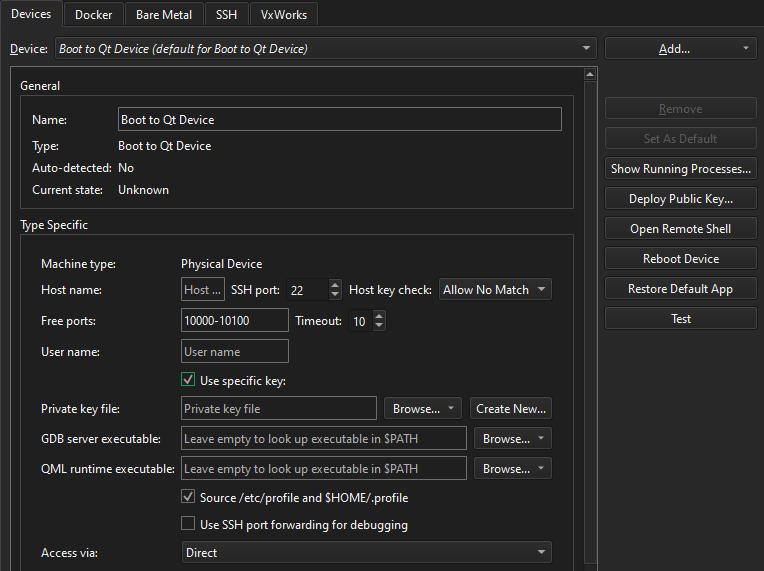
- 选择“Add ” > “Boot2Qt Device ”以建立与该设备的网络连接。
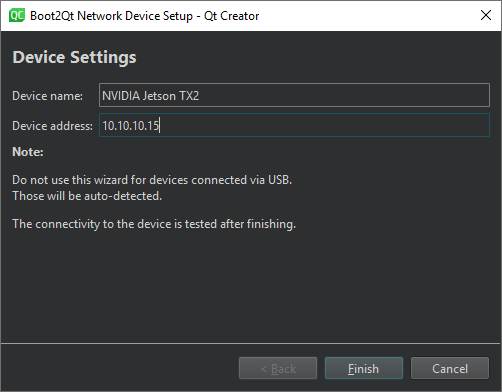
- 在“Device name ”中,为该连接输入一个名称。
- 在“Device address ”中,输入设备的主机名或 IP 地址。该值将成为“
%{Device:HostAddress}”变量的值。 - 选择“Finish ”以测试连接并添加设备。
向导不会显示具有合理默认值的参数,例如 SSH 端口号。该参数可在变量%{Device:SshPort} 中获取。
若要不使用向导添加设备,请在“Add ”按钮的下拉菜单中选择“Boot2Qt Device ”。
注意:在 Ubuntu Linux系统上 ,开发用户账户必须具备对已连接设备的访问权限。若要授予其通过 USB 访问设备的权限,请按照《Boot to Qt :设置嵌入式设备的 USB 访问》中的说明,创建一条新的udev 规则。
重启设备
要重启所选设备,请选择“Reboot Device ”。
恢复默认应用程序
若要将设备恢复为默认应用程序,请选择“Restore Default App ”。
另请参阅 “启用和禁用插件”、“操作指南:为Boot to Qt 开发”、“为Boot to Qt 设备开发”、“远程调试”以及《Boot to Qt :设置对嵌入式设备的 USB 访问》。
Copyright © The Qt Company Ltd. and other contributors. Documentation contributions included herein are the copyrights of their respective owners. The documentation provided herein is licensed under the terms of the GNU Free Documentation License version 1.3 as published by the Free Software Foundation. Qt and respective logos are trademarks of The Qt Company Ltd in Finland and/or other countries worldwide. All other trademarks are property of their respective owners.
