
添加 QNX Neutrino 设备
您可以使用向导添加 QNX Neutrino 设备,也可以手动添加。
使用向导添加设备
若要使用向导添加QNX Device :
- 转至“Preferences ” > “Devices ” > “Devices ”。
- 选择“Add ” > “QNX Device ” > “Start Wizard ”。
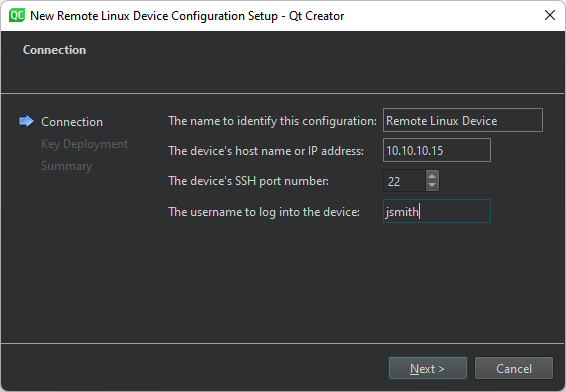
- 在“The name to identify this configuration ”中,输入连接的名称。
- 在“The device's host name or IP address ”中,输入设备的主机名或 IP 地址。这将成为
%{Device:HostAddress}变量的值。 - 在The device's SSH port number 中,输入SSH连接的端口号。这将成为
%{Device:SshPort}变量的值。 - 在“The username to log into the device ”中,输入用于登录设备并运行应用程序的用户名。这将成为
%{Device:UserName}变量的值。 - 选择“Next ”以打开“Key Deployment ”对话框。
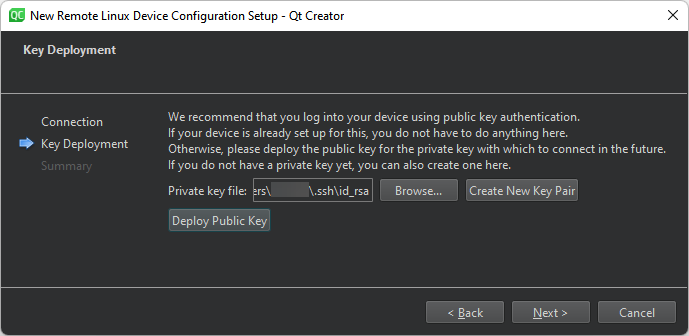
- 在“Private key file ”中,选择用于身份验证的私钥文件。该文件将成为
%{Device:PrivateKeyFile}变量的值。 - 如果您没有公私钥对,请选择“Create New Key Pair ”。有关详细信息,请参阅“生成 SSH 密钥”。
- 选择“Deploy Public Key ”将公钥复制到设备上。
- 选择“Next ”以建立连接。
要更改设备首选项,请转到Preferences >Devices >Devices ,并在“Device ”中选择一台设备。
手动添加设备
若要不使用向导添加设备,请在“Add ”按钮的下拉菜单中选择“QNX Device ”。
另请参阅 《QNX Neutrino 设备开发指南》、《QNX 开发指南》、 《远程 Linux 开发指南》以及《开发套件管理指南》。
Copyright © The Qt Company Ltd. and other contributors. Documentation contributions included herein are the copyrights of their respective owners. The documentation provided herein is licensed under the terms of the GNU Free Documentation License version 1.3 as published by the Free Software Foundation. Qt and respective logos are trademarks of The Qt Company Ltd in Finland and/or other countries worldwide. All other trademarks are property of their respective owners.
