
启动并调试外部应用程序
若要在本地或远程计算机上调试任何可执行文件(无需使用项目),请指定一个能够识别待调试应用程序所在设备的构建和运行套件。
虽然“启动外部调试器”模式并不严格要求在Qt Creator 中打开项目,但打开项目可以更方便地设置断点和逐步执行代码。
要启动并调试外部应用程序:
- 转到“Debug ” > “Start Debugging ” > “Start and Debug External Application ”。
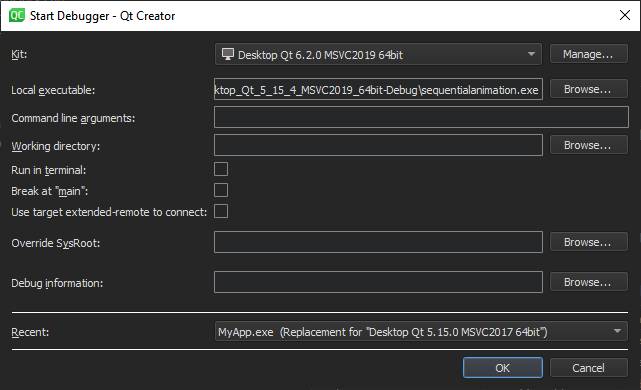
- 在Kit 中,选择用于构建该项目的构建和运行套件。
- 在“Local executable ”中,指定本地计算机上应用程序可执行文件的路径。
- 在“Command line arguments ”中,指定要传递给可执行文件的命令行参数。
- 在“Working directory ”中,指定工作目录。默认值为构建结果所在的目录。
- 对于控制台应用程序,请选择“Run in terminal ”。
- 选择“Break at "main" ”可使调试器在主函数处暂停。
- 选择“Use target extended-remote to connect ”可在
target extended-remote mode中建立连接。在此模式下,当被调试的应用程序退出或您与其断开连接时,调试器仍保持与目标设备的连接。 您可以重新运行应用程序、附加到正在运行的应用程序,或使用针对该目标的特定监视命令。例如,除非使用--once选项调用 GDB,否则它不会退出,但您可以使用monitor exit命令使其退出。 - 在Override SysRoot 中,指定要使用的
sysroot的路径,以替代默认的sysroot。 - 在Debug information 中,指定用于存储调试信息的位置。不能使用空路径。
- 在“Recent ”中,您可以选择要使用的最近配置。
Copyright © The Qt Company Ltd. and other contributors. Documentation contributions included herein are the copyrights of their respective owners. The documentation provided herein is licensed under the terms of the GNU Free Documentation License version 1.3 as published by the Free Software Foundation. Qt and respective logos are trademarks of The Qt Company Ltd in Finland and/or other countries worldwide. All other trademarks are property of their respective owners.
