
为项目激活测试套件
Projects 模式侧边栏中的“Build & Run ”部分列出了与您的项目兼容的试剂盒。要激活一个或多个试剂盒,请选中它们。
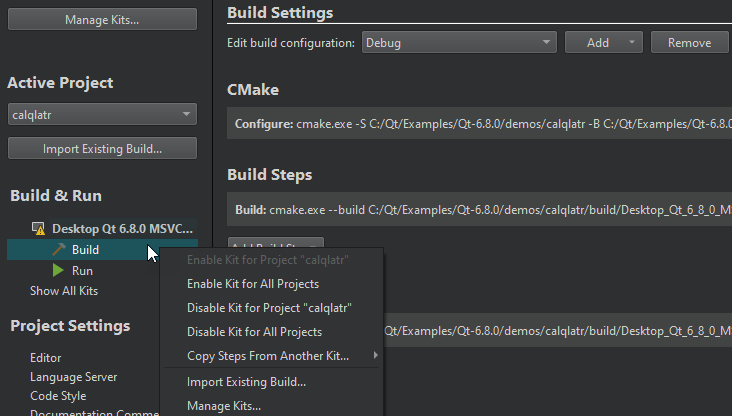
该列表显示来自“Preferences >Kits ”的试剂盒。警告和错误图标表示该试剂盒的配置不适合该项目类型。要查看警告和错误消息,请将鼠标指针悬停在试剂盒名称上。
若要从列表中隐藏未激活的套件,请选择“Show Only Active Kits ”。若要再次显示它们,请选择“Show Only Suitable Kits ”或“Show All Kits ”。
更改和添加套件
若要修改套件配置、将套件添加到列表中或从列表中移除套件,请选择“Manage Kits ”。
每个套件由一组定义特定环境的参数组成,例如设备、编译器、调试和 Qt 版本,以及用于构建、部署和运行应用程序的步骤。
要复制另一个套件中的构建、部署和运行步骤,请转到“Projects ” > “Build & Run ”,右键单击一个套件,然后在上下文菜单中选择“Copy Steps from Another Kit ”。
要停用某个套件,请在上下文菜单中选择“Disable Kit for Project ”。
注意:停用 套件会删除该套件的所有自定义构建和运行设置。
要为项目导入现有的构建,请选择“Import Existing Build ”。
从已消失的目标中复制自定义设置
Qt Creator 将生成一个“Vanished Targets ”列表,用于保存项目特定的设置(例如自定义构建标志或运行配置参数),这些设置在您更新 Qt 安装时,如果Qt Online Installer 删除了相应的套件,将会丢失。
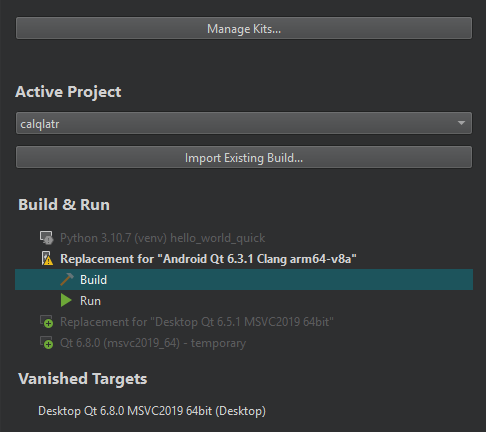
请在上下文菜单中选择以下选项之一以恢复项目设置:
- Create a New Kit 为同一设备类型创建一个同名的新套件,其中包含原始的构建、部署和运行步骤。其他套件设置不会被恢复。
- Copy Steps to Another Kit 将构建、部署和运行步骤复制到另一个套件中。
要删除已消失的目标,请在上下文菜单中选择“Remove Vanished Target ”或“Remove All Vanished Targets ”。
注意:自 13.0 版本起 ,“Qt Creator ” 功能不再创建替换套件,但您可能仍会在现有项目中看到相关条目。您可以将其中的构建、部署和运行步骤复制到其他套件中。
另请参阅 《操作指南:管理套件》、《构建和运行项目》以及《管理套件》。
Copyright © The Qt Company Ltd. and other contributors. Documentation contributions included herein are the copyrights of their respective owners. The documentation provided herein is licensed under the terms of the GNU Free Documentation License version 1.3 as published by the Free Software Foundation. Qt and respective logos are trademarks of The Qt Company Ltd in Finland and/or other countries worldwide. All other trademarks are property of their respective owners.
