
教程:Qt Quick 与Python
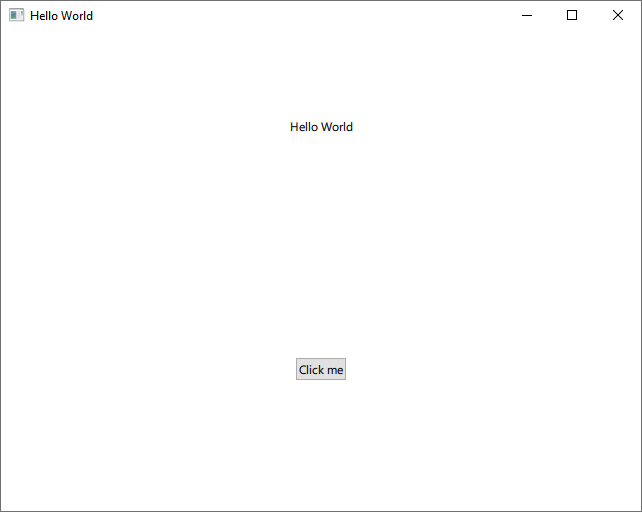
首先,创建一个Qt for Python 应用程序项目。然后,编辑模板代码,开发一个使用Qt Quick 以多种语言显示“Hello World”文本的小型应用程序。
有关创建Qt for Python 应用程序的更多示例,请参阅《Qt for Python 示例与教程》。
创建一个空项目
要创建一个包含主 QML 文件的Qt for Python 应用程序:
- 转到“File ” > “New Project ”。
- 选择 Application (Qt for Python) > Qt Quick Application - Empty >Choose ,以打开“Project Location ”对话框。
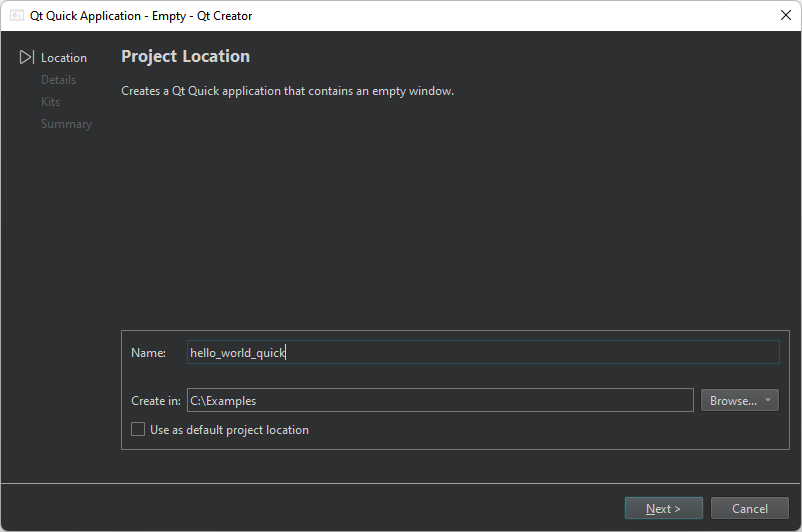
- 在“Name ”中,输入项目名称。例如,hello_world_quick。
- 在“Create in ”中,输入项目文件的路径。例如,
C:\Examples。 - 选择“Next ”(Windows 和 Linux 系统)或“Continue ”(macOS 系统)以打开“Define Project Details ”对话框。
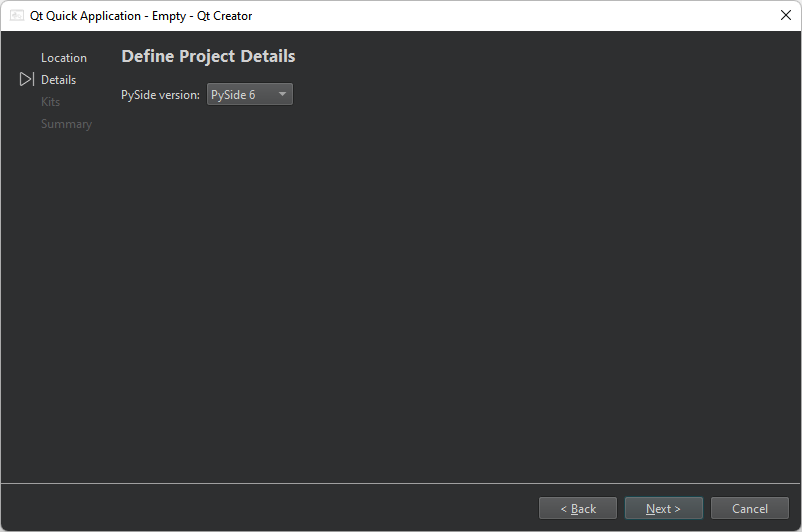
- 在“PySide version ”中,选择生成的代码对应的 PySide 版本。
- 选择Next 或Continue 以打开“Kit Selection ”对话框。
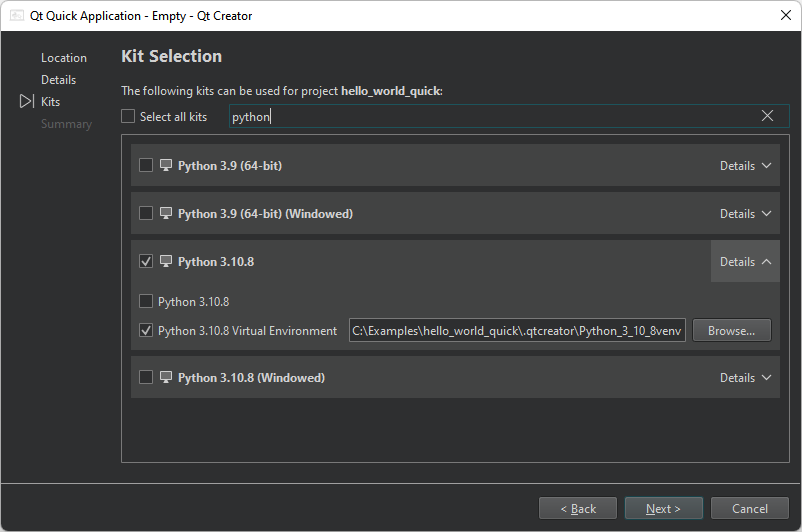
- 选择用于构建、部署和运行项目的 Python 工具包。默认情况下,这会在源代码目录内为项目创建一个虚拟环境。若要使用全局解释器,请选择与“Details ”中该工具包的 Python 名称相同的构建配置。
- 检查项目设置,然后选择“Finish ”(Windows 和 Linux 系统)或“Done ”(macOS 系统)以创建项目。
向导会为同名的 QML 模块创建一个以项目命名的子目录,并生成以下文件:
pyproject.toml,其中列出了 Python 项目中的文件及其他配置。main.py,其中包含一些模板代码。<ProjectName>/Main.qml,用于导入Qt Quick 控件。<ProjectName>/qmldir,用于声明一个 QML 模块。requirements.txt,用于存储生成的代码所对应的 PySide 版本。您可以使用该文件通过 pip 安装所需的 PySide 版本。
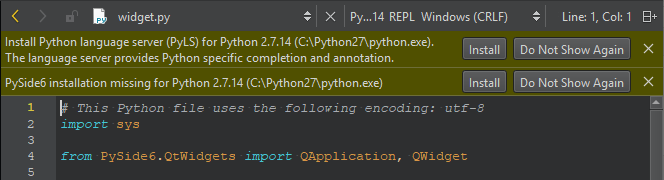
为项目安装 PySide6
在“Edit ”模式下,选择“Install ”为项目配置 PySide6。
添加Qt Quick 导入
向导会向main.py 源文件中添加以下导入语句,以便访问QGuiApplication 和QQmlApplicationEngine :
import sys
from pathlib import Path

from PySide6.QtGui import QGuiApplication
from PySide6.QtQml import QQmlApplicationEngine
添加 main 函数
向导还会添加一个 main 函数,在其中创建一个QGuiApplication 实例,并将系统参数传递给QGuiApplication 对象:
if __name__ == "__main__":
    app = QGuiApplication(sys.argv)
    ...
加载 QML 文件
main 类中的以下几行代码创建了一个QQmlApplicationEngine 实例,并将生成的 QML 模块加载到引擎对象中:
...
engine = QQmlApplicationEngine()
engine.addImportPath(Path(__file__).parent)
engine.loadFromModule("ProjectName", "Main")
...
最后,向导会添加一段代码来检查文件是否已成功加载。如果加载文件失败,应用程序将返回错误代码并退出;如果加载成功,向导将调用app.exec() 方法,进入Qt主循环并开始执行Qt代码:
...
if not engine.rootObjects():
    sys.exit(-1)
sys.exit(app.exec())
...
设计用户界面
以“Edit ”模式打开Main.qml 文件,以设计Qt Quick 用户界面。
添加导入
为Qt Quick 控件和布局添加导入语句:
import QtQuick
import QtQuick.Window
import QtQuick.Controls
import QtQuick.Layouts
添加属性和函数
向导会添加一个主窗口:
Window {
    width: 640
    height: 480
    visible: true
    title: qsTr("Hello World")
}
添加一个属性与函数,用于随机选择显示文本的语言:
    ...
    readonly property list<string> texts: ["Hallo Welt", "Hei maailma",
                                       "Hola Mundo", "Привет мир"]

function setText() {
    var i = Math.round(Math.random() * 3)
    text.text = texts[i]
}添加Qt Quick 控件
在ColumnLayout 类型中添加Text 和ButtonQML类型以设计用户界面:
    ColumnLayout {
    anchors.fill:  parent

    Text {
        id: text
        text: "Hello World"
        Layout.alignment: Qt.AlignHCenter
    }
    Button {
        text: "Click me"
        Layout.alignment: Qt.AlignHCenter
        onClicked:  setText()
    }
}您还可以使用Qt Quick Designer或Qt Design Studio 来设计Qt Quick 用户界面。
运行应用程序
选择“ ”(Run )以运行应用程序。
另请参阅 《教程:Qt Widgets 与 Python》、《教程:Qt Widgets UI 与 Python》以及《开发Qt for Python 应用程序》。
Copyright © The Qt Company Ltd. and other contributors. Documentation contributions included herein are the copyrights of their respective owners. The documentation provided herein is licensed under the terms of the GNU Free Documentation License version 1.3 as published by the Free Software Foundation. Qt and respective logos are trademarks of The Qt Company Ltd in Finland and/or other countries worldwide. All other trademarks are property of their respective owners.
