
编辑动画曲线
“Curves ”视图显示了动画属性在动画范围内的插值值。
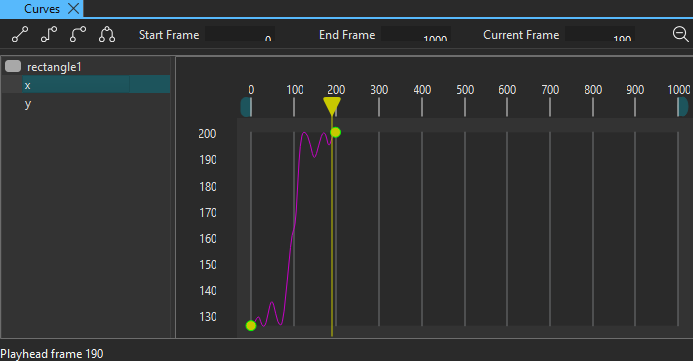
当您编辑动画曲线时,实际上也在编辑底层系统用于定义动画的缓入/缓出曲线。动画曲线是一种扩展功能,可同时可视化关键帧的值以及关键帧之间的插值情况。
在关键帧之间应用插值
您可以使用工具栏按钮在关键帧之间添加Linear 、Step 或Spline 插值。
要在关键帧之间应用插值:
- 选择关键帧。要选择多个关键帧,请按住Ctrl 键,然后逐个选择。
- 根据您要使用的插值方法,选择“
 ”(Linear )、“
 ”(Step )或“
 ”(Spline )。
当您将插值设置为“Spline ”时,Curves 中会出现控制点,您可以使用它们来修改曲线。选择 (Unify )可将关键帧左侧的控制点与右侧的控制点锁定,这样移动左侧控制点时,右侧控制点也会随之移动。
解锁属性与缓动曲线
如果包含动画属性的组件已在“导航器”中被锁定,您可以选择 来解锁它。您还可以锁定单个缓动曲线以便进行编辑。
锁定动画曲线
要锁定动画曲线,请将鼠标悬停在列表中的属性上,然后选择 。
。
固定动画曲线
要固定动画曲线,请将鼠标悬停在列表中的属性上,然后选择“ ”。
”。
向动画曲线添加关键帧
要向动画曲线添加关键帧:
- 在“Timeline ”视图中,通过为至少一个属性插入关键帧来对其进行动画处理。
- 选择“View ” > “Views ” > “Curves ”以打开动画曲线编辑器。
- 在“Curves ”中右键单击,然后选择“Insert Keyframe ”以添加关键帧。
- 在列表中选择属性,以显示与其关联的缓动曲线。要选择多个属性,请按住Ctrl 键,然后逐一选择。
关闭视图时,您的更改会自动保存。
删除曲线中的关键帧
要删除所选关键帧,请在上下文菜单中选择“Delete Selected Keyframes ”。
另请参阅 《操作指南:添加动画》、《Qt Quick UI 设计》和《设计Qt Quick UI》。
Copyright © The Qt Company Ltd. and other contributors. Documentation contributions included herein are the copyrights of their respective owners. The documentation provided herein is licensed under the terms of the GNU Free Documentation License version 1.3 as published by the Free Software Foundation. Qt and respective logos are trademarks of The Qt Company Ltd in Finland and/or other countries worldwide. All other trademarks are property of their respective owners.
